


Ever wasted time installing Node just to try a tiny TypeScript idea?
The TypeScript playground removes that friction: a browser editor that compiles and runs your TypeScript instantly, shows the generated JavaScript next to your code, and flags type errors live.
This post walks you through the fast workflow: edit, press save, inspect transpiled output and console logs, tweak compiler options, and share working links.
If you want quick prototypes, debugging, or to see how types map to JS, the playground gets you there in seconds.
Instant Access to an Interactive TypeScript Environment

A TypeScript playground is a web-based editor where you write, compile, and run TypeScript code instantly. No Node.js install, no compiler setup, no local tooling. You open a browser, start typing, and see JavaScript output right away.
Press CTRL + S to recompile. The playground transpiles your TypeScript into JavaScript on every save and displays the result in a side panel. Inline diagnostics flag type errors, missing imports, and syntax issues while you type, so you catch problems before running anything. This live feedback loop is great for testing language features, prototyping functions, or debugging type definitions without spinning up a local dev environment.
The compiled JavaScript shows up in an output pane next to your editor. You can inspect the transpiled code to see how TypeScript constructs map to plain JavaScript, review console logs from executed scripts, and catch runtime errors in real time. The whole thing runs in your browser. Means you can experiment on a laptop, tablet, or phone with nothing but an internet connection.
- Live output updates automatically when you save, showing both transpiled JavaScript and runtime console messages.
- Error checking displays inline squiggles and hover tooltips for type mismatches, undefined variables, and strictness violations.
- Share links generate a URL that preserves your code, compiler settings, and TypeScript version. Send working examples to teammates or drop them in forum threads.
- Immediate editing needs zero setup. No npm install, no tsconfig.json, no build scripts. Just open the playground and start coding.
Core Features of a Modern TypeScript Playground Interface

The editor pane is where you write TypeScript, with syntax highlighting that color codes keywords, strings, types, and comments. Hover over any symbol to see its inferred type in a tooltip. Press CTRL + Space for code completion and intellisense suggestions. The editor understands TypeScript’s type system, so autocomplete includes method signatures, parameter hints, and available properties on objects, arrays, and custom types.
A settings panel exposes compiler options and a version selector. You can toggle strict mode, choose an ECMAScript target (ES5, ES2015, ES2020, ESNext), pick a module system (CommonJS, ESM, UMD), and enable or disable source maps and declaration files. Changing any option immediately recompiles your code, so you can test how different compiler flags affect output. The version selector lets you switch between TypeScript releases. Useful when you need to verify behavior in an older version or try experimental features in a nightly build.
The interface typically includes:
- Editor pane with syntax highlighting, type hover, and inline diagnostics that surface compile time errors and warnings.
- Settings panel for toggling compiler flags, selecting TypeScript versions, and configuring module resolution and lib files.
- Version selector to switch between stable releases, betas, and nightly builds for testing language features across releases.
- Console pane that displays runtime output, console.log messages, and execution errors from running the transpiled JavaScript.
- Compiled JS preview showing the exact JavaScript code generated by the TypeScript compiler, updated live whenever you save.
Running, Compiling, and Inspecting TypeScript Code Online

Editing triggers compilation explicitly via CTRL + S. Hit save, and the playground transpiles your TypeScript into JavaScript, runs it in a sandboxed environment, and logs output to the console pane. You see print statements, return values, and any runtime exceptions thrown during execution. All without leaving the browser tab.
The console pane captures everything logged by your script. If you write console.log(myArray), the result appears immediately below the editor. Runtime errors like calling a method on undefined or throwing an exception show up with stack traces that point to line numbers in your original TypeScript source. This makes it easy to iterate. Write a function, save, check the console, tweak the logic, and save again.
The compiled JavaScript preview pane shows the exact output generated by the TypeScript compiler. You can inspect how classes desugar into constructor functions, how async/await transforms into generator code for older ES targets, or how type annotations disappear entirely in the output. This visibility into transpilation helps you understand performance implications, debug build issues, and learn how TypeScript constructs map to JavaScript under the hood.
- Edit your TypeScript code in the editor pane, using autocomplete and type hints to write valid syntax.
- Save by pressing CTRL + S, which triggers the TypeScript compiler to transpile your code.
- Compile happens automatically, with inline errors shown in the editor and a success indicator if compilation passes.
- Review JS in the output pane to see the generated JavaScript, check how types were erased, and verify module exports.
- Debug by reading console logs, inspecting error messages, and comparing your TypeScript source to the transpiled output.
Inspecting Transpiled JavaScript
Source maps link the generated JavaScript back to your original TypeScript lines, so error stack traces and breakpoints reference your source code instead of the transpiled output. When debugging or learning TypeScript internals, you can compare side by side to see exactly how the compiler handles generics, decorators, enums, and advanced type features. This transparency is especially helpful when troubleshooting build configurations or understanding edge cases in type narrowing and inference.
Configuring TypeScript Compiler Options in the Playground
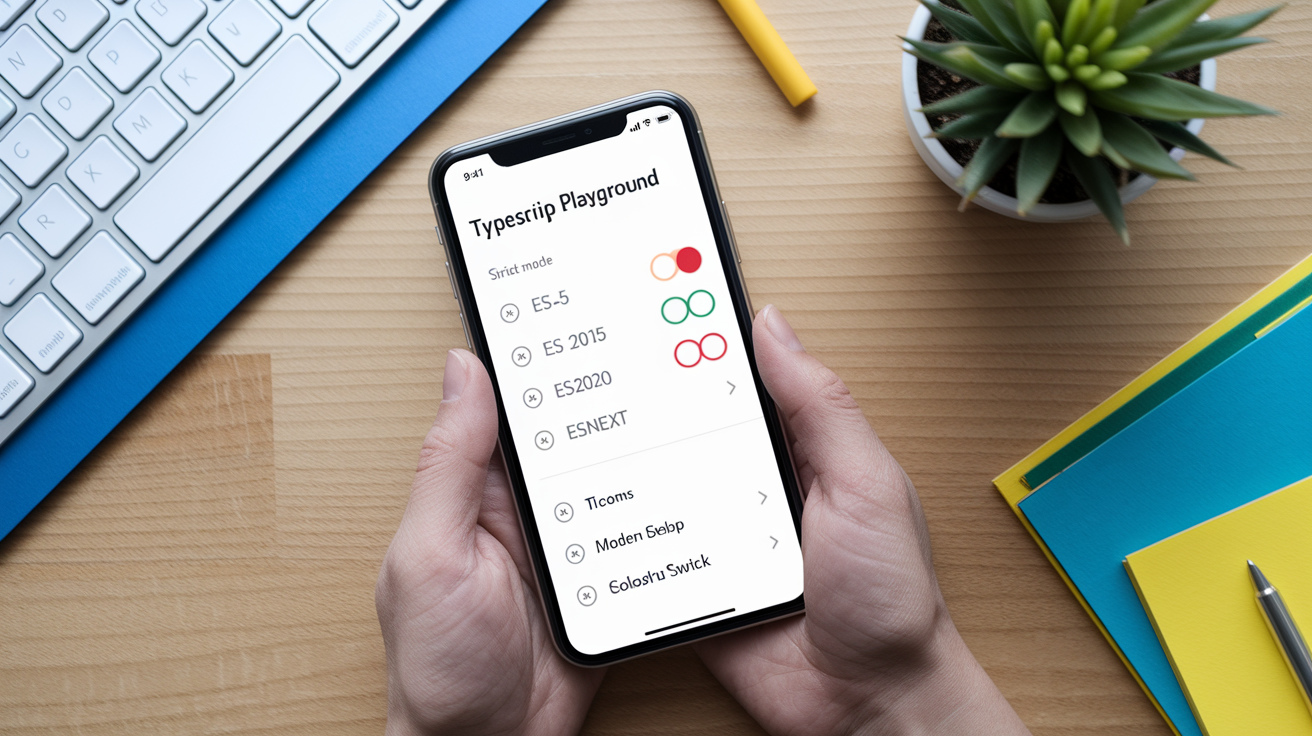
The settings panel exposes toggles and dropdowns for every major TypeScript compiler option. You can enable strict mode to enforce stricter type checking rules, choose an ES target to control which JavaScript syntax features the compiler can emit, select a module system to define how imports and exports are handled, and turn on source maps to link transpiled code back to your TypeScript source. Every change takes effect immediately, recompiling your code and updating the JavaScript output pane without a full page reload.
Common flags include strict (which bundles type safety checks like noImplicitAny, strictNullChecks, and strictFunctionTypes), target (ES5, ES2015, ES2020, ESNext), module (CommonJS, ESM, AMD, UMD), and sourceMap (generates .map files for debugging). Adjusting these settings lets you simulate different build environments. For example, testing how your code behaves when compiled for older browsers or Node.js versions, or verifying that a library works with both CommonJS and ESM consumers.
Compiler behavior changes live based on your selections. Flip on strict mode and watch inline errors appear for implicit any types, unsafe null accesses, and missing type annotations. Switch the target from ES5 to ES2020 and see async/await remain intact instead of desugaring into generator functions. This instant feedback helps you learn TypeScript’s compiler behavior without editing tsconfig.json files or running tsc manually.
| Option | Purpose | Effect |
|---|---|---|
| strict | Enables all strict type checking options | Surfaces implicit any, null/undefined unsafety, and function type mismatches |
| target | Sets ECMAScript version for output JS | Controls whether async/await, classes, and arrow functions are transpiled or left as is |
| module | Specifies module system (CommonJS, ESM, UMD) | Determines import/export syntax in the generated JavaScript |
| sourceMap | Generates source map files for debugging | Links transpiled JS back to original TS lines in browser dev tools and stack traces |
Using Templates, Snippets, and Starter Examples in a TypeScript Playground

Playgrounds ship with a collection of starter templates that let you jump straight into coding without writing boilerplate. You can load a basic types example to explore primitive types and interfaces, grab a DOM manipulation snippet to see how TypeScript handles HTMLElement types and event listeners, or open an async/await template to experiment with promises and error handling. Every template is pre-filled with runnable code. Modify it, save, and see results immediately.
Templates work as learning aids and quick references. If you’re new to TypeScript, a beginner exercise might show type annotations on function parameters and return values, demonstrating how the compiler infers types and catches mismatches. Advanced challenges introduce generics, conditional types, and mapped types, so you can test complex type logic without setting up a project. You can also use templates as starting points for real work. Copy a Node.js snippet, replace the sample code with your own, and run it to verify your logic before moving it into a production codebase.
Typical template categories include:
- Basic types demonstrating primitives, arrays, tuples, enums, and type aliases with simple variable declarations and type checks.
- DOM scripts showing how to select elements, attach event listeners, and handle user input with proper HTMLElement typing.
- Async/await examples illustrating promises, try/catch blocks, and parallel execution with
Promise.alland error handling. - Node.js snippets that import built in modules like
fsandpath, demonstrating how to use Node types and work with file I/O. - React/TSX starters with component definitions, props typing, state hooks, and JSX syntax for testing React code without a build setup.
Importing External Types and Libraries in the TypeScript Playground

Playgrounds let you import types and libraries from CDNs, import maps, and hosted type declaration packages without running npm install locally. You can add a script tag or import statement pointing to a CDN URL like unpkg or jsDelivr, and the playground fetches the package and its types on the fly. This works well for popular libraries that ship their own .d.ts files or have types published under the @types namespace on npm.
Import maps are another option. You define a JSON mapping that tells the playground where to resolve package names, pointing "lodash" to a CDN URL, for example. The editor then resolves imports correctly and provides autocomplete for imported functions. For packages that don’t bundle types, you can manually include type declarations by pasting a .d.ts file into a separate editor pane or linking to a hosted declaration file. Gives you full intellisense and type checking for third party code.
The playground’s built in type resolution handles @types packages automatically when you import a popular library. If you write import axios from 'axios', the editor fetches @types/axios in the background and surfaces method signatures, parameter hints, and return types. This zero config behavior means you can prototype API clients, test utility libraries, or explore new packages without leaving the browser or managing a node_modules folder.
Supported import methods include:
- CDN import via a URL pointing to a hosted UMD or ESM bundle, with the playground fetching the script and any bundled type definitions.
- Import maps that map bare specifiers like
"react"to CDN URLs, letting you use standard import syntax without local packages. - @types packages fetched automatically when you import a library, providing IntelliSense and compile time type checks for third party code.
- Embedded types pasted directly into an auxiliary pane or loaded from a URL, useful for custom .d.ts files or forked library definitions.
Sharing, Saving, and Exporting TypeScript Playground Code
Playgrounds generate shareable URLs that encode your code, compiler settings, and TypeScript version into a single link. You copy the URL, paste it into a GitHub issue, Slack message, or Stack Overflow answer, and anyone who clicks sees exactly what you wrote. Same errors, output, and configuration. This makes it easy to reproduce bugs, demonstrate type issues, or share learning examples without asking someone to clone a repo or install dependencies.
Saved snippets persist in the playground’s backend or in browser local storage, depending on the implementation. Some playgrounds require a login to save code permanently, while others store state in the URL itself, so your code lives in the shareable link. Exported files come in formats like .ts, .js, or a ZIP archive containing your TypeScript source, the transpiled JavaScript, and a tsconfig.json file reflecting your chosen compiler options. This export workflow lets you start in the playground, iterate quickly, and then download your work to continue locally.
Persistence features include:
- URL sharing that embeds code, settings, and version in a link, so recipients see an identical playground state without manual setup.
- Saving to a user account or browser storage, allowing you to return to previous snippets and organize a personal library of examples.
- Exporting as individual .ts/.js files or a packaged archive, ready to drop into a local project or integrate with a build tool.
- Version pinning in the URL or save metadata, ensuring shared examples compile with the exact TypeScript release you used, even as new versions ship.
Mobile-Friendly Use and Accessibility in TypeScript Playgrounds

Playground layouts adapt to smaller screens by stacking the editor and output panes vertically or collapsing the settings panel into a drawer. On a phone, you see the editor at the top, the console or JavaScript output below, and a floating save button or toolbar at the bottom. Touch interactions are supported. Tap to position the cursor, use on screen keyboards to type, and pinch to zoom if text is too small. While editing complex code on a 6 inch screen isn’t ideal, the mobile experience is good enough for quick edits, reviewing shared examples, or testing a short function while away from your laptop.
Accessibility features vary by playground implementation, but modern editors typically support keyboard navigation, screen reader labels, and high contrast themes. You can tab through controls, use arrow keys to move the cursor, and trigger commands via keyboard shortcuts without relying on a mouse. Some playgrounds expose font size controls, theme toggles (light/dark mode), and adjustable pane widths to accommodate visual preferences and assistive technologies. These considerations make the playground usable for developers with different input methods, vision requirements, and device constraints.
Final Words
Open the playground, paste TypeScript, hit CTRL + S, and watch the JS output and inline diagnostics update instantly.
This post walked through quick access, live transpile behavior, where to view resulting JS, editor features like intellisense and diagnostics, compiler option tweaks, starter templates, importing libraries via CDN, debugging with source maps, and sharing or exporting snippets.
Use the typescript playground to iterate fast, debug in the browser, and share runnable examples. Try a short experiment now — it should cut prototyping time and make testing less painful.
FAQ
Q: Where can I access the TypeScript playground?
A: The TypeScript playground is accessible online in a browser, no local install required; it runs on desktop and mobile so you can start editing TypeScript immediately.
Q: How do I begin typing TypeScript in the playground?
A: To begin typing TypeScript in the playground, open the editor pane, click or tap the file area, paste or write code, then save to trigger compilation or let live compile run automatically.
Q: How does automatic transpilation work and how do I trigger it?
A: Automatic transpilation compiles TypeScript to JavaScript live; you can trigger a compile with CTRL + S or by saving, and the JS preview and inline diagnostics update immediately.
Q: Where can I view the resulting JavaScript output?
A: The resulting JavaScript appears in the compiled JS preview pane and the console/output pane shows runtime logs and errors for quick inspection while you debug.
Q: Can I import external libraries and types in the playground?
A: Yes, you can import libraries and types via CDN URLs, import maps, @types packages, or embedded declaration files; no local install needed and types load automatically when available.
Q: How do I configure TypeScript compiler options in the playground?
A: You configure compiler options in the settings panel—toggle strict, change target or module, and enable sourceMap; changes apply live and immediately affect type checking and output.
Q: What editor features help with type checking and code completion?
A: The editor provides syntax highlighting, intellisense, hover tooltips, and inline diagnostics so you get type-aware autocompletion, quick error hints, and immediate feedback while coding.
Q: How do I run and debug TypeScript code and inspect transpiled JavaScript?
A: You run and debug by editing, saving to compile, then reviewing console logs and the compiled JS pane; enable source maps to step through original TypeScript while debugging.
Q: How do I save, share, or export playground code?
A: You save snippets to create a permalink, generate shareable URLs with version metadata, and export project files or ZIPs for offline use or source control import.
Q: Is the TypeScript playground mobile-friendly and accessible?
A: The TypeScript playground adapts layout for smaller screens, supports touch interactions, and repositions editor and output panes so you can code and inspect JS on mobile devices.
Q: What starter templates and snippets are available in the playground?
A: The playground offers templates for basic types, DOM scripts, async/await examples, Node programs, and React/TSX snippets you can modify, save, and reuse for quick experiments.