

Messy timestamps silently wreck debugging—if your logs aren’t formatted consistently, you can’t trust event order.
Python’s logging uses %(asctime)s and the datefmt parameter to control timestamp shape, but the defaults often don’t match ISO, UTC, or millisecond needs.
This post walks you through quick wins—basicConfig and datefmt, Formatter per handler, UTC vs local time, and when to override formatTime for precise millisecond/microsecond placement.
You’ll get examples, common patterns, and the small gotchas that cost you an hour in production.
Configuring Datetime Formatting in Python Logging Output

Python’s logging module drops timestamps into your output by inserting %(asctime)s into the log format string. You control how that timestamp looks with the datefmt parameter. Out of the box, asctime gives you something like 2026-03-20 14:33:05,123 (readable date with milliseconds after a comma). But you can override that pattern to match ISO 8601, UTC conventions, or whatever format your downstream tooling needs.
The quickest way to set a custom timestamp format is to pass both format and datefmt to logging.basicConfig(). Here’s a basic example:
import logging

logging.basicConfig(
    format='%(asctime)s %(levelname)s: %(message)s',
    datefmt='%Y-%m-%d %H:%M:%S',
    level=logging.INFO
)
logging.info("Application started")
Before you customize it, the default output looks like 2026-03-20 14:33:05,123 INFO: Application started. After applying datefmt='%Y-%m-%d %H:%M:%S', those comma-separated milliseconds disappear and you get 2026-03-20 14:33:05 INFO: Application started. That’s it. You’ve gone from the default timestamp to a clean, second-precision format.
For more control, you can create a logging.Formatter object, attach it to any handler (console or file), and tweak the timestamp on a per-handler basis. One handler might log milliseconds while another uses a compact numeric format.
Five common datetime format strings:
'%Y-%m-%d %H:%M:%S'gives you readable date and time to the second:2026-03-20 14:33:05'%Y-%m-%dT%H:%M:%S%z'produces ISO 8601 with timezone offset:2026-03-20T14:33:05+0000'%Y-%m-%dT%H:%M:%S'is ISO 8601 without offset (assumes UTC or local):2026-03-20T14:33:05'%Y-%m-%d %H:%M:%S.%f'includes microseconds:2026-03-20 14:33:05.123456(trim%fto three digits for milliseconds)'%Y%m%d%H%M%S'goes compact numeric:20260320143305
Understanding Python Logging Datetime Placeholders and strftime Codes

The datefmt parameter accepts any format string supported by Python’s strftime() function. Same pattern you use with datetime.strftime(). Each % code maps to a specific chunk of the date or time: year, month, day, hour, minute, second, microsecond, or timezone offset. When logging calls strftime() under the hood, it swaps these codes with the current timestamp values. So %Y-%m-%d becomes 2026-03-20 at runtime.
Here’s a reference table of the most common codes you’ll use in logging timestamps:
| Code | Meaning | Example Output |
|---|---|---|
| %Y | Four-digit year | 2026 |
| %m | Zero-padded month (01–12) | 03 |
| %d | Zero-padded day (01–31) | 20 |
| %H | Hour in 24-hour format (00–23) | 14 |
| %M | Zero-padded minute (00–59) | 33 |
| %S | Zero-padded second (00–59) | 05 |
| %f | Microsecond (000000–999999) | 123456 |
| %z | UTC offset (e.g., +0000, -0500) | +0000 |
Combining these codes produces patterns like '%Y-%m-%dT%H:%M:%S%z', which spits out 2026-03-20T14:33:05+0000. That’s an ISO 8601-like timestamp that downstream parsers and monitoring tools recognize right away. If you need timezone information, always include %z. If you need sub-second precision, add %f and decide whether to truncate the microsecond digits to milliseconds (three digits) in post-processing or in a custom formatter.
Using logging.Formatter for Precise Datetime Control
When basicConfig() isn’t flexible enough (say you need different formats for console and file output, or you want UTC timestamps on one handler and local time on another), you create a logging.Formatter instance, configure its fmt and datefmt arguments, and attach it to individual handlers. This pattern gives you handler-level control over what the timestamp looks like.
Here’s a typical setup that applies a custom Formatter to a console handler:
import logging

logger = logging.getLogger(__name__)
logger.setLevel(logging.DEBUG)

console = logging.StreamHandler()
formatter = logging.Formatter(
    fmt='%(asctime)s %(levelname)s %(name)s: %(message)s',
    datefmt='%Y-%m-%d %H:%M:%S'
)
console.setFormatter(formatter)
logger.addHandler(console)

logger.info("Custom formatter attached")
To emit UTC timestamps instead of local time, set formatter.converter = time.gmtime (where time is the standard library module). By default, the formatter uses time.localtime, but reassigning converter switches the underlying time source to UTC. The datefmt codes then reflect Coordinated Universal Time. This is often safer for distributed systems where logs from different timezones need to line up.
For file logging, substitute logging.FileHandler('app.log', mode='a', encoding='utf-8') in place of StreamHandler() and attach the same Formatter. You can create multiple handlers with different formatters. One for the console, one for a debug file, one for a warning-only file. Each will render timestamps according to its own datefmt setting.
Overriding formatTime for Custom Precision
The datefmt parameter alone can’t insert milliseconds or microseconds into the exact position you want (strftime doesn’t natively support %(msecs) placeholders). If you need that level of control, override the formatTime method in a custom Formatter subclass and construct the timestamp string manually. You can call datetime.now() with timezone.utc, format it to the second, and then append .{milliseconds:03d} from record.msecs. This lets you build patterns like 2026-03-20 14:33:05.123 where the milliseconds are always three digits and sit exactly where you placed them.
Common Timestamp Formats in Python Logging (ISO 8601, UTC, Milliseconds)
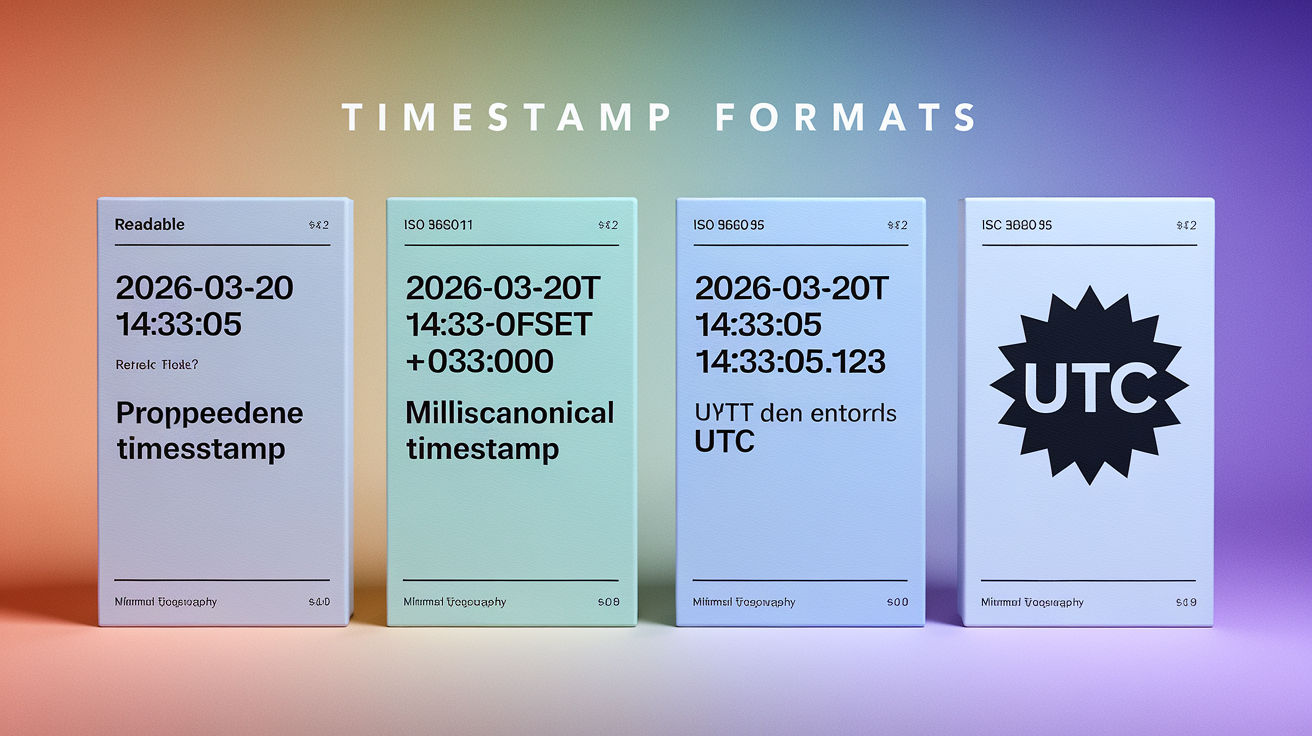
Different teams and tools expect different timestamp shapes. Some prefer human-readable dates, others require strict ISO 8601 compliance, and high-throughput applications need sub-second precision to order rapid events. Knowing a handful of common patterns lets you pick the right format for your logging destination, whether that’s console, file, or centralized log aggregator.
The simplest readable format is '%Y-%m-%d %H:%M:%S', which produces 2026-03-20 14:33:05. It’s easy to scan in a terminal and sorts correctly when logs are stored as plain text. For machine parsing, switch to '%Y-%m-%dT%H:%M:%S%z', yielding 2026-03-20T14:33:05+0000. The “T” separates date and time, and %z appends the UTC offset so downstream systems know the timezone. If you’re logging in UTC and want to skip the offset, use '%Y-%m-%dT%H:%M:%S' and document that all timestamps are UTC.
Four widely used logging timestamp patterns:
- Readable:
'%Y-%m-%d %H:%M:%S'gives you2026-03-20 14:33:05 - ISO 8601 with offset:
'%Y-%m-%dT%H:%M:%S%z'gives you2026-03-20T14:33:05+0000 - ISO 8601 with milliseconds:
'%Y-%m-%dT%H:%M:%S.%(msecs)03d'infmt(requires combiningdatefmtandmsecs) gives you2026-03-20T14:33:05.123 - UTC canonical: Set
converter=time.gmtimeand use'%Y-%m-%d %H:%M:%S', which always emits UTC seconds
If you need milliseconds and want them inside the timestamp string, include %(msecs)03d in the fmt string (not in datefmt), like this: fmt='%(asctime)s.%(msecs)03d %(levelname)s: %(message)s' with datefmt='%Y-%m-%d %H:%M:%S'. The result is 2026-03-20 14:33:05.123 INFO: message. For full microsecond precision, use %f in datefmt (if you’re formatting the timestamp yourself) or override formatTime.
Applying Datetime Formatting in Handlers and File Logging

Handlers decide where log records go. Console, file, remote syslog, HTTP endpoint. Each handler can have its own Formatter. That means your console output might show a short, readable timestamp while your file logs use ISO 8601 with microseconds, all from the same logger. When you create a FileHandler, you pass filename, mode (usually 'a' to append), and encoding='utf-8', then attach a Formatter with your chosen datefmt.
Here’s a file-logging setup with a custom timestamp:
import logging

logger = logging.getLogger(__name__)
logger.setLevel(logging.DEBUG)

file_handler = logging.FileHandler('app.log', mode='a', encoding='utf-8')
formatter = logging.Formatter(
    fmt='%(asctime)s %(levelname)s %(name)s: %(message)s',
    datefmt='%Y-%m-%dT%H:%M:%S'
)
file_handler.setFormatter(formatter)
logger.addHandler(file_handler)

logger.debug("This line goes to app.log with ISO timestamp")
Every log record written to app.log will carry the timestamp in the format you specified. If you add a second handler for the console with a different Formatter, the same record will appear twice. Once in each destination, each with its own timestamp layout.
For production systems that generate large log files, use RotatingFileHandler (rotates by size) or TimedRotatingFileHandler (rotates by time interval). Import them from logging.handlers, configure maxBytes and backupCount for size-based rotation, or set when='D' and interval=1 for daily rotation. The timestamp format you choose affects how easily you can correlate logs across rotated files, so consistency matters.
Using Timed and Size-Based Rotation
TimedRotatingFileHandler rotates log files at fixed intervals. Midnight, every hour, every Monday. It appends a suffix like app.log.2026-03-20 to the old file. If your datefmt includes the date, it’s easier to match log entries to their rotation window. RotatingFileHandler doesn’t care about the timestamp format, it just checks file size. But a consistent, parseable timestamp still helps when you grep or parse those rotated files later. Both handlers respect the Formatter you attach, so the timestamp shape stays the same across all files in the rotation cycle.
Best Practices for Production-Ready Timestamp Formats

In production, logs flow into aggregators, monitoring dashboards, and compliance archives. The timestamp format you pick affects parsing speed, timezone sanity, and incident response clarity. Prefer ISO 8601 or a variant that includes timezone information, either %z for the offset or a documented assumption that all timestamps are UTC. Ambiguous formats like 03/20/26 2:33 PM break automated parsers and confuse engineers in different regions.
Include sub-second precision if your application emits multiple log entries per second or if you need to reconstruct event order during debugging. Use %(msecs)03d in the format string or override formatTime to insert milliseconds. Without that precision, two rapid events might share the same timestamp, and you’ll lose ordering information when you need it most.
Keep the timestamp format consistent across all handlers, loggers, and services in your system. If your backend logs in ISO 8601 but your frontend logs in a readable format, correlating events across services becomes manual work. Pick one canonical format (%Y-%m-%dT%H:%M:%S%z is a solid choice) and apply it everywhere. If you need human-readable output during local development, add a separate console handler with a simpler datefmt, but make sure your file and remote handlers stick to the production standard.
Top five best practices for logging timestamps:
- Use ISO 8601 format (
%Y-%m-%dT%H:%M:%S%z) or a consistent alternative recognized by your log ingestion tools. - Include timezone offset (
%z) or document that all logs are in UTC. Setformatter.converter = time.gmtimeto enforce UTC. - Add milliseconds or microseconds (
%(msecs)03dor%f) for high-volume systems where sub-second ordering matters. - Apply the same
datefmtacross all services and handlers to simplify centralized log aggregation and correlation. - Consider structured logging (JSON output with a
timestampfield) when logs feed into Elasticsearch, Splunk, or Datadog. The timestamp becomes a native datetime type, and you avoid parsing strftime strings at query time.
Final Words
You swapped the default asctime for a custom datefmt using logging.basicConfig or a logging.Formatter, and saw how strftime codes (%Y, %m, %d, %H, %M, %S, %f, %z) shape the output. The before/after examples and short code snippets make the change repeatable.
Use handler.setFormatter, converter=time.gmtime for UTC, or override formatTime for sub‑second precision. Keep formats consistent across handlers and prefer ISO‑like patterns for parsing.
Apply these tips so python logging format datetime becomes a quick, low‑risk win for clearer, debuggable logs.
FAQ
Q: How to log timestamp in Python?
A: Logging a timestamp in Python is done by including %(asctime)s in your log format and setting datefmt in logging.basicConfig(format=…, datefmt=…) or by attaching logging.Formatter(fmt, datefmt) to a handler.
Q: What is the format of datetime in Python and what is the standard format for logging?
A: The datetime format in Python uses strftime codes like %Y, %m, %d, %H, %M, %S, %f (microseconds), and %z (UTC offset). Common logging formats are “%Y-%m-%d %H:%M:%S” or ISO-like “%Y-%m-%dT%H:%M:%S%z”.