

Ever typed a command and got “command not found”?
The PATH environment variable is the list of folders your shell checks when you run a program without a full path.
It decides which version runs when duplicates exist and whether new installs are visible.
In this post you’ll learn how PATH works on Linux, macOS, and Windows, how to view it, add entries temporarily or permanently, and how to keep it tidy and safe.
By the end you’ll be able to configure PATH without breaking your system or shadowing the wrong binaries.
Core Explanation of the PATH Environment Variable and How It Works

The path environment variable is just a list of directories your OS checks when you type a command without spelling out the full location. Every time you run something like git, python, or ls, the shell walks through PATH, left to right, until it finds a match. No match? You get “command not found.”
Search order decides which version runs when you’ve got duplicates floating around. If /usr/local/bin sits before /usr/bin in your PATH and both have a node executable, the shell grabs the first one it sees. That’s /usr/local/bin. This matters when you’re installing custom tools or need to override system defaults without actually deleting system files.
Different operating systems use different separators and typical directories. Unix-like systems (Linux and macOS) separate entries with colons, something like /usr/local/sbin:/usr/local/bin:/usr/sbin:/usr/bin:/sbin:/bin. Windows uses semicolons. On Windows you’ll see paths like C:\Windows\System32;C:\Program Files\nodejs. The mechanics are the same: the OS walks the list, checks for a file, executes the first match.
A fresh Python install in /opt/python/bin stays invisible until you add that directory to PATH. Typing python might run Python 2 from /usr/bin if that appears before your Python 3 install in /usr/local/bin. Windows looks for both command.exe and command.bat when you type command. Reordering PATH can switch which version of a tool runs without touching any binaries.
Viewing the PATH Environment Variable Across Windows, Linux, and macOS
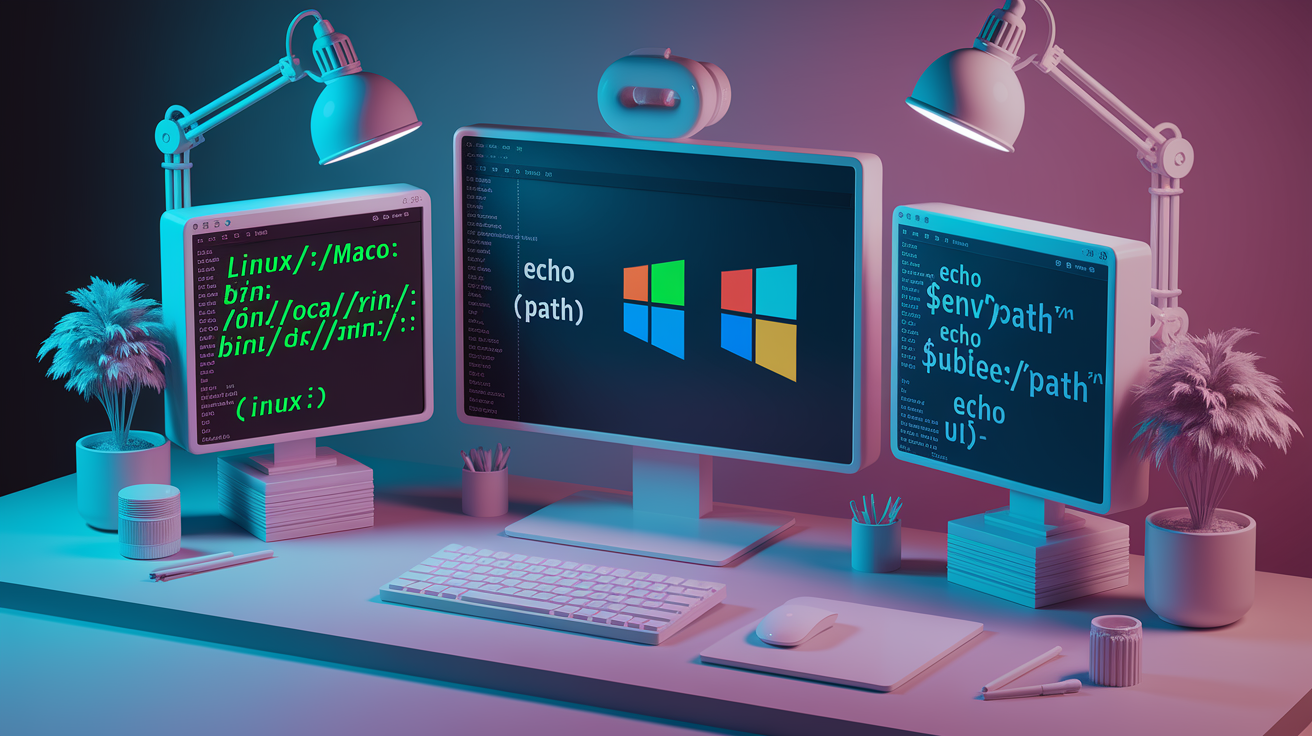
Each OS gives you a quick command to see your current PATH. On Linux and macOS you use echo $PATH, which prints the colon-separated list to your terminal. You can also run printenv PATH for the same output. Both show the exact order the shell uses when it’s hunting for commands.
Windows offers two options depending on your shell. In Command Prompt you type echo %PATH% to see the full list separated by semicolons. PowerShell users run $env:Path without the echo wrapper. The output can get long, wrapping across multiple lines if you’ve got dozens of entries, so piping to a pager or splitting by separator makes large PATH values easier to read.
| OS | Command | Notes |
|---|---|---|
| Linux | echo $PATH or printenv PATH |
Colon-separated list; typical entries include /usr/local/bin, /usr/bin, /bin |
| macOS | echo $PATH or printenv PATH |
Colon-separated; macOS often adds /usr/local/sbin, /opt/homebrew/bin, and others |
| Windows | echo %PATH% (CMD) or $env:Path (PowerShell) |
Semicolon-separated; includes system folders like C:\Windows\System32 and user-installed tools |
Adding Directories to the PATH Environment Variable Temporarily

Temporary changes only affect your current shell session. Close the terminal or PowerShell window and the modification vanishes. Handy for testing or one-off tasks without cluttering your permanent config. On Linux and macOS you use the export command, while Windows provides set in CMD and variable assignment in PowerShell.
Placement matters. Prepending a directory with export PATH=/home/user/scripts:$PATH puts your folder at the front, giving it the highest precedence. Your binaries will override system versions. Appending with export PATH=$PATH:/home/user/scripts tacks it to the end, so it’s only checked after all existing directories. Pick the position based on whether you want to shadow system commands or just make your tools available when nothing else matches.
You can add multiple directories in one shot by chaining them with colons (Unix) or semicolons (Windows). On Linux that looks like export PATH=$PATH:/path/one:/path/two, instantly registering both new locations. Syntax is strict. No spaces around the equals sign or separators. export PATH=/dir:$PATH is correct; export PATH = /dir : $PATH will fail or produce weird behavior.
Open a terminal or PowerShell window and run the appropriate view command (echo $PATH or echo %PATH%) to see your current list. Decide whether to prepend or append your directory based on precedence needs. Execute the temporary add command, something like export PATH=/opt/mybin:$PATH (Linux/macOS) or $env:Path = "C:\mybin;" + $env:Path (PowerShell). Verify the change by running the view command again. Your directory should appear in the expected spot. Test by running an executable from your newly added directory without specifying a path. If it works, the modification succeeded.
Permanently Updating the PATH Environment Variable on Linux, macOS, and Windows
Permanent changes stick around across sessions and reboots, making them the right choice when you install development tools, custom utilities, or any software you use regularly. Each OS stores PATH config in different files or registry locations, so the procedure varies.
Linux Permanent PATH Updates
On Linux you add an export line to your shell’s initialization file. For bash users that’s typically ~/.bashrc, and for zsh users it’s ~/.zshrc. Open the file with a text editor. nano ~/.bashrc is a quick way. Scroll to the end and append a line like export PATH=/home/user/local/bin:$PATH. Save and close the editor.
The change takes effect the next time you start a new shell. To apply it immediately in your current session without restarting, run source ~/.bashrc (or source ~/.zshrc for zsh). Sourcing re-reads the file and executes the export, updating PATH right there. If you log in remotely or run non-interactive scripts, check whether your setup also requires editing ~/.bash_profile or /etc/profile, though ~/.bashrc covers most desktop and server use cases.
macOS Permanent PATH Updates
Modern macOS ships with zsh as the default shell, so most users edit ~/.zshrc just like on Linux. Add your export line, save, and run source ~/.zshrc to apply immediately. Older macOS versions or systems where you’ve switched to bash use ~/.bash_profile instead. You can check your current shell by running echo $SHELL.
If you’re not sure which file to use, look for existing config in your home directory with ls -a ~/ | grep 'bash\|zsh'. Edit the file that already exists or create ~/.zshrc if you’re on a recent macOS version. The syntax and source behavior are identical to Linux. macOS is Unix-based and follows the same shell conventions.
Windows Permanent PATH Updates
Windows stores PATH in the system registry and exposes it through a graphical editor. Open the Start menu, type “env”, and select “Edit the system environment variables.” In the System Properties dialog, click the “Environment Variables…” button. The lower half of the new window shows “System Variables”. Scroll to the row labeled “Path” and click “Edit.”
A list-based editor appears where you can click “New” to add a directory, type the full path (like C:\Users\YourName\bin), and reorder entries by selecting one and using the “Move Up” or “Move Down” buttons. Click “OK” in all open dialogs to save. Apps already running won’t see the change until you restart them, and some services require a full machine reboot. For a detailed walkthrough with screenshots, see Add to the PATH on Windows 10 and Windows 11.
Command-line fans can use setx PATH "%PATH%;C:\mybin" in CMD or PowerShell, but be aware that setx writes to the registry for future sessions. It does not update your current terminal. You’ll need to open a new window to see the change, and the command truncates PATH if the result exceeds 1024 characters, so the GUI method is safer for complex configurations.
Safely Adding, Organizing, and Cleaning PATH Entries
Order your PATH entries intentionally. Place directories with custom or override tools at the beginning if you want them to take precedence over system binaries, or append them to the end if you prefer to use system defaults and only fall back to your additions when no match exists. A typical pattern is ~/bin:/usr/local/bin:/usr/bin:/bin, giving personal scripts the highest priority, followed by locally compiled software, then system packages, then core utilities.
Avoid duplicates. They don’t cause errors but they waste lookup time and make PATH harder to read and debug. Before adding a directory, check whether it already appears in the list. Use absolute paths (/home/user/bin or C:\tools) instead of relative ones (. or ../bin) to prevent context-dependent behavior that breaks when scripts run from different working directories. Never add the current directory (.) to PATH on shared or production systems. It’s a security risk because an attacker can place a malicious executable in any folder you visit, and it’ll run when you type a common command name.
Wrap paths containing spaces in double quotes. export PATH="/home/user/my tools:$PATH" on Unix, or just make sure Windows paths with spaces are properly quoted in the GUI editor. Canonicalize symlinks and relative references before adding them. Use realpath /some/link to get the actual directory. Skip world-writable directories like /tmp. Anyone can drop an executable there and hijack your commands. Avoid adding . (current directory) to PATH. Call local scripts with ./script instead.
Keep your PATH minimal. Only include directories that actually contain executables you run regularly. Create a user-local ~/bin or /home/user/local/bin for personal tools rather than scattering them across your system.
Troubleshooting PATH Environment Variable Issues
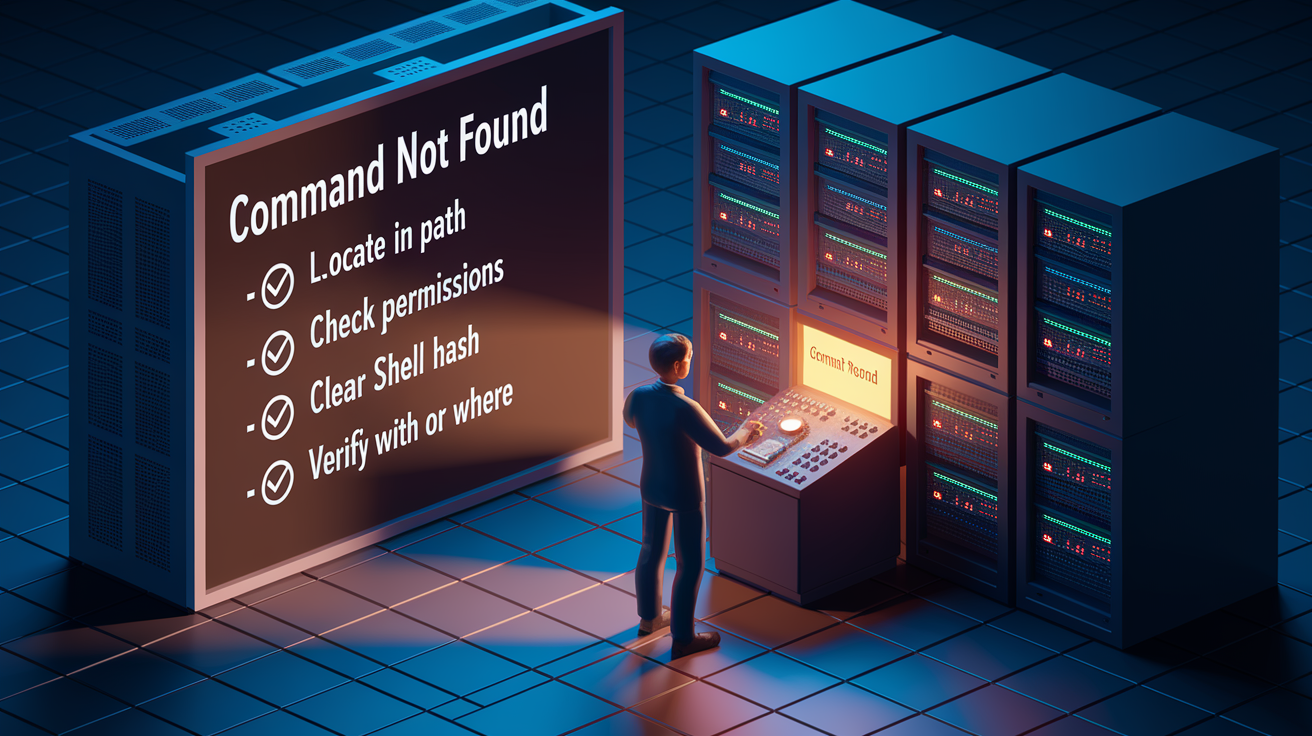
When a command that should work returns “command not found,” the issue is almost always PATH-related. Either the executable’s directory isn’t in the list, or the file lacks execute permissions. Check both with which commandname (Unix/macOS) or where commandname (Windows) to see if the OS can locate it, then verify permissions with ls -l on Unix or file properties on Windows.
Overwritten PATH values are a common mistake when editing shell initialization files. If you write export PATH=/my/dir without including $PATH, you erase every system directory and break basic commands like ls and cp. The fix is to re-add the variable: export PATH=/my/dir:$PATH. If you’re locked out because you can’t run any commands, specify the full path to your editor (/usr/bin/nano ~/.bashrc) to correct the mistake.
Shell caching can make a newly added executable invisible even when PATH is correct. Bash and other shells remember command locations for speed, so if you add a directory and then add an executable to it, the shell might not notice. Run hash -r in bash to clear the cache, or just start a new terminal session. On Windows, some changes require restarting applications or logging out and back in because processes inherit environment variables at startup, not dynamically.
| Issue | Likely Cause | Fix |
|---|---|---|
| “Command not found” | Executable’s directory missing from PATH, or file not executable | Add the directory with export or GUI editor; run chmod +x filename on Unix |
| All system commands broken | PATH overwritten without including $PATH or %PATH% | Edit shell config file using full path to editor; re-add $PATH in export statement |
| New executable not found after adding directory | Shell command cache stale | Run hash -r (bash) or start a new terminal session |
| Wrong version of tool runs | Directory order places older version earlier in PATH | Reorder PATH so preferred directory appears first; verify with which or where |
Final Words
Check the PATH often: it’s the left-to-right list your shell uses to find commands. You learned how to view it on Linux/macOS (echo $PATH/printenv) and on Windows (echo %PATH% or $env:Path).
For quick fixes use export/set; for permanent changes edit ~/.bashrc, ~/.zshrc, or Windows Environment Variables. Put overrides at the start, avoid duplicates and “.” entries, and mind colons vs semicolons.
Treat the path environment variable as a small, guarded list—clean it, test commands, and you’ll avoid a lot of headaches.
FAQ
Q: How do I set the java_home environment variable?
A: To set the JAVAHOME environment variable, point it to your JDK install directory. On Linux/macOS add export JAVAHOME=/path in ~/.bashrc or ~/.zshrc and source; on Windows use setx JAVA_HOME “C:\Program Files\Java\jdk…” and restart shells.
Q: How to fix PATH environment variable?
A: Fixing the PATH environment variable means inspecting the current value (echo $PATH or echo %PATH%), removing bad or duplicate entries, restoring missing system dirs, using the correct separator (colon on Unix, semicolon on Windows), then reopening shells.
Q: How do you add to your PATH environment variable?
A: To add to your PATH environment variable, temporarily run export PATH=/my/dir:$PATH (Unix) or set PATH=C:\my\bin;%PATH% (CMD); permanently add the same line to your shell profile or via Windows Environment Variables GUI.
Q: What is an example of a PATH variable?
A: An example of a PATH variable is Unix: /usr/local/sbin:/usr/local/bin:/usr/sbin:/usr/bin:/sbin:/bin. Windows example (semicolons): C:\Windows\System32;C:\Windows;C:\Program Files\Git\cmd.