


Think one npm command will keep your project safe and up to date? Think again.
npm audit vs npm outdated do two different jobs: audit finds known security flaws by checking your lockfile against advisories, while outdated shows which packages have newer releases with no security context.
Use audit to catch CVE entries (public vulnerabilities) and transitive risks; use outdated to plan upgrades, bug fixes, and feature pulls.
Real talk: run both—only one leaves half the picture and risks surprise bugs or security holes.
Core Differences Between npm audit and npm outdated Explained
npm audit checks for known security vulnerabilities by matching your dependency tree against the GitHub Advisory Database. It reports issues like ReDoS (Regular Expression Denial of Service), prototype pollution, and other CVE-tracked flaws with severity labels and suggested fixes. npm outdated checks whether installed packages have newer versions available. It compares your installed version to the latest release, but it has no security context and won’t tell you if a package contains a vulnerability.
npm audit produces a detailed report with severity levels (low, moderate, high, critical), the chain of transitive dependencies that introduced the issue, and remediation suggestions such as “upgrade package X” or “no fix available yet.” npm outdated displays three version columns: Current (what’s installed), Wanted (the highest version that satisfies your package.json semver range), and Latest (the newest published version), plus color indicators. Red means you’re below Wanted. Yellow means you’re at Wanted but below Latest.
Both commands are essential but serve completely different purposes. Use npm audit when you need to discover and patch security flaws. Use npm outdated when you want to see which packages have newer features, bug fixes, or performance improvements. Running only one leaves half the picture incomplete. A package can be fully up to date yet still contain a recently disclosed vulnerability. And a package can be flagged as outdated yet have zero known security issues.
| Command | What It Detects |
|---|---|
| npm audit | Known security vulnerabilities matched against advisory databases |
| npm outdated | Version staleness and available package updates with no security context |
How npm audit Works and What It Reports
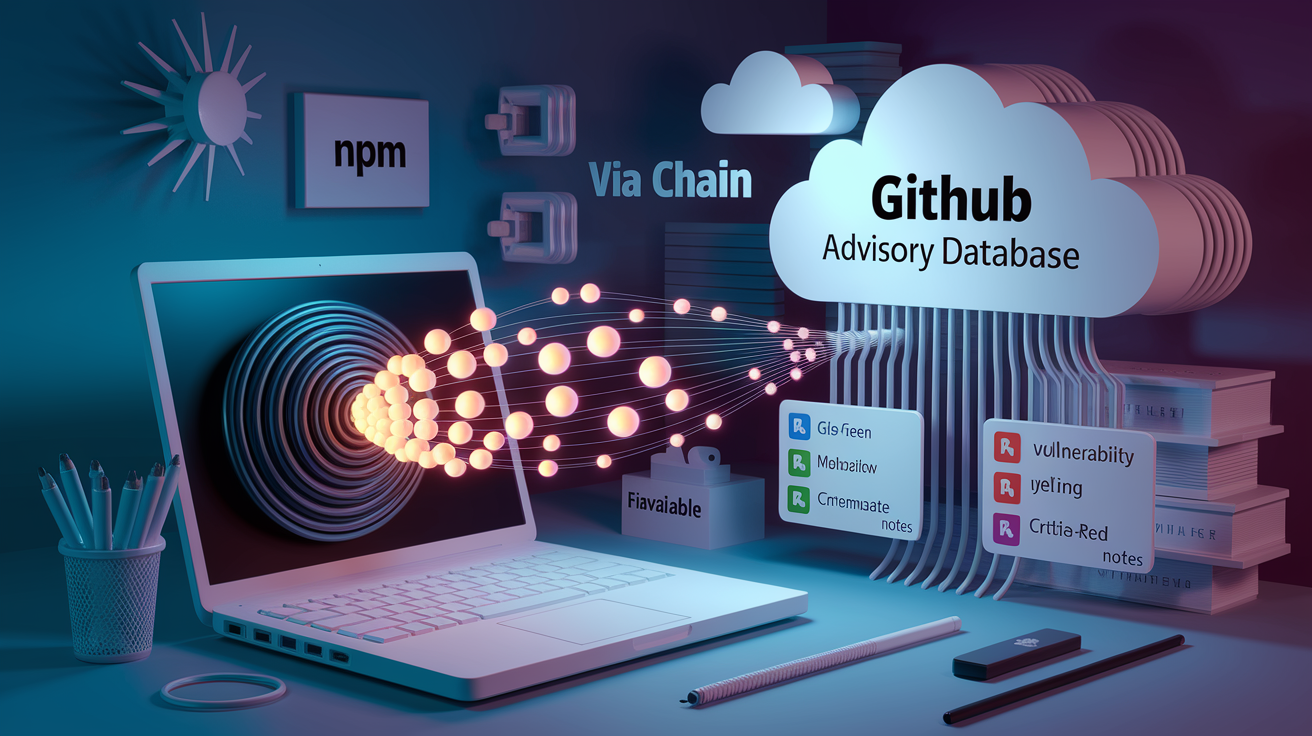
npm audit runs automatically after every npm install in npm v6 and later. It builds a snapshot of your dependency tree by parsing package-lock.json, then sends that tree to the GitHub Advisory Database (previously the npm registry’s own database) to check for matches. If your lockfile includes a package version that has a known security issue, the server responds with metadata about the vulnerability, the severity, which packages are affected, and how to fix it.
Output includes severity levels: low, moderate, high, and critical. You’ll see details about the vulnerability type (for example, ReDoS when a regex can be exploited with crafted input, or prototype pollution when an attacker can inject properties into Object.prototype). npm audit also reports the “via chain,” showing how a deeply nested transitive dependency introduced the issue. Remediation paths are grouped into automatic upgrades (npm audit fix can handle them), forced upgrades (npm audit fix –force required, but may introduce breaking changes), or “no fix available” when upstream hasn’t patched yet.
False positives are a known issue, especially for front-end build tools. In testing with Create React App, developers have seen 99%+ false positive rates where flagged vulnerabilities require local filesystem control, malicious configuration files, or other attack vectors that don’t exist in a static build and hosting context. Examples include browserslist (RegExp DoS on a config parser that only runs during the build) and webpack-dev-server, chokidar, glob-parent (filesystem DoS in a local dev server). npm audit fix –force can downgrade a package to a three-year-old version that contains real vulnerabilities just to satisfy a transitive semver constraint.
JSON Output Structure
Running npm audit –json returns structured machine-readable output. Key fields include “vulnerabilities” (an array of advisory objects), “severity” (string: low | moderate | high | critical), “via” (the chain of package dependencies that introduced the issue), and “fixAvailable” (boolean or object describing the upgrade path). Use JSON output in CI pipelines, dashboards, or custom alerting scripts. Pipe it to npx npm-audit-html to generate an HTML report for stakeholder meetings: “npm audit –json | npx npm-audit-html.”
Understanding npm outdated and Its Version Reporting

npm outdated scans package.json and package-lock.json to find packages that have newer published releases. It compares your installed version to the newest version that satisfies your current semver range (Wanted) and to the absolute latest version published on npm (Latest). Results are formatted in a table with columns for Package, Current, Wanted, Latest, and Location. Color indicators help you triage: red text means the package is below the Wanted version, so you’re missing a patch or minor update that should work without breaking changes. Yellow text means you’re at Wanted but there’s a newer major version available.
This command has zero awareness of security context. A package flagged as outdated might be perfectly secure. And a package at Latest can still contain a zero-day vulnerability. npm outdated is purely about version freshness, feature updates, and dependency hygiene. It helps you stay current with bug fixes, new features, and upstream improvements.
Current is the version you have installed right now. Wanted is the highest version that matches the semver range in your package.json (for example, if you specify “^2.3.0,” Wanted might be 2.8.5). Latest is the absolute newest version published, regardless of semver constraints (Latest might be 3.1.0, a major version jump). Semver ranges affect what’s considered outdated. A strict pin (for example, “2.3.0”) means Wanted and Current are always the same until you manually change package.json. A caret range (for example, “^2.3.0”) allows automatic minor and patch updates.
Practical Workflow: When to Run npm audit vs npm outdated
Run npm outdated during regular maintenance windows: weekly, monthly, or at the start of each sprint. This is a planning tool. It tells you what’s available, not what’s broken. Use it before opening update PRs, during dependency hygiene sprints, and any time you’re evaluating whether to adopt a new major version.
Run npm audit whenever you add a new dependency, after npm install completes, and in CI pipelines before merging code. npm v6+ runs audit by default after every install, so you’ll see warnings immediately. In CI, parse npm audit –json output and set severity thresholds. Fail the build on high or critical vulnerabilities, log moderate issues for triage, and ignore or suppress irrelevant warnings using npm audit –production to skip dev dependencies. Many teams run npm audit as a required check before deployment or release.
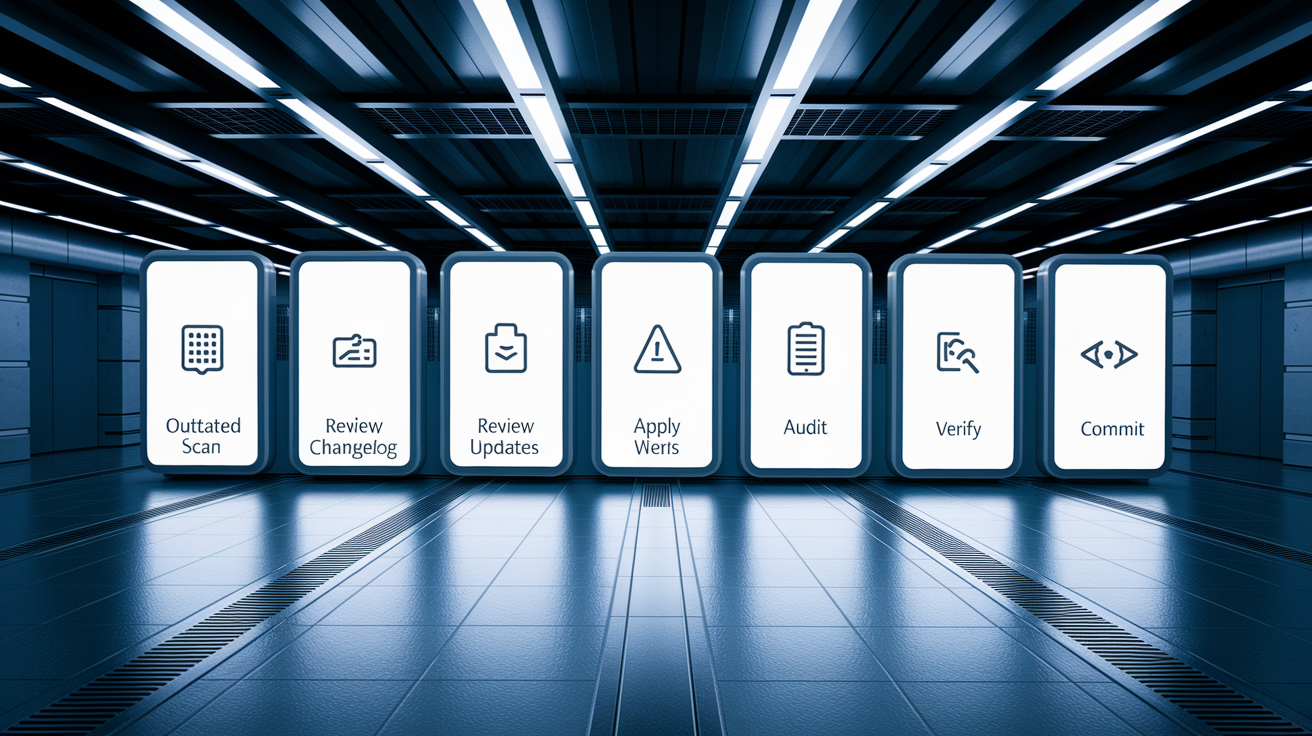
Both commands work together to reduce different classes of risk. npm outdated prevents dependency rot and keeps your app compatible with upstream improvements. npm audit prevents known exploits from reaching production. Real-world workflow: run npm outdated to see what’s changed, review changelogs and breaking-change notes, run npm audit to surface security gaps, then apply updates in batches and re-run both commands to verify fixes didn’t introduce new issues.
Fixing Issues: npm audit fix vs Updating via npm outdated

Applying security fixes is different from updating to the latest version. npm audit fix attempts to upgrade vulnerable packages to the nearest patched version that fits within your current semver constraints. It’s a targeted, conservative operation designed to close security gaps without introducing breaking changes. npm audit fix –force ignores semver constraints and can apply major-version upgrades or even downgrades if that’s the only path to a fix. Forced fixes risk introducing regressions, breaking API changes, or unintended side effects. Always test thoroughly before using –force in production.
npm outdated identifies where patch, minor, or major upgrades are needed, but it doesn’t apply them automatically. You use npm update to pull in non-breaking updates (patch and minor within your semver range), or you manually edit package.json and run npm install to jump to a new major version. The risk with npm update is that it can change dozens of packages at once, making it hard to isolate regressions. The risk with npm audit fix –force is that it can downgrade a main dependency to satisfy a transitive constraint, as seen in Create React App testing where a forced fix pulled in a three-year-old version containing real vulnerabilities.
Safe fixes (npm audit fix) apply upgrades that match your current semver ranges and are unlikely to break anything. Forced fixes (npm audit fix –force) apply breaking or downgrade changes. Use only after full test coverage and team approval. Patch and minor updates (npm update) bring in bug fixes and features within the same major version. Major updates require manual package.json edits and careful changelog review. Testing and rollback guidance: always run your test suite after any update. Keep the previous lockfile in version control so you can revert if something breaks.
Deep Comparison: Security Context vs Version Freshness

Many npm audit vulnerabilities are contextually irrelevant. A ReDoS flaw in a config parser (browserslist) or a filesystem DoS in a local dev server (webpack-dev-server) isn’t exploitable in a static front-end build that’s deployed to a CDN. These findings assume an attacker can control local files or developer machines, which is unrealistic in most threat models. In one test, five initial “vulnerabilities” in Create React App all turned out to be false positives affecting build-time tooling only.
Version freshness improves maintainability and access to bug fixes, but it’s not inherently a security concern. An outdated package might be rock-solid. A brand-new package might contain a zero-day. Some real vulnerabilities require specific patched versions that aren’t aligned with Latest. For example, a fix might land in 2.3.8 but Latest is 3.0.0, which introduces breaking changes. Security and staleness are orthogonal dimensions of dependency risk.
| Risk Type | Source | Typical Resolution |
|---|---|---|
| Known vulnerability | npm audit | Upgrade to patched version or isolate the package |
| Outdated dependency | npm outdated | Review changelog, test, and upgrade if beneficial |
| Contextually irrelevant CVE | npm audit | Ignore or suppress if not exploitable in your environment |
Example Workflow Combining npm audit and npm outdated
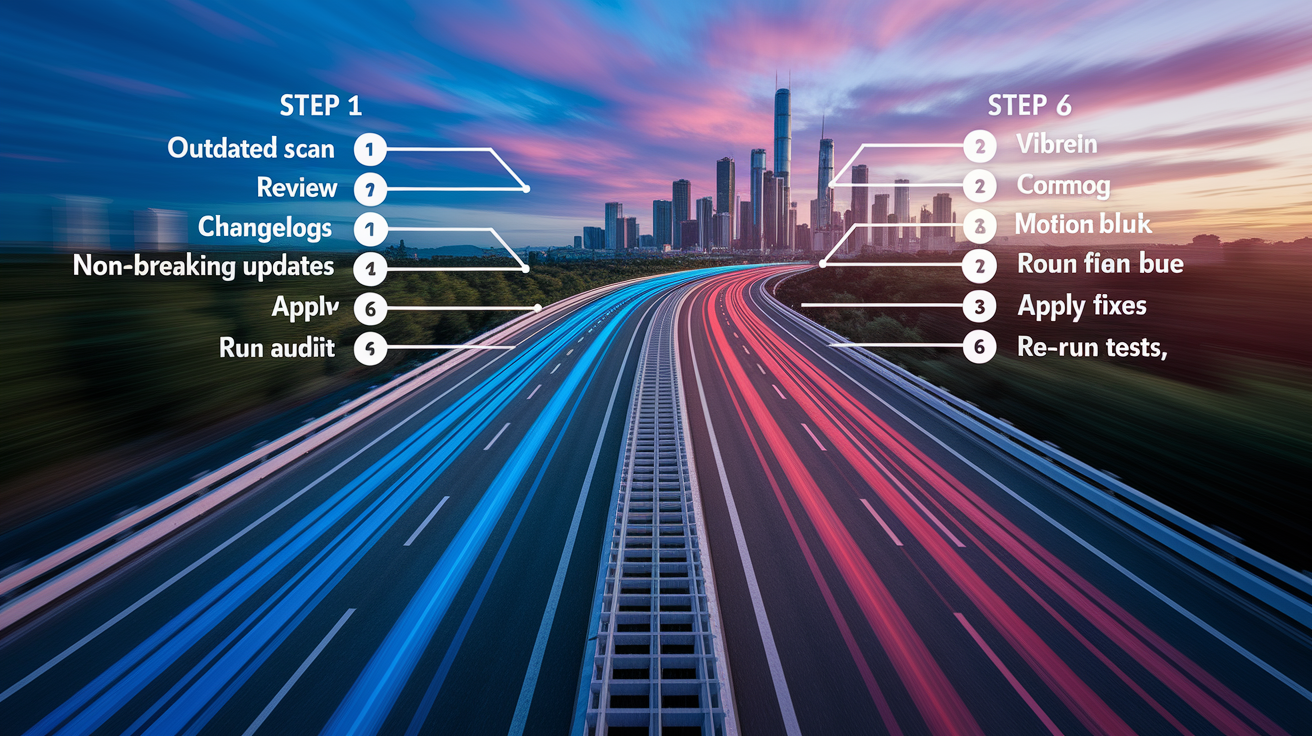
A complete dependency health check starts with npm outdated to see which packages have released newer versions. Review the output: if Latest is a major version ahead of Current, read the changelog for breaking changes. If Wanted is ahead of Current, that’s a safe minor or patch update you can apply right away with npm update. Next, run npm audit to discover any known security issues in your current lockfile. Compare the two reports: sometimes upgrading to Latest (found via outdated) will also resolve a vulnerability (found via audit), but not always.
After reviewing both reports, apply updates in stages. Start with patch and minor updates using npm update, then re-run npm audit to see if any vulnerabilities remain. If high or critical issues persist, use npm audit fix to apply targeted security patches. If audit suggests a breaking fix, check npm outdated to see if that same package has a newer major version with the fix included. Then decide whether to take the breaking change or wait for a compatible patch. Always commit your lockfile changes and test thoroughly before merging.
Establish a routine. Include npm outdated and npm audit reports in sprint review artifacts so the team sees dependency drift and security gaps early. Automate npm audit in CI with JSON output and fail builds on critical vulnerabilities. Run npm outdated manually every few weeks or use scheduled dependency bots to open update PRs. After any update, re-run both commands to verify you didn’t introduce new issues or miss a transitive vulnerability.
- Run npm outdated and review version gaps.
- Read changelogs for major version upgrades.
- Apply non-breaking updates with npm update.
- Run npm audit and review severity levels.
- Apply npm audit fix or npm audit fix –force as appropriate.
- Re-run npm audit and npm outdated, then run tests before committing the updated lockfile.
Final Words
We compared npm audit’s advisory matching and severity reports with npm outdated’s version‑staleness output. One tells you about known security issues; the other tells you which packages are behind.
Run npm audit in CI and after installs to catch vulnerabilities; run npm outdated during maintenance to plan safe upgrades. Both outputs need tests and a bit of judgment.
Treat npm audit vs npm outdated as complementary tools — use both, prioritize fixes that matter, and you’ll keep dependencies safer and easier to manage.
FAQ
Q: Is npm audit fix recommended?
A: The npm audit fix is recommended when it applies safe non-breaking upgrades; use it for routine fixes, but avoid npm audit fix –force because it can introduce breaking changes or unexpected downgrades.
Q: What does npm outdated do?
A: npm outdated shows packages with newer releases by listing Current, Wanted, and Latest versions; it checks version staleness only, not security, and helps decide patch, minor, or major updates.
Q: What does an npm audit actually do?
A: The npm audit scans your dependency tree against the GitHub Advisory Database, flags vulnerabilities by severity, suggests remediation paths, and can output –json for CI or automation.
Q: Is npm audit free?
A: npm audit is free to run locally and in CI; the npm client queries the GitHub Advisory Database and produces reports without extra cost, though paid services may offer advanced features.