


Think your Docker images are safe because you used an official base image?
They still can hide critical CVEs in OS packages or app dependencies, and you’ll only find them if you scan.
This guide shows how to run quick, practical scans with Trivy and Docker Scout, how to read the CVE output, and which findings to act on first.
You’ll get the exact commands for local checks, CI gating, and private registries so you can stop shipping vulnerable images and fix them fast.
Immediate Steps to Scan Docker Images Using Practical Commands

Scanners look at two things when they dig into Docker images: OS packages (apk, apt/dpkg, rpm) sitting in the base layer and application dependencies (npm, PyPI, Gems, Maven, Go modules) pulled from lockfiles or baked into directories. To check for vulnerabilities, you install the scanner, pull or build an image locally, run a single scan command, look at the CVE output table showing package names and severity levels, then figure out which packages need updates.
Here’s how a basic Trivy scan works:
- Install Trivy by grabbing the release binary and dropping it into a directory on your $PATH. Check it with
trivy version. - Pull the target image using
docker pull myapp:latestif you’re scanning something remote, or just build it locally. - Run
trivy image myapp:latestto scan. Trivy spits out a table with columns for vulnerability ID, package name, installed version, fixed version, and severity. - Look at findings marked CRITICAL or HIGH. The output includes rows like “libssl3, CVE-2024-5535, CRITICAL, Installed: 3.0.11-1~deb12u2, Fixed: 3.0.13-1.”
- Figure out fixes by checking the “Fixed” column. If a version’s listed, update your Dockerfile base image or package manager commands, rebuild, and rescan.
Docker Scout’s built into Docker Engine 24+ and doesn’t need separate installation if you’re already using Docker Desktop or the Docker CLI. You can scan right away with docker scout cves myapp:latest and see fix recommendations in the terminal or Docker Desktop Security tab. Grype’s similar in the install, scan, review flow, but adding --fail-on critical,high in CI pipelines makes sure the build fails only when you can actually patch something.
Scanning local images before pushing to registries (Docker Hub, Amazon ECR, Google GCR, Harbor) catches vulnerabilities early and keeps insecure packages out of production. Each scanner compares package versions against CVE databases like Red Hat Security Data and Ubuntu Security Notices, giving you a prioritized report you can act on within minutes of finishing a build.
Understanding Docker Image Vulnerability Checks
When a scanner analyzes a Docker image, it unpacks each layer and pulls out the list of OS packages installed by package managers (apt, yum, apk) and application dependencies defined in lockfiles (package-lock.json, requirements.txt, Gemfile.lock, pom.xml, go.mod). Then it cross-references these packages and their versions against public vulnerability databases (CVE feeds, vendor security notices, and language-specific advisory sources) to spot known security issues. This layer-aware inspection covers both the base image you’re inheriting from (like node:20-alpine) and every RUN or COPY instruction that adds libraries or binaries.
Scanners detect four broad categories of issues:
OS packages: outdated libraries like libssl, glibc, or curl that ship with the base image distribution.
Language dependencies: vulnerable versions of npm modules, Python wheels, or Java JARs bundled into your application layer.
Secrets and misconfigurations: embedded API keys, SSH private keys, or insecure Dockerfile directives (exposed ports, overly permissive file permissions).
Outdated base images: scanning tools often recommend switching from an old Debian or Alpine version to a newer, patched release.
No scanner guarantees 100% coverage. Databases rely on vendors to publish CVE records, so zero-day vulnerabilities and proprietary package issues can slip through until someone discloses them. Scanners also differ in their matching heuristics, which means the same image might show slightly different findings across Trivy, Grype, and Docker Scout. Running multiple scanners and reconciling their outputs cuts down blind spots for mission-critical images.
Using Trivy for Fast Docker Image Scanning

Trivy’s an open-source, single-binary vulnerability scanner with more than 24,000 GitHub stars, covering OS packages, language dependencies, IaC misconfigurations, and embedded secrets in one tool. It supports multiple output formats (table, JSON, SARIF) and runs in local, client-server, or CI/CD modes, which makes it flexible enough for developer laptops and production pipelines.
Installing Trivy
Download the latest release archive from the Trivy GitHub releases page, extract the binary, and move it into a directory on your system $PATH (like /usr/local/bin on macOS or Debian/Ubuntu). Validate the install by running trivy version. You should see output listing the version number and database schema. If the command fails, confirm the binary has execute permissions (chmod +x trivy) and that the directory’s included in your shell’s $PATH variable.
Running a Basic Image Scan
After pulling or building an image, run trivy image myapp:latest to scan. Trivy downloads the latest vulnerability database on first run (cached locally for later scans) and prints a table with these columns: Library (package name), Vulnerability ID (CVE number), Severity (CRITICAL, HIGH, MEDIUM, LOW, UNKNOWN), Installed Version, and Fixed Version. Each row matches one CVE in one package. If a package has multiple vulnerabilities, each appears on its own line.
The default table output’s human-readable, but you can switch to JSON for automation by tacking on -f json or produce SARIF for upload to GitHub Security with -f sarif. Trivy exits with a non-zero status code if it finds vulnerabilities, which is handy for failing CI builds.
Filtering and Output Formats
You can filter results to show only specific severities by adding --severity CRITICAL,HIGH to cut noise and focus on stuff you can actually fix. The --ignore-unfixed flag hides vulnerabilities that have no patch available yet, reducing false-positive alerts when a vendor’s acknowledged a CVE but hasn’t released a fix. To generate a structured report for integration with ticketing or SIEM systems, use -f json -o results.json or -f template --template "@/path/to/html.tpl" to render custom HTML reports.
Scanning Private Registries
To scan images in a private registry, first authenticate Docker (docker login registry.example.com) so Trivy can pull the image manifest and layers. Then run trivy image registry.example.com/myapp:v1.2.3. Trivy respects Docker’s credential store and uses the same token you used for docker pull. If you need to scan without pulling the image locally, use the --input flag to feed Trivy a saved tarball (docker save myapp:latest > image.tar then trivy image --input image.tar).
Recommended Trivy flags for CI and operational workflows:
--ignore-unfixedto filter out vulnerabilities with no vendor fix, cutting noise in CI logs.--severity CRITICAL,HIGHto focus only on high-risk findings and avoid blocking builds on informational stuff.-f sarif -o trivy-results.sarifto produce SARIF output for GitHub Advanced Security or other SARIF-compatible dashboards.--exit-code 1to force Trivy to return non-zero if vulnerabilities are found, so CI jobs fail appropriately.--cache-dir /custom/cacheto control where Trivy stores its database, useful in ephemeral CI runners to keep the DB across runs.--no-progressto disable progress bars in non-interactive CI environments, keeping logs clean and parseable.
Grype and SBOM-Based Analysis for Docker Images
Grype’s an open-source vulnerability scanner that pairs tightly with Syft, a software bill of materials (SBOM) generator. This combo’s a strong fit when compliance frameworks require auditable SBOMs or when you want to decouple vulnerability scanning from the image build process. Grype supports industry-standard SBOM formats (CycloneDX, SPDX) and can rescan a stored SBOM against updated vulnerability feeds without rebuilding the entire image.
The SBOM-first workflow starts by generating an SBOM with Syft (syft myapp:latest -o cyclonedx-json > sbom.json), storing that artifact alongside your image in a registry or artifact repository, then scanning it with Grype (grype sbom:sbom.json). This approach’s particularly valuable when managing hundreds of images in a registry: you generate SBOMs once per build, store them as metadata, and periodically rescan them against fresh vulnerability data without re-pulling gigabytes of image layers.
SBOM-First Workflow
To implement SBOM-based scanning, first install Syft and Grype (both are single-binary releases from the Anchore GitHub organization). Run syft myapp:latest -o cyclonedx-json > myapp-sbom.json to capture a CycloneDX SBOM listing every package, library, and version in the image. Upload this SBOM to your artifact store (Artifactory, S3, or as a GitHub release asset). When you need to scan, run grype sbom:myapp-sbom.json to analyze the SBOM file directly. Grype checks its local vulnerability database and prints CVE findings just like a live image scan, but faster and without network I/O to the registry.
Key workflow steps:
- Generating the SBOM: Use
syft myapp:latest -o cyclonedx-jsonto produce a JSON SBOM containing all OS packages and language dependencies. Store this file as a build artifact. - Scanning the SBOM: Run
grype sbom:myapp-sbom.jsonto do vulnerability detection against the SBOM. It’s faster than re-scanning the full image and can be scheduled daily to catch newly disclosed CVEs. - Failing on severity: Add
--fail-on critical,highto make Grype exit non-zero only when critical or high-severity vulnerabilities are found, avoiding CI blocks on low-priority stuff. - Using –only-fixed: Include
--only-fixedto filter out CVEs that have no vendor patch available, reducing noise from “will not fix” advisories and keeping CI feedback actionable.
Docker Scout Integration for Developer-Friendly Image Scanning

Docker Scout’s built into Docker Desktop and the Docker CLI starting with Docker Engine 24, offering a developer-friendly UI and tight integration with Docker Hub. Scout scans images for vulnerabilities and gives contextual fix recommendations (suggesting a newer base image tag or a specific package update) without leaving the Docker Desktop interface or command line.
The free tier of Docker Scout covers unlimited public images and a limited number of private repositories (the exact limit depends on your Docker subscription; personal free accounts typically get three private repos). Broader coverage for private repositories requires a paid Docker subscription (Team or Business tier). Scout maps vulnerabilities to Docker Hub’s upstream metadata, so if you’re using official images (node, nginx, python), it can recommend switching from node:18 to node:20-alpine or updating an Alpine package to a patched version.
Docker Scout’s key strengths include:
UI view in Docker Desktop: Open Docker Desktop, head to the Images tab, select an image, and click the “View in Scout” button to see a visual breakdown of CVEs, affected layers, and recommended actions.
Fix suggestions: Scout highlights which base image tag or package version will resolve a CVE, making remediation faster than cross-referencing upstream changelogs manually.
Registry integration: Scout indexes images pushed to Docker Hub automatically, providing continuous monitoring and alerting when new CVEs are published that affect your images, even after they’ve been deployed.
To scan an image with Scout from the CLI, run docker scout cves myapp:latest. The output shows a list of CVEs, affected packages, severity, and (when available) a recommended version or base image tag that fixes the issue. If you prefer JSON output for scripting, add --format json. Scout also supports comparing two images (docker scout compare old-image new-image) to see which vulnerabilities were introduced or fixed between versions, which is useful during base image upgrades or dependency updates.
Adding Image Scanning to CI/CD Pipelines

Integrating vulnerability scanning into CI/CD pipelines makes sure every image gets checked before it reaches production, shifting security left and catching issues at build time. The recommended process is: build the image, scan for vulnerabilities, upload results to a security dashboard (SARIF, JSON, or vendor-specific format), fail the pipeline if critical issues are found.
GitHub Actions Workflow
GitHub Actions supports SARIF upload to the Security tab, making it easy to centralize vulnerability findings alongside code-scanning alerts. A typical workflow step builds the Docker image, runs Trivy or Grype to produce a SARIF file, and uploads that file using the github/codeql-action/upload-sarif action. To make sure results are visible even when the build fails, add if: always() to the upload step. This guarantees the SARIF gets uploaded whether the scan passes or fails, so you can review findings in the Security tab without rerunning the job.
Example snippet (conceptual):
- name: Build image
  run: docker build -t myapp:${{ github.sha }} .
- name: Scan with Trivy
  run: trivy image --exit-code 0 --format sarif --output trivy-results.sarif myapp:${{ github.sha }}
- name: Upload SARIF
  if: always()
  uses: github/codeql-action/upload-sarif@v2
  with:
    sarif_file: trivy-results.sarif
The --exit-code 0 flag prevents Trivy from failing the build early, letting the upload step run. You can add a separate step afterward that fails on severity thresholds.
GitLab and Jenkins Patterns
GitLab CI and Jenkins pipelines follow a similar structure. In GitLab, define a job that runs trivy image --format json myapp:latest > gl-container-scanning-report.json and declare the report as a container_scanning artifact type. GitLab’s Security Dashboard will parse and display findings. In Jenkins, use a shell step to run Grype or Trivy, capture the JSON output, and publish it as a build artifact or send it to a SIEM via webhook. The Anchore scan-action equivalent in Jenkins is often a Jenkinsfile stage that wraps the Grype CLI and checks the exit code to mark the build unstable or failed.
Multi-Stage Build and Digest Pinning
Multi-stage Dockerfiles compile code in an intermediate builder stage and copy only the final artifacts into a slim production image. Scanning the builder stage produces noise from compilers, build tools, and development dependencies that never reach production. To avoid this, scan only the final stage: tag the production image separately (docker build --target production -t myapp:latest .) and run your scanner against that tag. This keeps CI feedback focused on vulnerabilities that’ll actually run in production.
Pinning base images to digests makes sure you get reproducibility and accurate scanning. Instead of FROM node:20-alpine, use FROM node:20-alpine@sha256:abcd1234.... This locks the base image to a specific layer hash, so scans always map to the same packages and you can track which digest introduced a CVE. Update the digest periodically by pulling the latest tag, noting its digest (docker inspect --format='{{.RepoDigests}}' node:20-alpine), and committing the new hash to your Dockerfile.
| CI System | Scanner | Key Flags/Notes |
|---|---|---|
| GitHub Actions | Trivy | –format sarif, upload with if: always() |
| GitLab CI | Grype | –output json, declare as container_scanning artifact |
| Jenkins | Trivy or Grype | Shell step, parse exit code, publish JSON to SIEM |
Interpreting Scanner Output and Prioritizing Fixes

Scanner output usually shows findings in a table or JSON structure with these fields: CVE identifier, affected package name, installed version, fixed version (if available), severity (CRITICAL, HIGH, MEDIUM, LOW, UNKNOWN), and sometimes a CVSS score or exploit maturity indicator. Reading this output effectively means mapping each CVE to the package it affects, checking whether a fix is available, and prioritizing based on both severity and deployment impact.
Start by filtering results to CRITICAL and HIGH severities, since these represent exploitable vulnerabilities or data exposure risks. If a CVE lists a fixed version, you can remediate by updating the package or base image. If the fixed column’s empty or marked “will not fix,” the issue’s either unpatched by the vendor or requires an architectural change (like switching to a different library). Focus on CVEs with available fixes first, since they can be resolved with a Dockerfile change and rebuild.
Triage also depends on deployment footprint. A critical CVE in an image running across 100 production pods is higher priority than the same CVE in a rarely used internal tool. Map scanner findings to runtime deployments by correlating image digests with Kubernetes pod specs or container registry usage logs, and fix high-impact images before low-traffic ones.
Practical prioritization steps:
- Filter to CRITICAL/HIGH severities to cut noise and focus on actionable issues.
- Check the “Fixed Version” column. Prioritize CVEs with patches over those marked “no fix available.”
- Cross-reference CVE IDs with runtime usage. Scan Kubernetes clusters to see which images are deployed and how many replicas run each digest.
- Use
--ignore-unfixed(Trivy) or--only-fixed(Grype) in CI to avoid blocking builds on unpatched vendor issues, reducing false-positive fatigue and keeping CI feedback relevant.
Remediation and Rebuilding Strategies for Vulnerable Docker Images

Patching container images means updating the Dockerfile to pull newer base images or install updated packages, then rebuilding and rescanning to confirm the fixes. The most common remediation’s refreshing the base image: if your Dockerfile starts with FROM debian:bullseye and the scanner reports outdated OpenSSL, switching to FROM debian:bookworm or the latest bullseye point release often resolves dozens of CVEs in one change.
For OS-level packages, add explicit version pins or apt-get upgrade commands in your Dockerfile to pull patched libraries. For application dependencies, update your package-lock.json, requirements.txt, or go.mod to newer versions that address the CVE, then rebuild. After each change, rescan the new image to verify the vulnerability’s gone and make sure the update didn’t introduce new issues.
Remediation workflow:
- Refresh the base image: Pull the latest tag for your base image (
docker pull node:20-alpine) and note the new digest. Update your Dockerfile to pin to that digest (likeFROM node:20-alpine@sha256:new-hash). - Update OS packages: Add a
RUN apt-get update && apt-get upgrade -ylayer in your Dockerfile to install the latest security patches for system libraries. - Fix application dependencies: Bump vulnerable npm, pip, or Maven package versions in your lockfiles to patched releases. Run
npm audit fix,pip-audit, or equivalent tools to automate updates when possible. - Rebuild the image: Run
docker build -t myapp:latest .to generate a new image incorporating all updates. - Rescan and verify: Run
trivy image myapp:latestorgrype myapp:latestto confirm the CVE’s resolved. Check that no new vulnerabilities were introduced by the updated dependencies.
When scanning with the --file <path/to/Dockerfile> option (supported by some tools), the scanner maps each vulnerability to the Dockerfile instruction that introduced it, making it easier to see whether the issue came from the base image, a RUN command, or a COPY of application code. Prefer smaller, more frequently updated base images (Alpine, Distroless) over large, infrequently patched distributions to minimize the number of packages and reduce your vulnerability surface.
Comparing Open-Source and Commercial Image Scanners
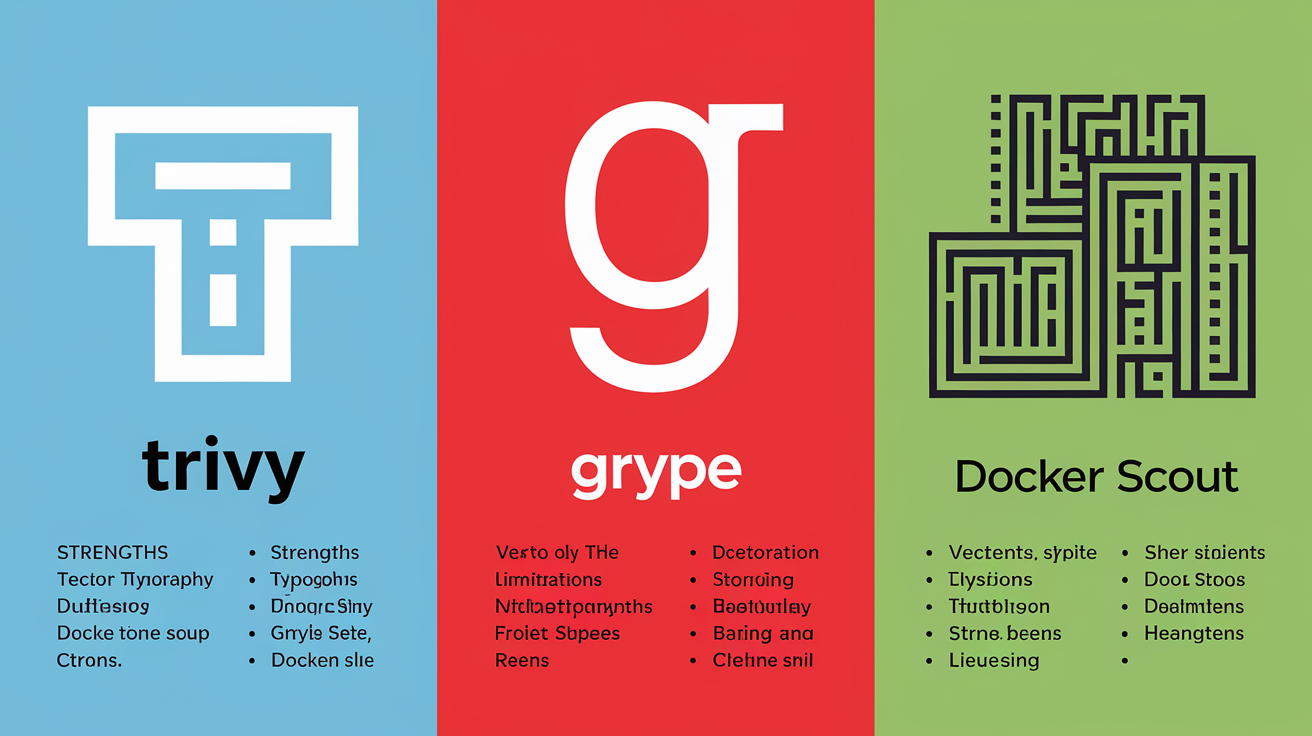
Open-source scanners (Trivy, Grype) and commercial tools (Docker Scout paid tiers, Snyk Container, Aqua Security) each have distinct strengths and limitations. Trivy offers the broadest coverage in a single open-source tool, scanning OS packages, language dependencies, IaC misconfigurations, and embedded secrets without needing a vendor account. Grype excels in SBOM-driven workflows and compliance scenarios where auditors need a portable bill of materials and reproducible scans. Docker Scout provides the best developer experience with fix recommendations and Docker Hub integration, but larger private repository coverage requires a paid subscription.
Commercial scanners typically add features like policy enforcement, runtime correlation (linking image CVEs to running containers), and vendor support, but at the cost of subscription fees and vendor lock-in. For small teams and open-source projects, Trivy and Grype provide production-grade scanning without licensing costs. For enterprises with hundreds of private images and regulatory requirements, a commercial tool’s compliance reporting and support SLA might justify the expense.
| Tool | Strength | Limitations |
|---|---|---|
| Trivy | Broad coverage (OS, deps, misconfigs, secrets); open-source; single binary | No built-in policy engine; requires scripting for complex workflows |
| Grype | Strong SBOM support; pairs with Syft; compliance-friendly | Fewer built-in integrations; less developer UX polish than Scout |
| Docker Scout | Best UX; Docker Hub integration; actionable fix recommendations | Free tier limited to few private repos; paid tiers required for scale |
Final Words
Start scanning images locally with Trivy, Grype, or Docker Scout. The article gave the exact commands, a 5-step quick workflow, and a sample CVE row so you see what real output looks like.
You learned what scanners inspect (OS packages, language deps, image layers), how to read CRITICAL/HIGH results, and how to wire scans into CI/CD and SBOM workflows for consistent checks.
If you follow those steps you’ll know exactly how to scan docker images for vulnerabilities, prioritize fixes, and rebuild safely. Small checks, less night work.
FAQ
Q: How to check Docker image for vulnerabilities and ensure it’s safe before deployment?
A: To check a Docker image for vulnerabilities and ensure it’s safe before deployment, run a layer-aware scanner locally (e.g., Trivy/Grype), review CRITICAL/HIGH CVEs, and fix or update the base image before pushing.
Q: Which security tool can be used to scan Docker images for vulnerabilities?
A: The security tools you can use to scan Docker images include Trivy, Grype (with Syft for SBOMs), and Docker Scout (requires Docker Engine 24+); choose based on CI needs, SBOM support, and UX.