


Ever spent 20 minutes staring at a screen full of >>> and === markers, trying to figure out which version of your code to keep? Manual conflict resolution turns simple merges into frustrating puzzle sessions. Git merge tools replace that tedious marker hunting with visual interfaces that show your changes, their changes, and the final result side by side. The right merge tool setup cuts conflict resolution time from minutes to seconds and catches mistakes before they hit your codebase.
Overview of Git Merge Tools and Available Options
Git merge tools give you GUI interfaces for fixing merge conflicts instead of manually editing those conflict markers in files. When Git can’t automatically combine changes from different branches, you need a way to review the conflicting code sections and decide which version to keep. Merge tools replace the process of manually hunting for conflict markers (like >>> and ===) in text files with visual interfaces that make decisions faster and way less error prone.
Most merge tools show you a three pane view. The left pane shows your local file version, the right pane shows the remote file version coming from another branch, and the bottom pane shows the final merged output as you make selections. This side by side layout with live output lets you see exactly what the final code will look like before you complete the merge.
Your options span free and commercial tools across operating systems:
KDiff3 is free, open source, and supports Windows, macOS, and Linux with automatic merge capabilities and syntax highlighting for common file types. Meld is an open source visual diff and merge tool primarily for Linux (also available on Windows and macOS) with directory comparison and version control integration. Beyond Compare is a commercial tool for Windows, macOS, and Linux offering advanced file comparison, folder synchronization, and support for specialized file formats including images and binary files.
P4Merge is free from Perforce, requires no server or license, available across platforms with a clean three way merge interface. Vimdiff is terminal based and built into Vim, available wherever Vim runs, preferred by developers comfortable with Vim’s keyboard driven navigation. DiffMerge is free and cross platform with graphical file comparison and solid merge features for resolving conflicts visually.
TortoiseGit is Windows only with integrated merge capabilities, particularly useful if you prefer Windows Explorer integration. GitKraken is cross platform with over 40 million installs as of 2026, supporting external merge tools including Beyond Compare, Araxis, P4Merge, and Kaleidoscope with built-in conflict detection. VS Code includes built-in merge conflict resolution with inline diff views and one click accept options directly in the editing window. Sourcetree is a free Git GUI for Windows and macOS with integrated visual merge tools and conflict resolution workflows.
Free and open source options like KDiff3, Meld, and P4Merge work well for individual developers and small teams who need reliable conflict resolution without licensing costs. Commercial solutions like Beyond Compare justify their price when teams need advanced features like folder synchronization, specialized file format support, or enterprise deployment tools. Most developers choose based on operating system compatibility and whether they prefer standalone tools versus editor integrated options.
Configuring and Setting Up Merge Tools in Git
The git config command controls merge tool setup through a simple syntax that tells Git which tool to launch when conflicts appear. Configuration can apply globally across all repositories on your system or locally to a single project, depending on whether you include the –global flag in your command.
Global configuration using –global affects every repository on your machine and stores settings in your home directory’s .gitconfig file. Repository specific configuration without the flag only applies to the current project and writes to .git/config inside that repository. Most developers set merge tools globally since they prefer the same resolution interface across all projects.
Complete basic configuration follows these steps:
- Install your chosen merge tool and note its executable path
- Run
git config --global merge.tool <toolname>to set your preferred tool - Add the prompt preference with
git config --global mergetool.prompt falseto skip the launch confirmation - Verify configuration with
git config --global --list | grep mergeto confirm settings - Test the setup by creating a deliberate conflict and running
git mergetool - Check that the tool launches correctly and displays the three pane interface
- Complete a test merge and verify Git stages the resolved file
The prompt false setting with git mergetool gives automatic permission to use the configured tool without prompting “Launch ‘toolname’ [Y/n]?” every time, saving a step during active conflict resolution.
Tool Specific Configuration Examples
For P4Merge, run git config --global merge.tool p4merge after installing from Perforce’s website. On macOS, you may need git config --global mergetool.p4merge.path /Applications/p4merge.app/Contents/MacOS/p4merge if Git doesn’t find the executable automatically.
KDiff3 requires git config --global merge.tool kdiff3 and typically auto detects installation paths on Linux. Windows users sometimes need git config --global mergetool.kdiff3.path "C:/Program Files/KDiff3/kdiff3.exe" with the exact installation directory.
For merge tools not in Git’s built-in supported list, specify the launch command using mergetool.git config --global mergetool.customtool.cmd 'customtool "$BASE" "$LOCAL" "$REMOTE" -o "$MERGED"' where you replace customtool with your tool’s executable name and adjust flags to match what that tool expects.
Resolving Conflicts with the Mergetool Command
Run git mergetool immediately after Git reports conflicts during merge, rebase, or cherry pick operations. Git displays which files contain conflicts in the terminal output, and running git status shows files marked as “both modified” or similar conflict states. The mergetool command launches your configured tool for each conflicted file in sequence, letting you resolve them one at a time.
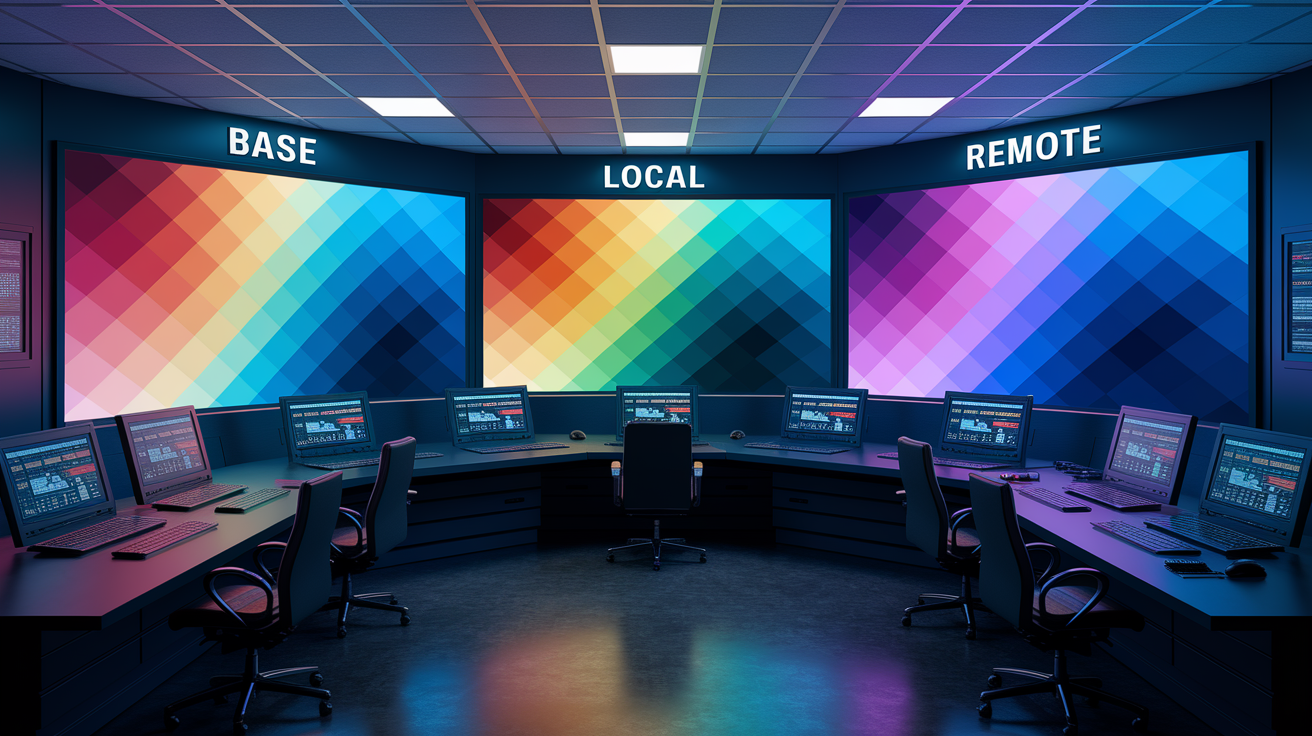
Three way merge visualization relies on a base version (the common ancestor commit where both branches diverged), local changes (your current branch modifications), and remote changes (incoming modifications from the branch you’re merging). This approach shows not just what’s different now, but what changed from the original, making it easier to understand why conflicts exist.
Visual merge tools present these three versions simultaneously in the three pane interface. The left pane displays your local file with your branch’s changes highlighted, the right pane shows the remote file with their changes highlighted, and the bottom pane shows the merged output that updates in real time as you make selections. Side by side conflict viewing with live output means you immediately see how choosing specific lines affects the final code, catching mistakes before saving.
Navigate through conflicts using your tool’s interface, which typically highlights each conflicting section in sequence. Most tools let you click individual lines to select which version to keep, or use keyboard shortcuts to accept entire sections from local or remote. Some conflicts require manual editing in the bottom pane when neither version is fully correct and you need to combine parts of both or write something new. The process repeats for multiple conflicts in the same file, and then for each additional conflicted file until all are resolved.
After resolving all conflicts in a file, save it (often with command + s or through the File menu). Git automatically stages the resolved file and may create .orig backup files containing the original conflicted version. Most setups configure git config --global mergetool.keepBackup false to skip creating these backups. Pre-pull request conflict scanning in modern tools like GitKraken Desktop detects conflicts by comparing your branch against target branches before you create pull requests, preventing wasted review cycles where reviewers can’t merge your work.
Built-In Versus External Merge Tool Options
Git includes basic conflict resolution through command line editing where you manually locate conflict markers and delete unwanted sections. External dedicated merge tools provide graphical interfaces specifically designed for comparing code versions and resolving conflicts visually, which most developers find faster for anything beyond trivial conflicts.
| Feature | Built-In Git | External Tools |
|---|---|---|
| Interface | Text editor with conflict markers | Visual three pane comparison with syntax highlighting |
| Learning Curve | Requires understanding marker syntax (>>>, ===, <<<) | Visual selection with mouse or keyboard shortcuts |
| Complex Conflicts | Difficult to track multiple changes across large files | Side by side view with color coded differences |
| Cost | Free, included with Git | Free (P4Merge, Meld, KDiff3) or commercial (Beyond Compare) |
| Setup | No configuration needed | Requires installation and git config setup |
Integration benefits become clear when platforms like GitKraken Desktop combine external tool support with earlier conflict detection. While web editors in GitHub and GitLab only reveal conflicts after pull request creation, GitKraken Desktop alerts you during branch comparison before the PR exists. This earlier warning lets you resolve conflicts locally before reviewers see your work. Choose external tools when you regularly handle conflicts involving more than a few lines, work with teams where visual confirmation reduces errors, or need features like directory comparison and binary file merging that built-in Git doesn’t provide.
Advanced Merge Tool Features and AI Assisted Resolution
AI assisted conflict resolution analyzes both sides of a conflict and suggests which version to keep based on code patterns, commit history, and logical consistency. Tools providing automated conflict resolution suggestions explain why each recommended line choice makes sense, pointing out factors like “remote version removes deprecated function call” or “local version fixes syntax error present in remote.” Manual override and adjustment options remain available when AI suggestions don’t match your specific context or when you need to combine elements from both versions.
Collaborative features prevent conflicts before they happen through team visibility systems. Team View displays which teammates are working on specific branches and files across repositories, warning you when someone else has unsaved changes in a file you’re about to edit. Conflict warnings for shared file edits appear as notifications like “Sarah is editing UserController.rb on feature-auth branch” before you open that same file. Active/Away status settings help teammates know who’s actually working versus who left their editor open, reducing false conflict warnings. These prevention systems work best when teams adopt them consistently rather than having some members use them while others don’t check the warnings.
Merge drivers and custom merge strategies handle specific file types that need special treatment beyond standard line by line comparison. For example, package-lock.json files in JavaScript projects often conflict on every merge but can be regenerated automatically. A custom merge driver configured with git config merge.npm.driver "npm install" tells Git to run npm install instead of attempting manual resolution. Similar strategies apply to database schema files, compiled assets, or any file where the tool that generates it should handle conflicts rather than manual editing.
Merge Tool Best Practices for Team Collaboration

Standardized merge workflows prevent confusion when different team members use different tools and processes to resolve the same types of conflicts. Teams that agree on a single merge tool or a small approved list ensure everyone sees the same interface during pairing sessions and can help each other troubleshoot issues.
Pre-pull request conflict scanning should run before clicking “Create Pull Request” to catch conflicts while you’re still in development mode rather than after reviewers have started looking. Modern platforms make this a one click check that compares your branch against the target.
Best practices for collaborative merge workflows include:
Configure the same merge tool across the team through shared .gitconfig templates or setup documentation. Check Team View or equivalent branch monitoring before starting work on shared files. Pull from the target branch (usually main or develop) at the start of each work session to catch conflicts early. Run conflict scans before creating pull requests to avoid blocking reviewers.
Document team specific merge strategies for frequently conflicting files like package manifests or database schemas. Use platform integrations with GitHub, GitLab, Azure DevOps, or Bitbucket to centralize conflict warnings and resolution tracking. Set up merge tool prompts (mergetool.prompt false) consistently so automation scripts don’t hang waiting for input.
Tool consistency matters more than which specific tool you choose. A team where everyone uses Meld resolves conflicts faster than a team where three people use P4Merge, two use VS Code’s built-in resolver, and one uses Vimdiff, because teammates can share shortcuts and troubleshoot each other’s issues without translation.
Troubleshooting Common Merge Tool Issues
Merge tool problems typically surface when Git reports conflicts but running git mergetool produces errors instead of launching your configured application. The error message “failed to push some refs” indicates an impending merge conflict on the remote that you’ll need to pull and resolve locally before pushing again.
Common issues and solutions:
Tool not launching. Verify installation with which <toolname> on macOS/Linux or where <toolname> on Windows, then check git config –global –list shows correct merge.tool setting.
Incorrect configuration paths. Manually set mergetool.
Binary file conflicts. Git can’t merge binary files like images or PDFs automatically. Choose one version with git checkout --ours file.png or git checkout --theirs file.png instead of using mergetool.
Whitespace and line ending issues. Configure git config --global core.autocrlf true on Windows or input on macOS/Linux to normalize line endings before they cause false conflicts.
Merge tool path problems. Some tools install to user specific directories that change between system accounts. Use absolute paths in configuration to avoid “command not found” errors.
Permission errors. Ensure the merge tool executable has run permissions with chmod +x on Unix systems, or run Git terminal as administrator on Windows if needed.
Abort and restart merge processes using git merge –abort when you realize mid resolution that you’re taking the wrong approach or need to pull additional changes first. This command returns your repository to the state before the merge attempt, letting you start over. After aborting, you can run git mergetool again once you’re ready to retry with a clearer strategy.
Advanced troubleshooting with git help config explores additional configuration variables for specific merge tools. Running this command opens extensive documentation covering mergetool.
Differentiating Diff Tools from Merge Tools in Git

Diff tools perform two way comparison showing what changed between two versions of a file, useful for reviewing commits or comparing branches without conflicts. Merge tools handle three way conflict resolution combining a base version with two conflicting changes.
Configure diff tools separately from merge tools using diff.tool settings because workflows differ significantly. Run git config --global diff.tool <toolname> to set your preferred comparison tool, then use git difftool instead of git diff to launch the visual tool. Many developers prefer lightweight diff tools like VS Code’s built-in comparison for quick checks while using more powerful dedicated merge tools like Beyond Compare for actual conflict resolution. Maintaining distinct tools for different workflows means you can optimize each tool choice for its specific purpose rather than compromising on one tool that’s mediocre at both.
Use diff tools for code review when examining what changed in a commit, comparing your working directory against staged changes, or inspecting differences between branches before merging. Use merge tools when Git reports conflicts that require resolution, when you need to see the common ancestor alongside both changed versions, or when combining changes from multiple sources into a single coherent file. The three way context in merge tools provides information that two way diff tools can’t show, making them necessary for understanding why conflicts exist and how to resolve them correctly.
Merge Tool Integration with Modern Development Platforms
GitKraken Desktop integrates with GitHub, GitLab, Azure DevOps, and Bitbucket through direct API connections that sync repository state, pull request status, and conflict warnings across platforms. These integrations mean conflict detection happens within your development tool rather than requiring context switches to web interfaces that only show problems after PR creation.
Merge tools fit into pull request workflows by enabling conflict resolution before code review begins. Platforms with pre-merge checks trigger automated conflict scans when you push branches, displaying warnings in the PR interface if merging would fail.
CI/CD pipeline integration extends conflict detection to automated workflows through pre-merge checks that run before code integration. These checks catch conflicts during continuous integration builds, failing the pipeline and notifying developers to resolve issues before merge. Some teams configure required status checks that prevent PR merging until conflict scans pass, enforcing clean merges across the codebase.
Enterprise features like SSO and IdP integration provide security and admin management for organizations using merge tools across large development teams. GitKraken Desktop includes Launchpad for managing PRs, issues, and tasks across repositories, Cloud Patches for early collaboration on work in progress changes before formal commits, Workspaces for multi-repo management when services split across multiple repositories, and DORA Insights for tracking deployment velocity and change failure rates. These platform features transform merge tools from isolated conflict resolvers into integrated parts of the complete development workflow, where conflict prevention and resolution connect to broader team productivity and code quality metrics.
Final Words
Merge conflicts happen. The right git merge tool makes them manageable instead of miserable.
You’ve got options ranging from lightweight built-in tools like Vimdiff to full-featured platforms like GitKraken. Free tools like KDiff3 and Meld handle most conflicts just fine. Commercial options add polish and AI assistance if you need it.
Configure once, resolve faster. Set your preferred tool globally, learn the three-pane layout, and you’ll handle conflicts in minutes instead of hours.
Pick a tool that fits your workflow, keep it consistent across your team, and keep shipping.
FAQ
What is a Git merge tool and why do developers use it?
A Git merge tool is a GUI application that helps developers resolve merge conflicts by providing visual interfaces instead of manually editing conflict markers in files. Developers use merge tools to see side-by-side comparisons of conflicting changes and quickly choose which version to keep.
What merge tools are built into Git by default?
Git supports built-in merge tools including kdiff3, meld, vimdiff, p4merge, opendiff, tortoisemerge, araxis, bc3, diffuse, ecmerge, emerge, gvimdiff, tkdiff, and xxdiff. These tools can be configured without additional setup beyond installing the tool itself.
How do you configure a merge tool in Git?
A merge tool in Git is configured using the command git config merge.tool <toolname> for repository-specific settings or git config --global merge.tool <toolname> for system-wide configuration. This tells Git which visual tool to launch when conflicts occur.
What is the three-way merge view in merge tools?
The three-way merge view in merge tools displays three panes: the left pane shows your local file changes, the right pane shows remote changes, and the bottom pane shows the final merged output. This layout helps developers compare all versions simultaneously during conflict resolution.
When should you use git mergetool command?
You should use the git mergetool command after Git detects merge conflicts during merge, rebase, or cherry-pick operations. The command launches your configured visual tool to resolve conflicts marked with conflict markers in your files.
What’s the difference between free and commercial merge tools?
Free merge tools like KDiff3, Meld, and P4Merge provide basic conflict resolution features suitable for most developers, while commercial solutions like Beyond Compare offer advanced features such as folder comparison, syntax highlighting, and enhanced file format support. Choose commercial tools when handling complex repositories or needing specialized file handling.
How do you configure P4Merge as your Git merge tool?
P4Merge is configured as your Git merge tool using the command git config --global merge.tool p4merge, which sets it globally across all repositories. P4Merge is a free tool from Perforce that requires no server or license.
What environment variables does Git create during merging?
Git creates BASE, LOCAL, REMOTE, and MERGED environment variables during the merge process to reference different file versions. These variables enable custom merge tools to access specific file versions when configured using the mergetool.tool.cmd variable.
How does the -y flag work with git mergetool?
The -y flag with git mergetool gives automatic permission to launch the configured merge tool without prompting for confirmation. This speeds up workflows by immediately opening the visual tool when conflicts are detected.
What are conflict markers in Git files?
Conflict markers in Git files are special text indicators including >>>, ===, and <<< signs that Git inserts when automatic merge fails. These markers surround conflicting sections and show where manual resolution is required.
How do modern merge tools detect conflicts early?
Modern merge tools detect conflicts early by scanning branches against target branches before pull requests are created through pre-pull request conflict detection features. This prevents wasted review cycles by alerting developers to potential conflicts before code submission.
What happens to .orig files after merge resolution?
Git automatically cleans up .orig backup files after successful merge resolution when using merge tools. These temporary files contain the original conflicted version and are removed once the merge is completed and committed.
What’s the difference between built-in Git merging and external merge tools?
Built-in Git merging requires manual editing of conflict markers in text editors and offers no visual comparison, while external merge tools provide graphical interfaces with side-by-side views and live output. External tools make conflict resolution faster and less error-prone for complex merges.
How does GitKraken Desktop compare to web-based merge editors?
GitKraken Desktop alerts developers to conflicts earlier than web editors in GitHub and GitLab, which only reveal conflicts after PR creation. GitKraken provides side-by-side viewing with direct code editing and supports both built-in and external merge tools.
What are AI-assisted merge features in modern tools?
AI-assisted merge features provide automated conflict resolution suggestions with explanations for each recommended line choice, helping developers understand why specific changes are suggested. Developers maintain manual override capabilities to adjust or reject automated suggestions.
How does Team View help prevent merge conflicts?
Team View helps prevent merge conflicts by displaying which teammates are working on specific branches and files across repositories, with conflict warnings for shared file edits. This visibility combined with Active/Away status settings enables proactive coordination before conflicts occur.
What are merge drivers in Git?
Merge drivers in Git are custom merge strategies configured for specific file types that require special handling beyond standard text merging. They enable automatic resolution rules for files like package-lock.json or binary assets.
Should teams standardize on one merge tool?
Teams should standardize on one merge tool to ensure consistent workflows, reduce configuration troubleshooting, and enable easier knowledge sharing across team members. Consistent tooling reduces friction during pair programming and code reviews.
What does the error “failed to push some refs” indicate?
The error “failed to push some refs” indicates an impending merge conflict where your local branch diverges from the remote branch. This requires pulling remote changes and resolving conflicts before pushing successfully.
How do you abort a merge in progress?
You abort a merge in progress using the command git merge --abort, which returns your repository to the state before the merge attempt. This is useful when you need to restart the merge process or handle conflicts differently.
How do you configure custom merge tools not in Git’s supported list?
You configure custom merge tools by specifying the mergetool.tool.cmd variable with the exact command to invoke the tool, using Git’s environment variables (BASE, LOCAL, REMOTE, MERGED) to pass file paths. Check additional configuration options using git help config command.
What’s the difference between diff tools and merge tools?
Diff tools perform two-way comparison for viewing changes between file versions, while merge tools handle three-way conflict resolution during merge operations. Git allows separate configuration using diff.tool for comparisons and merge.tool for conflict resolution.
When should you use git difftool versus git mergetool?
You should use git difftool for code review and inspecting changes between commits or branches, while git mergetool is for resolving conflicts during merge operations. Maintaining distinct tools optimizes workflows for different development tasks.
How does GitKraken Desktop integrate with development platforms?
GitKraken Desktop integrates with GitHub, GitLab, Azure DevOps, and Bitbucket, providing unified access to repositories, pull requests, issues, and tasks across platforms. The integration includes SSO and IdP support for enterprise security and admin management.
What are Cloud Patches in GitKraken?
Cloud Patches in GitKraken enable early collaboration by allowing developers to share work-in-progress changes before creating formal pull requests. This feature facilitates feedback loops and conflict detection before code reaches the main review process.
How do merge tools fit into CI/CD workflows?
Merge tools fit into CI/CD workflows by enabling pre-merge conflict resolution before automated tests and deployment pipelines execute. Platform integrations trigger pre-merge checks that validate conflict-free merges before code enters continuous integration systems.