


Ever spent 30 minutes tracing why a script can’t find the right python.exe?
Environment variables are usually the culprit, and they’re easy to fix once you know where to look.
This guide shows how to access and modify Windows environment variables using the GUI, CMD, and PowerShell, plus safe PATH edits and common gotchas like setx truncation and the need to restart shells.
Read on for quick steps and practical checks that stop surprises in production.
Accessing and Managing Environment Variables on Windows (Core How-To)

Windows environment variables are shortcuts that point to drives, files, or folders. They make scripting and navigation faster, especially when you’re troubleshooting or automating tasks. The easiest way to see and change these variables is through System Properties, which gives you a GUI for both user and system variables.
Press Windows+R to open the Run dialog, type sysdm.cpl, and hit Enter. In the System Properties window, go to the Advanced tab and click Environment Variables near the bottom. You’ll see two lists: user variables for your profile at the top, system variables (shared across all users) at the bottom. From here you can add new variables, edit existing ones, or delete stuff you don’t need anymore.
After you make changes, click OK and close everything. Then restart any Command Prompt, PowerShell, or app windows that need the new values. Running processes won’t pick up registry changes until they restart. This works on Windows 11, 10, and older versions like 8.1, 7, and Vista.
Steps to edit via GUI:
- Press Windows+R, type sysdm.cpl, press Enter
- Click the Advanced tab
- Click Environment Variables
- Pick a variable from User or System
- Click Edit to change it, or New to create one
- Hit OK on all dialogs, then restart shells or apps
You can also use variables directly in the Run dialog for quick navigation. Typing %APPDATA% opens C:\Users\
Understanding User vs System Environment Variables on Windows
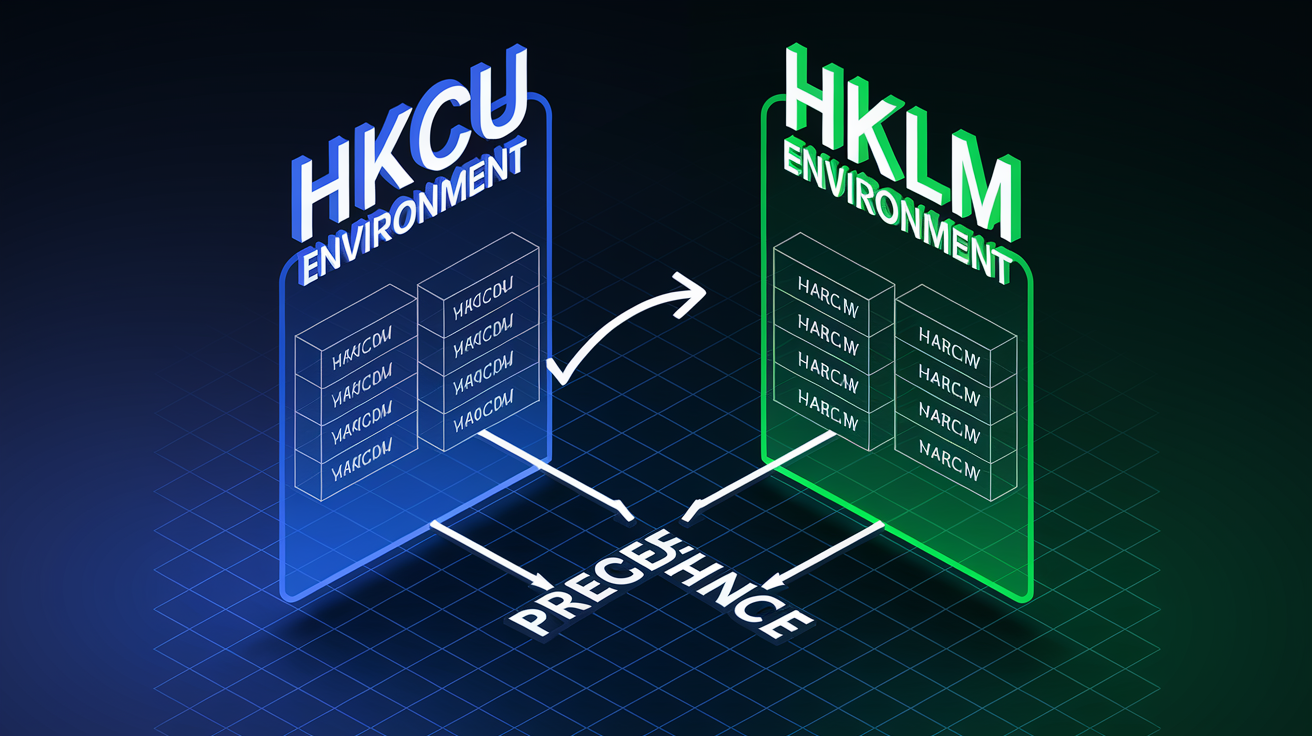
Windows stores environment variables in three places: the current process (temporary), the user registry (HKCU, per profile), and the machine registry (HKLM, system wide). User variables apply only to your logged-in account and are stored under HKEYCURRENTUSER\Environment. System variables apply to everyone and need admin rights to change. They’re stored under HKEYLOCALMACHINE\SYSTEM\CurrentControlSet\Control\Session Manager\Environment. When a program starts, Windows merges both registry locations plus any process overrides into one environment block. The program and all its child processes inherit that block.
If you set the same variable at both user and system level with different values, the user value wins for your profile. Child processes inherit the environment from their parent at startup, so changing a registry variable won’t affect programs already running. You have to restart those programs or set the variable again in the current session to see it immediately. Batch files and scripts can define temporary variables that vanish when the script exits, while registry changes stick around across reboots.
Key differences:
- Current Process: Temporary, gone when the shell or app closes. Fastest to set and test.
- User Registry: Sticks around across sessions for one profile. No admin needed.
- System Registry: Applies to all users. Requires elevated permissions.
- Precedence: User variables beat system variables when both exist with the same name.
Working with PATH and Other Critical Windows Variables

The PATH variable is a semicolon-separated list of directories Windows searches, in order, when you type a command without a full path. The first matching executable found is the one that runs, so order matters. If you’ve got two Python installations in PATH, the one listed first wins when you type python.exe. To change PATH safely, open the environment variables editor, select PATH in either user or system, click Edit, and use the GUI list editor (Windows 10 and later) to add, remove, or reorder entries. Don’t edit the raw semicolon string unless you’re confident you won’t break something.
PATH used to have a 2,047 character limit on older Windows versions, which caused headaches for toolchains with deep install paths. Windows 10 and later relax this through the GUI and support longer paths with manifest flags. But very long PATH values can still trip up legacy installers or scripts that parse the string manually. Clean up PATH regularly by removing old entries from uninstalled tools or duplicate paths. This keeps command resolution fast and stops you from accidentally running the wrong version of a program.
Some variables provide system metadata instead of filesystem paths. %COMPUTERNAME% returns the network name of the machine. %USERNAME% and %USERDOMAIN% identify the logged-in user and domain. %PATHEXT% lists executable extensions (.COM, .EXE, .BAT, .CMD, .VBS, .JS, .PS1) that Windows tries when you skip an extension. %PROMPT% controls the CMD prompt format. Knowing these helps when writing scripts that run across machines or diagnosing environment bugs.
| Variable | Primary Use |
|---|---|
| PATH | Defines executable search directories, affects which program runs when you type a command |
| PATHEXT | Lists file extensions treated as executables (.COM, .EXE, .BAT, .CMD, .PS1, etc.) |
| TEMP / TMP | Points to temporary file storage used by installers, build tools, and system utilities |
| USERPROFILE | Full path to the current user’s profile folder (e.g., C:\Users\ |
| COMPUTERNAME | Network hostname of the machine, useful for logging and cross-machine scripts |
Command-Line Methods for Setting Windows Environment Variables
The classic set command in CMD creates a variable for the current session only. Type set VAR=value and that variable exists until you close the window. Child processes launched from that CMD session inherit it, but it disappears when cmd.exe exits. Handy for testing or for batch files that need temporary config without touching the system registry.
To make a variable stick across sessions, use setx instead. The command setx VAR “value” writes to the user registry under HKCU\Environment, making the variable available in all future sessions for that profile. Need a system-wide variable? Run an elevated prompt and use setx /M VAR “value” to write to HKLM. Keep in mind setx does not update the current session. You have to open a new CMD window or manually run set VAR=value in the current window to see the change now. Also, setx truncates values longer than 1,024 characters, so extremely long PATH modifications can get lost. For those cases, edit PATH through the GUI or use PowerShell registry methods.
Batch files use percent expansion. %VAR% retrieves the value at parse time. If you modify a variable inside a batch file and need to read the new value in the same script, enable delayed expansion with setlocal enabledelayedexpansion and use !VAR! instead. Delayed expansion re-evaluates at execution time rather than parse time, which matters in loops or conditionals. To delete a variable in the current session, use set VAR= with no value. For registry variables, remove them via the GUI or by deleting the registry key directly, though most people find the GUI safer.
Common CMD commands:
- set VAR=value — Create or update a session variable
- setx VAR “value” — Persist to user registry (HKCU), not visible in current session
- setx /M VAR “value” — Persist to system registry (HKLM), needs admin
- set VAR= — Delete a session variable (doesn’t touch registry)
- echo %VAR% — Print the current session value, returns “%VAR%” if undefined
Using PowerShell for Environment Variables in Windows

PowerShell uses the $Env: drive to read and write environment variables in the current process. To set a temporary variable, type $Env:VAR = “value”. This change applies immediately to the current PowerShell session and any child processes it spawns, but vanishes when you close the window. Verify the value by typing $Env:VAR, which prints the stored string or returns nothing if it doesn’t exist. To list everything, run Get-ChildItem Env: or Get-ChildItem Env: | Sort Name for alphabetical output.
Persisting variables in PowerShell means either editing your profile script (so the assignment runs every time you open a shell) or writing directly to the registry. For registry persistence, use the .NET [Environment]::SetEnvironmentVariable method with three arguments: variable name, value, and target scope (“User” or “Machine”). For example, [Environment]::SetEnvironmentVariable(“MYVAR”, “myvalue”, “User”) writes to HKCU\Environment, while “Machine” writes to HKLM and requires an elevated prompt. Registry changes take effect in new processes but not in the current PowerShell session. If you need the value now, also set $Env:MY_VAR in the same session.
Unlike CMD’s setx, PowerShell’s registry method doesn’t truncate long strings and handles paths with embedded quotes or special characters more gracefully. You can also append to PATH programmatically by reading the current value, splitting on semicolons, adding your directory, and writing back. Some developers refresh the environment in the current session by re-reading the registry and merging user and system PATH manually, avoiding the need to restart the shell entirely. That’s an advanced pattern requiring careful handling of precedence and duplicates.
Common PowerShell operations:
- Temporary variable:
$Env:VAR = "value"— applies to current session and child processes - Persistent user variable:
[Environment]::SetEnvironmentVariable("VAR", "value", "User")— writes to HKCU registry - Listing all variables:
Get-ChildItem Env: | Sort Name— prints sorted key-value pairs - Verifying a value:
$Env:VAR— returns the value or empty if undefined
Developer-Focused Windows Environment Variable Usage

Toolchains and SDKs rely on environment variables to locate runtimes, libraries, and build utilities. JAVAHOME is the classic example. Java installers often set it to the JDK root (e.g., C:\Program Files\Java\jdk-17), and build tools like Maven and Gradle read JAVAHOME to find javac and other binaries. If JAVAHOME points to the wrong version or isn’t set, builds fail with cryptic “command not found” errors. Android development needs ANDROIDHOME or ANDROIDSDKROOT pointing to the SDK directory so Gradle can locate platform tools and emulators.
Python developers use PYTHONPATH to add directories to the module search path, letting scripts import local packages without installing them. Virtual environments set VIRTUALENV to the environment root and prepend the environment’s Scripts folder to PATH, so python.exe and pip.exe resolve to isolated copies rather than the system install. Node.js users modify PATH to include global npm package binaries. Some projects define custom variables like NODEENV (development vs. production) that frameworks read at runtime. .NET tooling checks variables like DOTNET_ROOT and MSBuildSDKsPath to locate SDK components and MSBuild extensions.
After setting or changing development variables, restart your IDE, build tool, or terminal. Many tools cache environment blocks at startup and won’t pick up registry changes until they’re relaunched. Some package managers and installers modify PATH automatically but append entries at the end, so an older version earlier in PATH still wins. Always check variable ordering and test by running where command-name in CMD or Get-Command command-name in PowerShell to see which executable will actually be invoked.
| Toolchain | Required Variables |
|---|---|
| Java (JDK) | JAVA_HOME (JDK root), PATH includes %JAVA_HOME%\bin |
| Node.js / npm | PATH includes npm global bin directory, optionally NODE_ENV |
| Python | PATH includes Python install and Scripts, PYTHONPATH for module search, VIRTUAL_ENV in venvs |
| Android SDK | ANDROID_HOME or ANDROID_SDK_ROOT, PATH includes platform-tools and tools/bin |
| .NET SDK | DOTNET_ROOT (SDK location), PATH includes dotnet.exe folder |
Common PATH pitfalls:
- Multiple versions of the same tool in PATH, wrong one listed first
- Leftover entries from uninstalled software causing conflicts or slowdowns
- Missing quotes around paths with spaces, breaking split logic in some scripts
Environment Variables in Windows Services, Tasks, Containers, and WSL

Windows services run under special system accounts (LocalSystem, NetworkService, or custom service accounts) that have their own environment blocks, separate from interactive user sessions. Variables set in your user or system registry may not be visible to a service unless the service account has access to those keys or the service is configured to inherit a specific environment. After modifying system variables that a service depends on, you have to restart the service for it to reload the new environment. Just logging off and back on won’t propagate changes to already-running service processes.
Scheduled tasks also maintain independent environment contexts. By default, tasks launched by Task Scheduler inherit the system environment at task start, but they don’t see user variables unless the task runs under a specific user account. If a scheduled script fails with “command not found” but works interactively, check whether the task’s environment includes the necessary PATH entries or custom variables. You can work around this by setting variables inline in the task’s batch script or using setx to ensure system-wide persistence.
Docker containers running on Windows accept environment variables through the -e flag with docker run or via the environment section in Docker Compose files. These variables exist only inside the container and are isolated from the host’s registry. When you specify -e MYVAR=value, the container sees MYVAR in its process environment, but the host doesn’t. Windows Subsystem for Linux (WSL) can access some Windows environment variables when interop is enabled (the default in WSL 2), but behavior varies by version and configuration. Variables like PATH are partially shared, with WSL appending Windows paths translated to Unix-style mounts (/mnt/c/…). If you need full control over what WSL sees, set variables inside the Linux shell’s profile scripts rather than relying on Windows registry inheritance.
Troubleshooting Windows Environment Variables
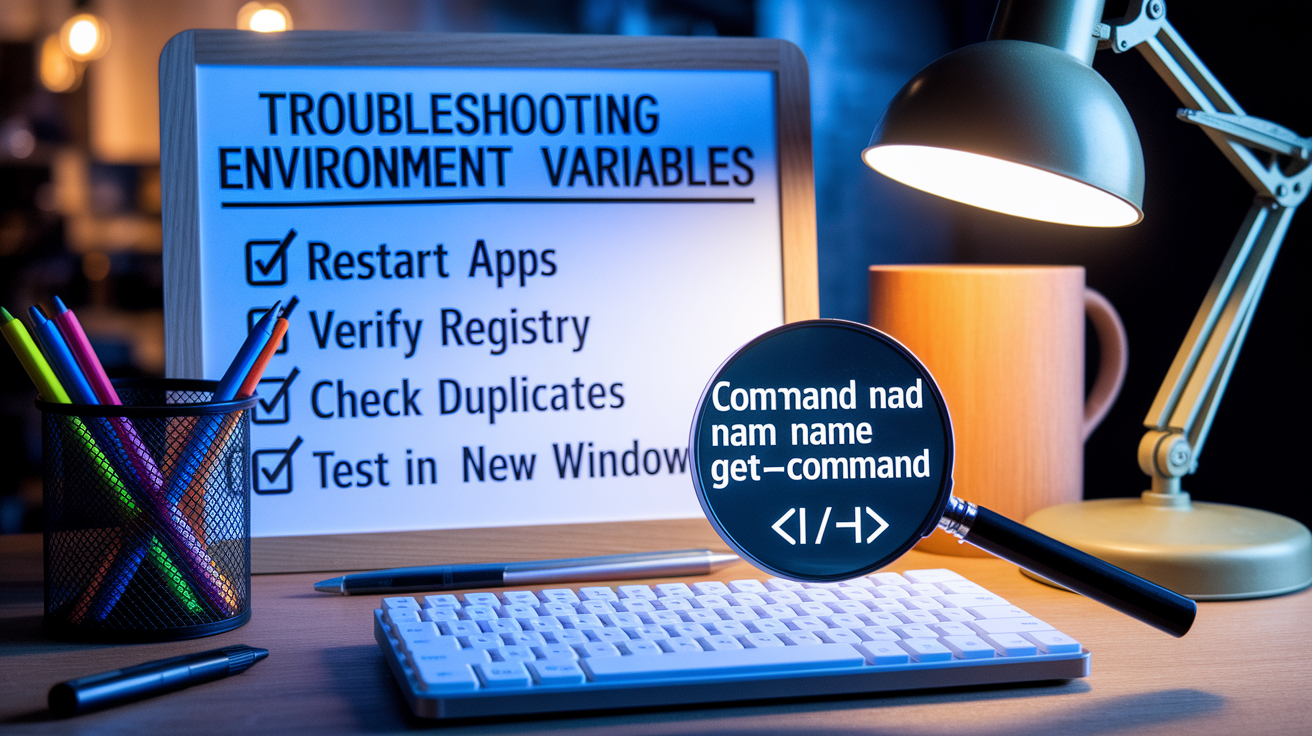
When environment changes don’t seem to apply, the most common culprit is that you’ve modified the registry but haven’t restarted the affected process. Variables stored in HKCU\Environment or HKLM\SYSTEM\CurrentControlSet\Control\Session Manager\Environment are read at process startup. CMD, PowerShell, and applications already running when you made the change still see the old values. Open a new window or restart the program to load the updated environment. In some corporate environments, Group Policy can override or lock variables, preventing local changes from taking effect. Check with your IT admin if variables revert or refuse to persist.
PATH issues often stem from duplicate entries, incorrect ordering, or obsolete paths pointing to nonexistent directories. Use the GUI editor (on Windows 10+) to visually inspect each entry and remove duplicates or dead paths. If a command still resolves to the wrong executable, run where command-name.exe in CMD to see all matches in PATH order, or Get-Command command-name in PowerShell for detailed resolution info. Precedence conflicts between user and system PATH can also cause confusion. User PATH entries are evaluated first, so a user entry for C:\MyTools will override a system entry with the same tool name.
Troubleshooting steps:
- PATH not updating: Close and reopen your terminal or restart the app. Registry changes aren’t live-reloaded into running processes.
- Registry conflicts: Check both HKCU\Environment and HKLM…\Environment for duplicate variable names. User values override system values.
- Duplicate PATH entries: Use the GUI list editor to remove redundant directories. Duplicates slow down command resolution.
- Session refresh: Use Get-ChildItem Env: in PowerShell or set in CMD to verify the actual loaded environment.
- Variable precedence: If a variable behaves unexpectedly, confirm whether it’s defined at user, system, or process level and which scope is winning.
Final Words
In the action, you used System Properties (sysdm.cpl) to view and edit variables, picked user vs machine scope, and learned PATH basics. We also covered CMD vs setx, PowerShell tips (Get-ChildItem Env:), and cases like services, containers, and WSL.
Restart shells or services after changes, prefer setx for persistence, and verify values with Get-ChildItem Env:. Watch for duplicate PATH entries and ordering gotchas.
With these steps, managing environment variables windows is faster and more reliable, and you’ll find your toolchain behaves better.
FAQ
Q: How do I find or open environment variables in Windows?
A: You open environment variables in Windows by running Windows+R → sysdm.cpl, selecting Advanced → Environment Variables, or searching Start for “Edit the system environment variables” to open the dialog.
Q: How do I set or edit environment variables (user and system) in Windows?
A: You set or edit environment variables in Windows from the Environment Variables dialog: click New or Edit under User or System, save with OK, then restart open shells or apps for changes to apply.