


Think Eclipse is just a dusty Java IDE? Think again.
Eclipse is now a multi-language, plugin-driven workbench that scales from single-file scripts to enterprise codebases.
It supports modern Java, a huge plugin ecosystem, and practical tools for debugging, refactoring, and workspace management.
This post gives a clear, practical tour: what Eclipse does, how to install and configure it across Windows, macOS, and Linux, how plugins extend it, and when to choose it over lighter editors.
If you need an extensible, open-source IDE that grows with your project, Eclipse is your powerhouse.
Comprehensive Overview of Eclipse Software and Its Core Capabilities
Eclipse is an open-source development environment released under the Eclipse Public License 2.0. Developers use it to create, test, debug, and deploy software across multiple languages and platforms. It started as a Java IDE, but it’s grown into a multi-language hub that serves everyone from solo coders to enterprise teams managing thousands of contributors.
The Eclipse 2026-03 IDE brought updates that actually matter. Java 25 is fully supported now. You can access Javadoc directly from annotation hovers, and it renders markdown syntax. There’s a quick fix that converts eligible classes into Java records automatically. If you’re running SWT on Windows with multiple monitors, the new PerMonitorV2 DPI awareness is the default, so text and icons stay sharp. SWT now generates PDFs natively, and the console view icon updates based on which console you’ve selected. You can drag variables and expressions straight into the debug shell instead of typing them out. Next release lands in 2026-06.
Eclipse is built to extend. The plugin ecosystem is massive and maintained by a community that’s been around for years. Java is still the main language, but plugins cover C, C++, Python, PHP, R, Ruby, Scala, JavaScript, Lua, Fortran, and Haskell. The Plug-in Development Environment added options to display resolved bundle lists for plugin and feature-based applications, which makes troubleshooting launch configs less painful. Whether you’re building enterprise apps, embedded systems, or web services, Eclipse gives you proven extensibility and a toolset that grows with your needs.
Eclipse Software Installation Across Windows, macOS, and Linux
Eclipse needs a compatible Java Runtime Environment or Java Development Kit on your system. The 2026-03 release supports Java 25, so make sure your Java version matches or exceeds that. System requirements vary by OS but you’ll want at least 4 GB of RAM and 1 GB of free disk space. Larger projects and plugin-heavy setups will eat more memory. Check the official Eclipse downloads page for the installer package that matches your platform and language.
Windows users should run the installer as administrator to avoid permission headaches. Extract the archive to a folder without spaces in the path (like C:\Eclipse). Some plugins and build scripts choke on spaces. If you’re working with large builds or multi-project workspaces, edit the eclipse.ini file to increase the default max heap size before you launch for the first time.
macOS users download the disk image or archive for their architecture (Intel or Apple Silicon). Drag the Eclipse app to Applications, then right-click and select Open the first time to get past Gatekeeper. macOS might ask you to verify the Java installation location. If the IDE won’t start, double-check the JDK path in system preferences.
Linux users unpack a tarball to a directory like ~/eclipse or /opt/eclipse. Make sure the eclipse binary has execute permissions, and create a desktop launcher if you want easy access. Some distributions package Eclipse in their repos, but those versions usually lag behind official releases. You’ll need GTK libraries installed for the SWT UI to render correctly.
- Download the Eclipse installer or archive from the official site. Pick the package for Java or your preferred language.
- Install or extract Eclipse to a path without spaces and with write permissions.
- Verify that a compatible JDK (Java 25 or newer) is installed and accessible via the system PATH.
- Launch Eclipse and select a workspace directory to store projects and settings.
- Install additional language plugins or tools through the Eclipse Marketplace during setup.
- Adjust memory and performance settings in eclipse.ini if you’re dealing with large codebases.
Eclipse Software Workspace Setup and Configuration Essentials

The workspace is where Eclipse stores all your projects, window layouts, and plugin configurations. When you first launch, you pick a workspace directory that holds metadata, build outputs, and user preferences. Each workspace can contain multiple projects and keeps a separate set of installed plugins, so you can isolate environments for different clients or product lines.
Workspace corruption happens sometimes. Abrupt shutdowns, plugin conflicts, or file system errors can trigger it. Symptoms include missing projects, broken views, or startup failures. Deleting the .metadata/.log file and restarting Eclipse fixes most minor issues. For deeper corruption, export your workspace preferences (File > Export > General > Preferences) before you recreate the workspace and re-import projects.
Eclipse lets you export and import preferences, which is essential for backup and restore. Teams can standardize configurations by exporting a preference file and sharing it across the organization. Exported configs include code style settings, compiler options, and plugin-specific preferences. Some large enterprises manage internal plugin certification and distribute a controlled preference bundle to over 1000 developers. It keeps things consistent and cuts down on troubleshooting.
| Workspace Task | Description |
|---|---|
| Create New Workspace | File > Switch Workspace > Other, then specify a new directory path. |
| Export Preferences | File > Export > General > Preferences, then save the .epf file. |
| Import Preferences | File > Import > General > Preferences, then select the .epf file. |
| Recover from Corruption | Delete .metadata/.log and restart. If that doesn’t work, create a fresh workspace and re-import projects. |
Plugin Marketplace and Extensibility in Eclipse Software

Plugin Marketplace Overview
The Eclipse Marketplace hosts thousands of plugins created by community contributors and commercial vendors. Popular categories cover version control (Git, SVN), build tools (Maven, Gradle), language support (Python, PHP, C++), and UI enhancements. You search by keyword or category, read reviews and download stats, then install plugins straight from the IDE. Plugin adoption ranges from lightweight code formatters to full-featured subsystems like the C/C++ Development Toolkit (CDT). Some companies use CDT as the base for proprietary IDE products.
Extension Points and Plugin Architecture
Eclipse uses an extension-point mechanism that lets plugins hook into the platform without touching core code. Extension points define API contracts for contributing new editors, views, menu commands, builders, and wizards. Each plugin declares its dependencies and contributions in a plugin.xml manifest. The runtime resolves and activates bundles on demand. This architecture supports modularity and backward compatibility, but runtime incompatibilities can still pop up when two plugins compete for the same extension slot or expect different versions of shared libraries.
Developing Eclipse Plugins
The Plug-in Development Environment (PDE) gives you a dedicated perspective for creating, testing, and debugging Eclipse plugins. PDE includes wizards to scaffold plugin projects, editors for manifest files, and launch configs that spin up a runtime workbench with your plugin installed. The 2026-03 release added an option to display the resolved bundle list for plugin and feature-based applications. It makes diagnosing missing dependencies or version conflicts easier. Plugin development has a learning curve. But once you understand OSGi basics and extension points, you can build everything from custom refactorings to domain-specific modeling tools.
Eclipse Software for Java Development: JDT, Debugging, and Code Tools
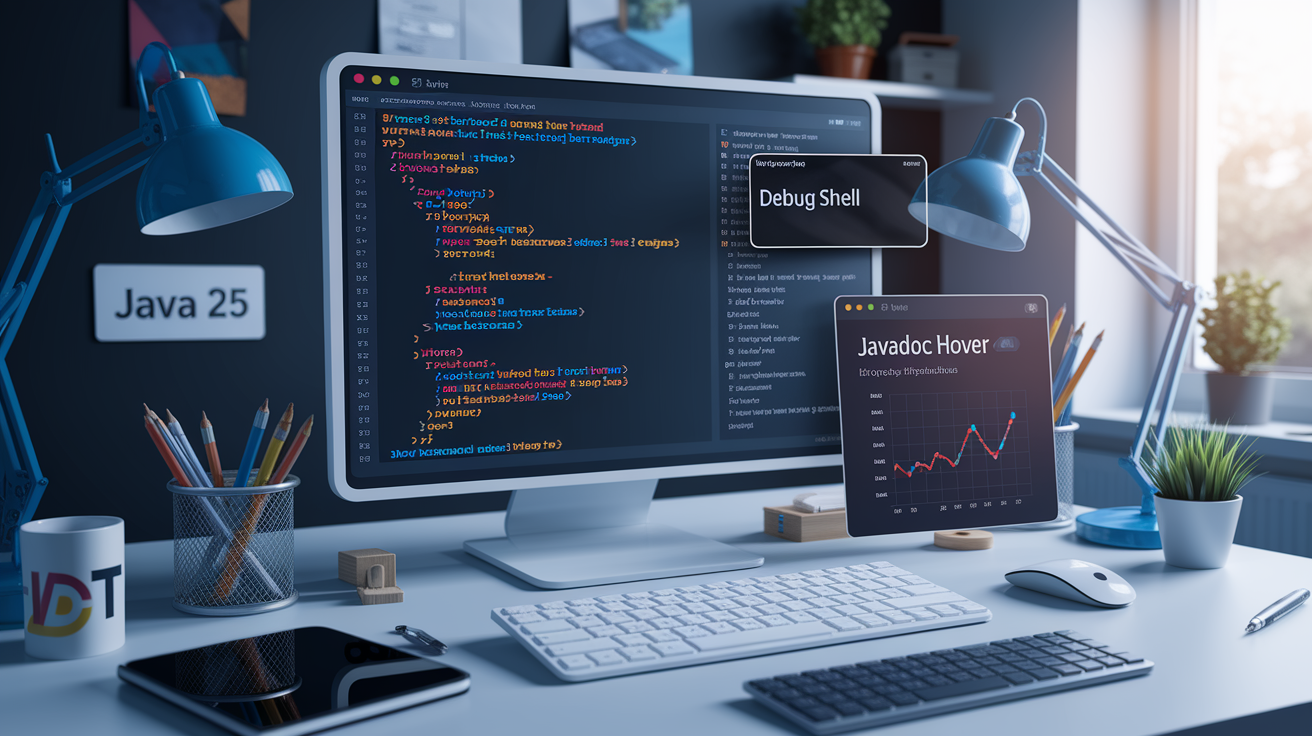
The Java Development Tools (JDT) are the core of Eclipse’s Java support. JDT delivers a full suite for coding, refactoring, and debugging. It now supports Java 25, including pattern matching, sealed classes, and record types. The 2026-03 release introduced markdown-specific syntax support in the Javadoc formatter and a quick fix that converts eligible classes to Java records automatically. When you hover over an annotation, you can access its Javadoc without navigating away.
Eclipse’s debugger lets you set conditional breakpoints, inspect variable state, and step through code at runtime. The new drag-and-drop capability drops variables and expressions into the debug shell for immediate evaluation. It saves time during interactive troubleshooting. Breakpoint hit counts, exception breakpoints, and remote debugging configs are all in the Debug perspective. For large applications, you can attach to a running JVM or launch configurations with custom VM arguments and classpath entries.
Code completion, refactoring tools, and quick fixes speed up Java development. JDT offers context-aware suggestions, automatic import organization, and extract-method refactorings that respect scope and visibility rules. Quick assists propose improvements like converting for-loops to streams, inlining variables, or generating hashCode and equals methods. These capabilities reduce boilerplate and help enforce consistent coding standards across teams.
- Smart code completion with type inference and context-aware suggestions
- Automated refactoring including rename, extract method, and inline
- Conditional breakpoints and expression evaluation in the debug shell
- Javadoc integration with markdown rendering and hover access
- Quick fixes for missing imports, deprecated APIs, and record conversion
- Static analysis through built-in warnings and third-party linters
- Test integration with JUnit support and coverage reporting
- Build automation via incremental compilation and integration with Maven or Gradle
Eclipse Software Performance Optimization and Troubleshooting
Multiple reviewers mention high memory consumption and occasional UI hangs during large builds. If your application is too big, building it can freeze the interface while the incremental compiler processes thousands of files. Increase the max heap size by editing the -Xmx parameter in eclipse.ini (for example, -Xmx4096m for 4 GB). Disable automatic builds for very large projects and trigger compilation manually when needed. Close unused projects in the workspace to cut memory overhead and speed up workspace indexing.
Plugin conflicts are common. Some incompatibilities only show up after startup when two extensions try to register the same command or view. Check the error log (Window > Show View > Error Log) for stack traces and bundle activation failures. Disable suspect plugins one at a time to isolate the conflict. Verify that all installed plugins work with your Eclipse version. Some teams maintain an internal certification process to test plugin combinations before rolling them out.
Eclipse generates detailed diagnostic logs in the .metadata/.log file inside your workspace directory. When troubleshooting startup failures, configuration errors, or plugin crashes, that log is the first place to look. Increase logging verbosity by adding -debug or -consoleLog to eclipse.ini for deeper insight. Performance profiling tools like Eclipse Memory Analyzer can help identify memory leaks in custom plugins or large object graphs retained by the workspace index.
Multi-Language Development in Eclipse Software
Eclipse supports many languages beyond Java through dedicated plugins that integrate compilers, debuggers, and build tools. The C/C++ Development Toolkit (CDT) provides syntax highlighting, code completion, and debugging for C and C++ projects. It supports GCC, Clang, and other toolchains. Renesas uses the IDE platform and CDT as the base for their commercial IDE product and participates in the IDE Working Group to influence ongoing development. CDT configs can get complex. You’ll need to set up include paths, linker flags, and cross-compilation toolchains carefully.
Python development in Eclipse runs on PyDev, a plugin that integrates CPython and Jython interpreters, offers code completion, and supports Django and Flask frameworks. PyDev includes a debugger, unit test runner, and refactoring tools that mirror JDT’s capabilities. PHP development uses the PHP Development Tools (PDT), which supports PHP syntax, debugging via Xdebug, and integration with web servers like Apache or Nginx.
Other plugins bring support for R, Ruby, Scala, JavaScript, Lua, Fortran, and Haskell. Large enterprise teams have deployed Eclipse across workforces exceeding 1000 developers. They use language-specific plugins to standardize on a single IDE platform. It reduces training overhead and simplifies internal tooling, though plugin stability and compatibility vary by language ecosystem.
- C/C++ (CDT): GCC and Clang toolchain integration, cross-compilation, and embedded debugging
- Python (PyDev): CPython and Jython support, Django integration, and interactive console
- PHP (PDT): Xdebug integration, code completion, and web project templates
- JavaScript: Syntax highlighting and validation with optional Node.js debugging
- Scala: Scala IDE plugin with incremental compilation and REPL support
Cloud-Based Eclipse Software Options: Eclipse Che and Beyond

Eclipse Che is a cloud IDE that delivers remote development environments running inside Kubernetes or Docker containers. Developers access Che through a web browser. No need to install Eclipse locally or configure language runtimes on your workstation. Each workspace is defined by a devfile that specifies container images, dependencies, and startup commands. Che supports collaborative editing, pre-configured stacks for popular languages, and integration with Git repositories and CI/CD pipelines.
Theia is another cloud-native IDE framework under the Eclipse umbrella. It’s often used as the foundation for custom development environments. Che focuses on containerized multi-user workspaces. Theia provides a desktop-like experience in the browser with plugin support compatible with Visual Studio Code extensions. Some organizations choose Theia to build branded IDEs or embed development tools inside SaaS platforms.
Container-based development workflows in Eclipse Che isolate dependencies and runtimes. That cuts down on “works on my machine” issues. Teams can snapshot and share devfiles so new contributors spin up functional environments in minutes. Cloud-native tools in the Eclipse ecosystem also include integrations for Kubernetes manifest editing, Helm chart development, and OpenShift deployment. It’s easier to build and deploy cloud-native applications directly from the IDE.
Eclipse Software Version Comparisons and IDE Alternatives

Eclipse 2026-03 supports Java 25 and introduces UI scaling improvements, native PDF generation in SWT, and enhanced debugging tools. Earlier versions lack these updates and may not support the latest language features. Migrating workspaces between versions is straightforward. Export your preferences, back up projects, install the new version, and re-import. The update site mechanism allows in-place upgrades, though major version jumps sometimes require a fresh installation to avoid plugin compatibility issues.
Reviewers compare Eclipse with IntelliJ IDEA and Visual Studio Code on performance, usability, and ecosystem maturity. IntelliJ gets praise for faster indexing, smarter code completion, and a more modern UI. But it requires a paid license for advanced features. VS Code is lightweight and starts quickly, but it lacks the deep refactoring and project-wide analysis that JDT provides. Eclipse’s plugin ecosystem is older and more diverse. It has specialized tools for embedded systems, modeling, and enterprise Java that don’t exist in VS Code.
Upgrading Eclipse versions requires careful attention to plugin compatibility. Check the update site for each installed plugin to confirm a compatible release exists for the target version. Backup your workspace and preferences before the upgrade. Test the new environment with a subset of projects before rolling it out to your team.
| IDE | Strength | Weakness | Typical User |
|---|---|---|---|
| Eclipse | Mature plugin ecosystem, strong Java tooling, open source | Higher memory usage, UI can feel dated | Enterprise Java developers, embedded systems engineers |
| IntelliJ IDEA | Fast indexing, modern UI, intelligent code completion | Commercial license for Ultimate edition | Full-stack developers, Kotlin and Spring users |
| Visual Studio Code | Lightweight, fast startup, large extension library | Limited refactoring, less integrated build tooling | Front-end developers, polyglot teams, remote development |
| NetBeans | Strong Maven integration, good PHP and C++ support | Smaller community, slower feature updates | Java EE developers, academic users |
Community, Governance, and Contribution Pathways in Eclipse Software

Eclipse development is community-powered. There are working groups, a Planning Council, and a Development Funding Initiative that channels corporate sponsorship into platform improvements. Renesas participates in the IDE Working Group and uses the platform as the foundation for commercial products. Sigasi has built on Eclipse for over 15 years, and the Spring Tools ecosystem serves hundreds of thousands of Spring developers in daily work. Spring Tools contributors joined the IDE Working Group to support ongoing development and ensure the platform meets the needs of modern Java frameworks.
The SimRel Wiki coordinates simultaneous releases across dozens of Eclipse projects. It ensures compatible plugin versions land together. Meeting minutes from Planning Council sessions are published regularly. They provide transparency into roadmap decisions and release schedules. Mailing lists, chat spaces, and problem-reporting tools give contributors and users channels to ask questions, propose features, and report bugs.
- Mailing lists for announcements, development discussions, and user support
- Chat spaces (Matrix, Slack) for real-time collaboration and troubleshooting
- SimRel Wiki to track release schedules and cross-project coordination
- Meeting minutes published by the Planning Council for roadmap transparency
Final Words
You just ran through the essentials: what Eclipse software is, the 2026‑03 updates, installs across Windows/macOS/Linux, workspace setup, plugins, Java tooling, performance tips, multi‑language support, cloud options, version tradeoffs, and contribution paths.
Run the quick setup, export preferences for backup, and test plugins on a sample project to catch conflicts early.
Eclipse software is still powerful and flexible—pick a workflow, try the latest release, and you’ll be coding with fewer hiccups.
FAQ
Q: What is Eclipse software used for?
A: Eclipse software is used as a free, open-source IDE for developing Java, C/C++, Python, web and cloud apps; it provides debugging, refactoring, build tooling and a plugin ecosystem for language and workflow extensions.
Q: Is Eclipse owned by Microsoft?
A: Eclipse is not owned by Microsoft; it’s an open-source project governed by the Eclipse Foundation, managed by a community plus corporate members, not a single vendor.
Q: Is Eclipse IDE for Java?
A: Eclipse IDE is built for Java development—JDT provides compilation, code completion, refactoring, debugging, and quick fixes; recent releases add Java 25 support and improved Javadoc and record conversion tools.
Q: Is Eclipse better than VS Code?
A: Whether Eclipse is better than VS Code depends on needs: Eclipse suits large, Java/enterprise projects and deep plugin integration; VS Code is lighter, faster to start, and often better for polyglot or editor-style workflows.