


Ever spent an hour chasing why two CSV exports don’t match?
Line-by-line text diffs will tell you something changed, not which record or field did — which makes them almost useless for real data work.
In this post you’ll get straight, practical ways to diff two CSV files: quick Unix commands for sanity checks, small Python recipes (pandas, difflib) for field-level insight, and purpose-built tools for key-based insert/update/delete reports.
Follow these picks to find mismatches fast and avoid false positives.
Fast Ways to Compare and Diff Two CSV Files Effectively

Diffing two CSV files shows up in data validation, QA, and migration work all the time. You need to verify a database export matches production, reconcile two customer lists, or audit pipeline changes. The question’s always the same: which rows got added, which disappeared, and which changed. Line-by-line text diffs tell you something moved, but they won’t identify the specific records or columns.
You’ve got command-line utilities (diff, comm), Python libraries (pandas, difflib), and purpose-built CSV diff tools like csvdiff. Command-line tools are fast and run anywhere. Python scripts give you total control and programmatic output. Specialized tools add key-based comparison, hashing, and structured reports. Each has a sweet spot. Use classic diff for quick line checks, pandas when you’re exploring data interactively, or a dedicated tool for primary-key-based comparisons at scale.
Line-based comparison treats CSVs as plain text and flags any line that’s different. Key-based comparison uses a unique identifier (or compound key) to match rows across files, then checks whether the matched row’s values changed. Line-based tools are fast but ignore row order and can’t tell you “Employee 42 changed departments.” Key-based tools build maps of records and classify each as insert, update, or delete. That’s what you actually need when reconciling data instead of prose.
- Load both files (or stream one) into memory or iterate over them.
- Set or identify at least one unique identifier per row (employee ID, SKU, timestamp).
- Pick a method based on file size and workflow: Python for ad-hoc stuff, command-line for scripts, specialized tools for production pipelines.
- Generate the diff by comparing keys and row hashes, or merge DataFrames and flag mismatches.
- Review three result sets: added rows (keys in new file only), updated rows (same key, different values), and deleted rows (keys in old file only).
Command-Line Techniques for Comparing Two CSV Files

Unix diff and comm are built for line-by-line text comparison and ship with every Unix-like system. diff file1.csv file2.csv prints line prefixes (< for lines in file1, > for lines in file2) and can produce unified output with diff -u. comm -3 file1.csv file2.csv prints lines unique to each file. Both are way faster than loading CSVs into memory, so they’re great for quick sanity checks or spotting obvious mismatches.
The catch? They have no awareness of row structure or keys. If a single row moves position, diff sees it as a deletion and an addition. If a column value changes, you see the entire line printed twice with no indication of which field differs. These tools also ignore column headers and treat everything as plain text, so subtle differences (trailing spaces, quote styles) trigger false positives.
diff file1.csv file2.csvshows all differing lines with < and > prefixes.diff -u file1.csv file2.csvproduces unified diff format (+/-) similar to Git.diff -y file1.csv file2.csvgives you side-by-side output for visual comparison.comm -12 file1.csv file2.csvprints lines common to both files (requires sorted input).comm -3 file1.csv file2.csvprints lines unique to either file.csvdiff --primary-key=0 --format=diff base.csv delta.csvdoes key-based comparison with row-level insert/update/delete classification.
Using Python to Diff Two CSV Files Programmatically

pandas.compare() loads two CSVs into DataFrames, aligns them on a shared index (usually a unique ID column), and returns a new DataFrame highlighting only the columns and rows that differ. Load with df1 = pd.read_csv('file1.csv') and df2 = pd.read_csv('file2.csv'), set an index if you need to (df1.set_index('id'), df2.set_index('id')), then call df1.compare(df2). The result shows self (old value) and other (new value) side by side for each changed cell. Great for exploratory work when you want to inspect exactly which fields changed in which rows.
Set operations on lines is the simplest approach when you don’t need column-level detail. Read both files into sets and compute the difference: a = set(open('file1.csv')); b = set(open('file2.csv')); print(a - b). That prints every line in file1.csv that isn’t in file2.csv. Reverse it to find lines unique to file2.csv. This method’s fast and tiny (four lines of code) and works fine when row order doesn’t matter and you just want to spot additions or deletions.
difflib.unified_diff() produces Git-style unified diffs line by line. Read both files, pass the line lists to difflib.unified_diff(lines1, lines2, fromfile='file1.csv', tofile='file2.csv'), and iterate over the output. Lines prefixed with + were added, lines with – were removed, and unchanged context lines help you locate the change. The output’s human-readable and easy to parse in a script, but it doesn’t know about primary keys or columns, so it’s best for small files or when you need a visual patch-style summary.
| Method | Strength | Limitations |
|---|---|---|
| pandas.compare() | Column-level diff with self/other side-by-side view; works with indexes and filtering | Loads both files into memory; requires matching row counts or explicit merge strategy |
| set operations (a – b) | Tiny code, fast for line-based detection of additions/deletions, no dependencies | No column awareness, treats entire row as string; can’t detect which field changed |
| difflib.unified_diff() | Standard unified diff output (+/-); easy to pipe into reports or version control | Line-based only; no primary key support; sensitive to line order and whitespace |
GUI and Editor-Based Tools for Diffing CSV Files

Graphical diff tools present two files side by side, highlight changed cells in color, and let you scroll through differences with keyboard shortcuts. WinMerge, Beyond Compare, and Meld are popular desktop options. Visual Studio Code and Notepad++ offer built-in diff views. These tools work great when you need to quickly inspect a handful of changes, understand context around modified rows, or share a visual report with non-technical people who won’t read JSON or unified diff output.
GUI tools beat command-line approaches when you’re debugging one-off issues, reconciling small datasets interactively, or need to approve changes before applying them. You can jump between differences, accept or reject individual changes, and see exactly which cell shifted from “Emily,30,Los Angeles” to “Emma,35,San Francisco.” For large files or automated pipelines, though, GUIs are too slow and can’t be scripted. You’ll want to fall back on Python or a dedicated CLI tool.
- WinMerge (Windows) is free, supports folder and file comparison, highlights row-level and cell-level diffs.
- Beyond Compare (Windows, macOS, Linux) is paid but handles large files well and supports structured CSV column comparison.
- Meld (Linux, macOS, Windows) is free, offers three-way merge support, Git integration for tracking changes over multiple versions.
- Visual Studio Code has a built-in diff view with extensions for CSV column alignment and syntax highlighting.
- Online tools (e.g., csvdiff.io, diffchecker.com) let you paste or upload CSVs, get instant side-by-side or inline diff in the browser. Convenient for one-off comparisons without local setup.
Algorithmic Approaches to Comparing CSVs at Scale

Key-based comparison algorithms build a map of records keyed by a unique identifier (or compound key). For each row, compute a hash of the primary key values (the key hash) and a hash of the entire row (the row hash). Store both in a map data structure: map[keyHash] = rowHash. Do this for the old file and the new file. Compare the two maps: if a keyHash exists in both but rowHash differs, it’s an update. If keyHash exists only in old, it’s a delete. If keyHash exists only in new, it’s an insert.
The fastest implementations use 64-bit hashing (xxHash) to minimize collision risk and keep map entries small. Memory-efficient variants load only the old file into a map (space complexity O(N)), then stream the new file row by row, comparing against the map and deleting matched keys as you go. Full in-memory comparison loads both files (space complexity O(2*N)) but lets you do random-access lookups and is simpler to code. Either way, the algorithm avoids line-by-line string comparison and treats row order as irrelevant.
- Parse each row and extract the primary key field(s). Compute the key hash using a fast non-cryptographic hash function.
- Compute the full-row hash by concatenating all column values and hashing the result. Store the pair (keyHash, rowHash) in a map.
- Iterate over all keys in the old map. If the key exists in the new map, check if the row hashes match. If they do, mark unchanged. If they differ, record the new row’s offset or data as an update.
- Delete matched keys from both maps to free memory and reduce the set of remaining candidates.
- After processing all old keys, any keys left in the old map are deletes (not found in new file), and any keys remaining in the new map are inserts (not found in old file).
Handling and Diffing Very Large CSV Files

When CSVs exceed available RAM or take minutes to load, chunk the comparison into batches. Read the old file in blocks of 10,000 or 100,000 rows, build a partial map, then stream the new file and compare each batch. Write insert/update/delete results to intermediate files and merge them at the end. This keeps peak memory usage constant regardless of total file size and lets you checkpoint progress if the process crashes halfway through.
Sort both files by the primary key before comparing. Once sorted, you can walk both files in lockstep with two file pointers: advance the pointer with the smaller key, and classify the row as insert, delete, or update based on whether keys match. This two-pointer approach uses almost no memory and runs in linear time, but it requires an upfront sort step. Use Unix sort or a streaming merge-sort if the file’s too big to sort in RAM. Don’t rely on line order or assume identical row counts. Real-world files always have gaps, duplicates, or appended records.
Visualizing and Exporting Differences from CSV Comparisons
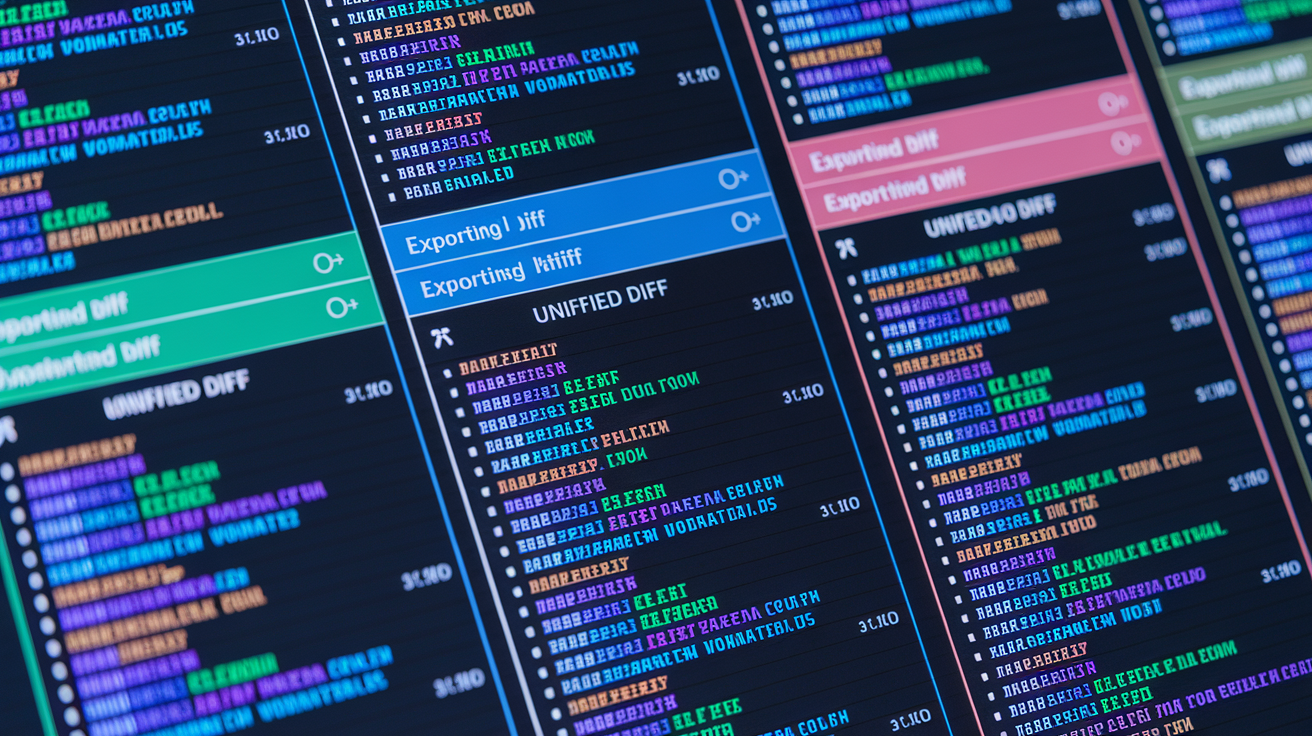
The most useful output format depends on who consumes the diff. JSON works for automated pipelines and downstream scripts. Structure it as {"inserts": [...], "updates": [...], "deletes": [...]} with each array holding full row objects or offsets. Unified diff format (+/-) is human-readable and integrates with version control tools. Color-word or rowmark formats add inline highlighting (green for additions, red for deletions) and are easiest for manual review. Export separate CSVs (additions.csv, modifications.csv, deletions.csv) when you need to generate SQL insert/update/delete statements or feed the changes into an ETL tool.
- Unified diff gives you Git-style +/- output. Easy to read in terminal or email and integrates with patch workflows.
- JSON is machine-readable, supports nested structures. Use it for automation, APIs, or feeding results into dashboards.
- Rowmark CSV adds a column (e.g.,
_status) with values like ADDED, MODIFIED, DELETED. Keeps original CSV structure for review in Excel. - Color-word diff provides inline highlighting of changed cells. Best for interactive tools or HTML reports shared with stakeholders.
- Separate additions/modifications/deletions CSVs where each file contains only rows of one change type. Simplifies bulk insert/update scripts and keeps audit trails clean.
Troubleshooting CSV Diff Issues and Best Practices

Mismatched headers are the top cause of false positives. If one file has id,name,age and the other has id,full_name,age, every row looks changed even when values match. Verify column names and order before running the comparison, or use a tool that lets you map columns by position or name. Encoding issues (UTF-8 vs. ISO-8859-1) can make identical text appear different. Normalize both files to UTF-8 with iconv or Python’s open encoding parameter before comparing.
Duplicate primary keys break key-based comparison. If two rows share the same ID, the algorithm will arbitrarily pick one and report the other as changed or missing. Check for duplicates upfront with sort file.csv | uniq -d or a pandas groupby. Missing values in the key column cause rows to hash differently even when data’s the same. Decide on a strategy for nulls (skip rows, use a sentinel value, or treat null as a distinct key) and apply it consistently to both files.
- Delimiter mismatch happens when one file uses commas, the other uses tabs or semicolons. Specify the delimiter explicitly in your tool or script.
- Trailing whitespace makes “John ” and “John” hash differently. Strip whitespace during parsing or normalize files with
sedbefore comparison. - Quote inconsistency occurs when one file wraps values in quotes and the other doesn’t. Use a CSV parser that handles quoted fields correctly instead of naive string splitting.
- Primary key changes happen when the ID itself is updated (e.g., customer 123 becomes 456). Key-based tools treat it as a delete + insert. Document this behavior or add logic to detect renamed keys by matching other stable fields.
Final Words
Compare files fast: we walked through quick command-line checks, Python scripts (pandas, set diffs, difflib), GUI editors, hashing algorithms, and practical large-file tactics. Short, actionable options for validation, QA, and migrations.
You also got a one-flow workflow — load files, set keys, pick a method, generate the diff, and export added/updated/deleted rows — plus common gotchas like delimiters, encoding, and duplicate keys.
When you need to diff two csv files, pick the simplest reliable tool and you’ll cut debugging time and ship with more confidence.
FAQ
Q: Can ChatGPT analyze CSV data?
A: The ChatGPT can analyze CSV data by accepting pasted CSV or parsed samples, letting you ask for summaries, diffs, validation, or transformation; it’s best for small-to-medium files or when you provide headers and key columns.
Q: How to check if a CSV file is correct?
A: To check if a CSV file is correct, validate consistent column counts, matching headers, proper delimiters, and encoding; parse it with a CSV library and sample rows, then run schema or type checks.
Q: Does Claude accept CSV files?
A: Claude can accept CSV files as pasted text; some Claude interfaces and integrations also allow file uploads, while APIs typically expect CSV content sent as text or multipart—check your client’s docs for upload support.
Q: Are there different types of CSV files?
A: Different types of CSV files exist, differing by delimiter (comma, semicolon, tab), quoting rules, header presence, and text encoding; choose a parser dialect or specify options to handle each variant.