


Ever spent an hour scrolling through two CSV files trying to figure out what changed? Most developers have. When you’re validating a database migration, reconciling transaction logs, or checking that your ETL pipeline didn’t corrupt data, manual comparison wastes time and misses details. A CSV diff checker highlights added rows, deleted records, and modified cells in seconds, so you can spot the actual changes without losing your mind or your afternoon.
Free CSV Comparison Tools and Software Options

Several online and desktop tools can compare CSV files in seconds. Online options like Diffchecker, ExtendsClass CSV Compare, and Agents for Data CSV Diff work directly in your browser without installation. Desktop applications give you more control over large files, while command line utilities like Python’s csvdiff library let you automate comparison workflows. Open source solutions offer customization if you need specific features.
Pick based on your workflow. Browser tools are fast for one off checks. Desktop apps handle bigger files and work offline. Command line tools fit into scripts and CI/CD pipelines. If you’re comparing financial data or customer records, look for tools that process files locally instead of uploading to a server.
| Tool Name | Type | Key Features | Platform |
|---|---|---|---|
| Diffchecker | Online & Desktop | Drag-and-drop upload, supports xls/xlsx/csv/ods formats, visual diff display | Web, Windows, Mac, Linux |
| ExtendsClass CSV Compare | Online (Open Source) | Browser-side processing, customizable separators, line-by-line comparison, red highlighting | Web (any browser) |
| Agents for Data CSV Diff | Online | Schema analysis, row tracking, cell-by-cell comparison, unified diff export | Web (any browser) |
| Beyond Compare | Desktop Application | Enterprise features, three-way merge, folder comparison, rule-based filtering | Windows, Mac, Linux |
| csvdiff (Python) | Command-line Utility | Scriptable, JSON output, primary key matching, works in automated pipelines | Cross-platform (requires Python) |
| daff (JavaScript/CLI) | Command-line & Library | Structural diff, works with SQL databases, multiple output formats, embeddable | Cross-platform (Node.js) |
Essential Features and Configuration Settings

Not all comparison tools handle edge cases the same way. Row by row analysis that shows added, modified, and missing records in separate views makes the biggest difference. Side by side display beats scrolling through a unified diff when you’re trying to spot changes quickly. Schema validation catches when someone adds or removes a column between versions.
| Feature | Description | Benefit |
|---|---|---|
| Schema Analysis | Detects added, removed, or renamed columns between files | Catches structural changes that break imports or integrations |
| Row-Level Tracking | Identifies which rows were added, deleted, or modified | Shows exactly where data changed without manual inspection |
| Cell-by-Cell Comparison | Displays old value versus new value for each changed field | Pinpoints specific edits for auditing or rollback decisions |
| Visual Highlighting | Color codes differences (red for changes, green for additions, etc.) | Speeds up review by making changes obvious at a glance |
| Multiple Upload Methods | Drag-and-drop, file browse, copy-paste, or URL loading (HTTPS only) | Works with files from local disk, cloud storage, or API endpoints |
| Format Support | Handles CSV, TSV, XLS, XLSX, XLSM, XLSB, ODS, TXT, DIF | Compare files exported from different systems without conversion |
Most tools let you upload files by dragging them into the browser window. You can also paste raw CSV data if you’re copying from a database export or terminal output. URL loading pulls files directly from HTTPS endpoints, which works for comparing production exports against staging without downloading them first. Some tools accept multiple formats beyond CSV. Excel files (xls, xlsx, xlsm, xlsb), OpenDocument spreadsheets (ods), or plain text files with custom delimiters all work.
Delimiter settings control how the tool splits each line into fields. If your file uses semicolons or tabs instead of commas, set the separator before running the comparison. Quote and escape character settings matter when fields contain the delimiter character, like “Smith, John” in a comma separated file. Sort both files by the same column before comparing, or the tool will flag every row as different even when the data matches. Case sensitivity and whitespace trimming options prevent false positives from “Product A” versus “product a” or trailing spaces.
Six practices for accurate CSV comparison:
-
Sort both files using the same primary key column before uploading. Otherwise row position mismatches will flag identical data as different.
-
Standardize delimiter, quote, and escape settings to match how the files were exported. Check the source system’s export configuration.
-
Validate schemas first by comparing column headers separately to catch structural changes before diving into row level data.
-
Use consistent text encoding. UTF-8 is safest to avoid character corruption that shows up as phantom differences.
-
Configure header row handling to skip the first line if it contains column names. This prevents the tool from treating headers as data rows.
-
Test configuration with a small sample. Run the first 10 to 20 rows before processing a 500,000 row export file.
How CSV Comparison Tools Work for Your Data

A CSV diff checker loads two files, parses them into rows and fields, then compares each field by position to find additions, deletions, and modifications. Most tools perform line by line comparison first, flagging rows that appear in one file but not the other. Then they compare matching rows field by field, highlighting cells where values changed. Differences show up in red (or another color depending on the tool), making it obvious what shifted between versions.
The typical workflow happens in three steps. Upload your original file, upload the modified version, then view the results. Browser based tools process everything locally in your browser’s JavaScript engine. Desktop applications run comparison algorithms on your machine without network calls.
Five steps showing the complete comparison process:
-
Upload or paste the original CSV file. This is the baseline version you’re comparing against.
-
Upload or paste the modified CSV file. The new version with potential changes.
-
Configure comparison settings like delimiter type, header row handling, and which columns to compare.
-
Run the comparison and wait for the tool to process both files. Usually a few seconds for most files under 10MB.
-
Review results in your preferred view. Unified diff, side by side, or structured analysis, then export if needed.
Results display in one of three views depending on what you need. Unified diff shows changes inline with plus and minus symbols, like a Git diff. Side by side view puts the original and modified files next to each other with synchronized scrolling. Structured analysis breaks down changes by category. Added rows, deleted rows, modified cells, and schema changes. Tools highlight differences with syntax coloring, so your eye goes straight to the red cells instead of scanning hundreds of identical rows.
Common Use Cases for CSV File Comparison

CSV comparison tools solve real problems when data moves between systems or changes over time. Data teams use them to verify migrations. QA engineers use them to validate test results. Finance teams use them to reconcile transactions.
Eight use cases where CSV comparison saves time and catches errors:
-
Data migration verification. Compare source system exports against destination system imports to confirm every record transferred correctly without corruption or loss.
-
Quality assurance testing. Validate that application updates didn’t alter database outputs by comparing CSV exports before and after deployment.
-
Financial reconciliation. Match transaction files from different sources (bank statements versus internal ledgers) to identify discrepancies or missing entries.
-
Backup validation. Compare current production data against backup snapshots to verify backups are complete and not corrupted.
-
ETL process monitoring. Check that extract, transform, load pipelines produce consistent outputs by comparing today’s run against yesterday’s or last week’s.
-
Database export comparison. Verify that schema changes didn’t affect data integrity by comparing table dumps from different database versions.
-
Merge conflict resolution. When two people edit the same spreadsheet, compare their versions to see which rows or cells conflict before merging changes.
-
Duplicate detection. Identify duplicate records by comparing a file against itself after sorting, or compare against a master list to find entries that shouldn’t exist.
The right tool depends on how often you compare files and what format they’re in. One off checks work fine with a browser tool. Regular comparisons (daily reconciliation, weekly QA checks) benefit from desktop apps or command line scripts that you can schedule.
Privacy and Security When Comparing CSV Data

CSV files often contain customer data, financial transactions, or internal business metrics. Uploading that data to a random comparison website creates risk if the service stores files or logs content. Even temporary server side processing means your data passes through someone else’s infrastructure.
Five security features to look for in CSV comparison tools:
-
Local browser processing. Tool runs JavaScript in your browser and never sends files to a server.
-
No file upload to remote servers. Files stay on your machine or in browser memory only.
-
No data logging or storage. Tool doesn’t save comparison history or cache file contents.
-
HTTPS only URL loading. If the tool fetches remote files, it requires encrypted connections.
-
Open source code. You can review the source to verify no data leaves your environment.
Browser based tools that process files locally give you complete control. The comparison happens in your browser’s memory, then results display on your screen. Nothing hits a server. Desktop applications work the same way, running on your machine without network calls. Cloud tools that upload files to a server for processing create an audit trail you might not want. Especially for regulated data like HIPAA protected health records or PCI compliant payment info.
Check the tool’s privacy policy or documentation before uploading sensitive files. Look for explicit statements about local processing. If the tool is open source, you can review the code to confirm it’s not making POST requests to external endpoints. For highly sensitive comparisons, stick to desktop applications or self hosted solutions where you control the entire environment.
Handling Large CSV Files and Performance Considerations

Browser based tools can handle files with tens of thousands of rows without breaking, but performance depends on your machine’s RAM and how the tool is coded. A 50MB CSV file might process smoothly on a desktop with 16GB of memory and choke on a laptop with 4GB. There’s no hard file size limit, but browser tabs crash when memory runs out.
If a file exceeds your browser’s capacity, split it into chunks before comparing. Or switch to a desktop application that handles memory more efficiently.
Desktop tools like Beyond Compare or command line utilities like csvdiff stream data instead of loading the entire file into memory at once. That lets them process files that are gigabytes in size without crashing. Batch operations work well when you need to compare multiple file pairs. Write a script that loops through a folder, runs the comparison tool on each pair, and exports results to a log file.
Some browser tools support automated comparison by specifying file URLs in GET parameters (url1 and url2). That lets you build a comparison link and share it with teammates, or embed it in a dashboard that refreshes daily. The tool fetches both files from HTTPS endpoints and runs the diff without manual upload. Useful for comparing production exports against staging on a schedule.
Exporting and Reporting CSV Comparison Results
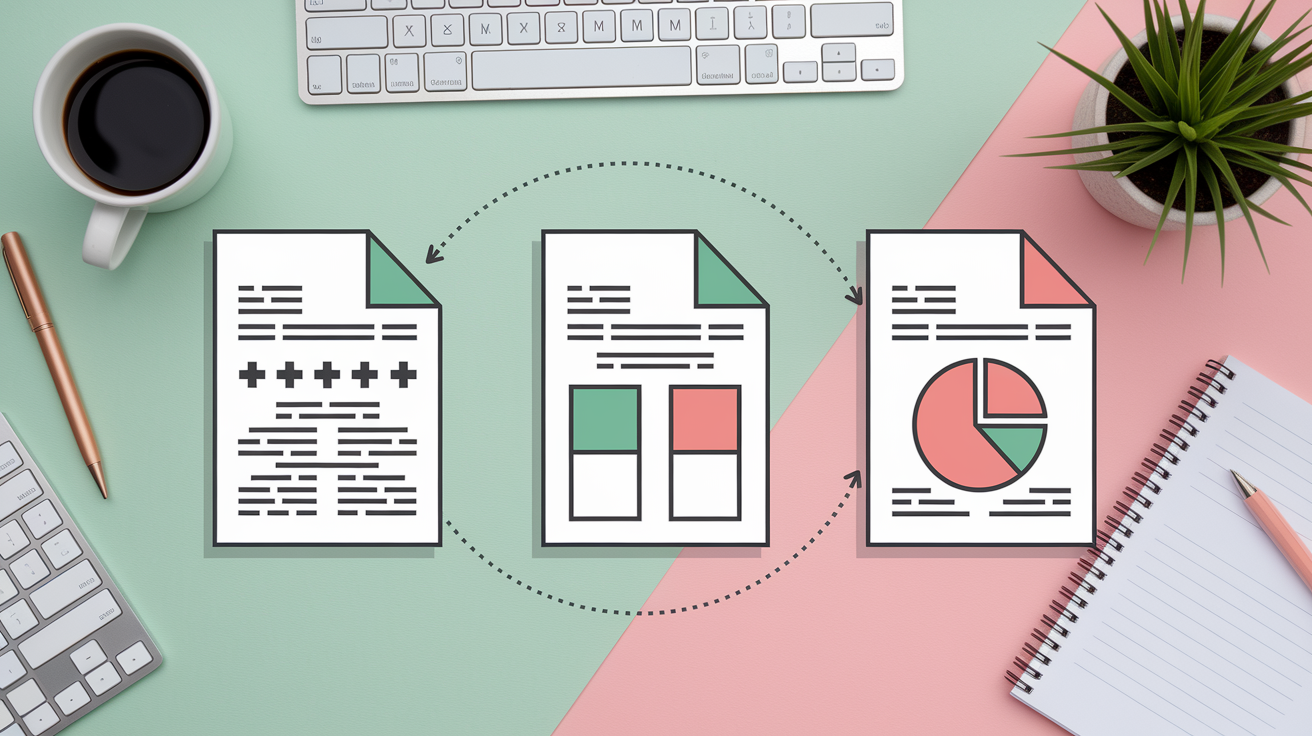
Most tools let you export results in unified diff format. Plain text representation of changes that version control systems like Git use. Each line starts with a plus (+) for additions, minus (−) for deletions, or a space for unchanged lines. You can save the diff output to a file and include it in pull requests, bug reports, or audit documentation.
Three comparison view options serve different purposes. Unified diff format works for technical users who read code diffs regularly and need to integrate results into version control workflows. Side by side comparison shows the original and modified files next to each other, making it easier for non technical reviewers to spot changes. Structured analysis breaks down the diff into categories (added rows, deleted rows, modified cells, schema changes) with summary statistics like “14 rows added, 3 rows deleted, 47 cells modified.”
Exported results fit into workflows where you need to document what changed between versions. Auditors reviewing financial data can save the diff as proof that they checked for discrepancies. Data engineers can attach comparison reports to migration tickets to show that the ETL pipeline produced the expected output. QA teams can include diff exports in test reports to demonstrate that database changes didn’t corrupt existing records. Summary statistics help when you need a quick overview without reading every line. “Should I be worried about this update?” gets answered by “2,341 rows modified” faster than scrolling through a 50 page diff.
Resolving Common Comparison Issues

Encoding problems cause phantom differences when one file uses UTF-8 and the other uses ISO-8859-1. A character like “café” shows up as “café” in the mismatched file, flagging the row as different even though the data is identical. Check both files’ encoding settings and re-export them with UTF-8 if they don’t match.
Inconsistent formatting breaks comparison when one export uses commas and the other uses semicolons, or when one file quotes fields and the other doesn’t. The tool parses rows differently and reports mismatches that aren’t real. Open both files in a text editor and confirm they use the same delimiter, quote character, and escape character before uploading.
Line ending differences (Windows uses \r\n, Unix uses \n, old Macs used \r) can confuse tools that don’t normalize line breaks before comparing. Most modern tools handle this automatically. But if you’re seeing every line flagged as different, convert both files to the same line ending format.
Data type mismatches happen when a field switches from numeric to text (or vice versa) between exports. A tool with automatic data type detection will alert you that column “Account_ID” changed from integer to string. Usually means the export script changed or someone manually edited the file. Review the schema first to catch these issues before diving into row level comparison.
Advanced CSV Comparison Features and Techniques

Some tools offer API endpoints that let you trigger comparisons from code. Pass file paths or URLs as parameters, get a JSON response with added rows, deleted rows, and modified cells. Integrate that into a monitoring dashboard that compares production database exports every hour and sends a Slack alert when differences appear. Scheduled checks catch data corruption or unauthorized changes faster than manual spot checks.
Collaborative review features let multiple people comment on specific differences before deciding how to merge files. One reviewer flags a price change as intentional, another marks a missing row as a bug. The tool tracks who approved which changes and generates a final merged file based on those decisions. Works well for teams reconciling data from different departments who need sign off before updating the master file.
CSV comparison extends to Excel files (xls, xlsx) since those formats convert easily to CSV under the hood. Tools that support both formats let you compare a database export against a manually updated spreadsheet without forcing someone to save as CSV first. Integration with other CSV tools (filter, sort, merge, sample, generate, convert) builds workflows where you clean data, sort it, compare it, then merge approved changes back into the source system. Export results in unified diff format to integrate with Git, so you can version control data files alongside code and track who changed what over time.
Final Words
Finding the right csv diff checker saves real time when you’re validating data migrations, debugging ETL pipelines, or just making sure two versions of a file actually match.
Start with browser-based tools for quick checks and sensitive data. Move to desktop apps or command-line utilities when you’re handling massive files or need automation.
Sort your files first, standardize your delimiters, and verify encoding before you compare. Those three steps catch most headaches before they start.
Most tools work in seconds once you’ve got the setup right.
FAQ
What are the best free CSV comparison tools available?
The best free CSV comparison tools include Diffchecker for both online and desktop use, ExtendsClass CSV Compare with open-source code availability, and Agents for Data CSV Diff for browser-based comparison. All three support drag-and-drop file uploads and process files locally without server uploads.
Should I use an online or desktop CSV comparison tool?
An online CSV comparison tool works best for quick checks and moderate file sizes since it runs entirely in your browser without installation. Desktop applications handle larger files more efficiently and work offline, making them ideal for frequent comparison tasks or files exceeding browser memory limits.
What file formats do CSV comparison tools support?
CSV comparison tools support multiple file formats including CSV, TXT, XLS, XLSX, XLSM, XLSB, DIF, and ODS files. Most tools auto-detect delimiters like commas, semicolons, and tabs, with options to configure custom separators, quote characters, and escape characters for proper parsing.
How do CSV diff checkers identify differences between files?
CSV diff checkers identify differences by performing line-by-line and field-by-field comparisons based on position. The tools detect schema changes including added or removed columns, track row-level additions and deletions, and highlight modified cell values with color coding or syntax highlighting.
Why do CSV files need to be sorted before comparison?
CSV files need to be sorted before comparison because most tools match rows by position rather than by content or unique identifiers. Unsorted files produce inaccurate results showing false differences when identical records appear in different row positions between the two files.
Can CSV comparison tools handle large files?
CSV comparison tools handle large files subject to browser processing capacity for web-based tools, with no hard file size limit beyond available memory. Desktop applications process larger files more efficiently than browser tools, and some tools support URL-based comparison for automated bulk processing.
How do I ensure data privacy when comparing sensitive CSV files?
You ensure data privacy when comparing sensitive CSV files by using tools that process files entirely in your browser without server uploads. Look for tools explicitly stating local processing, avoid cloud-based services for confidential data, and consider desktop applications for complete offline operation.
What configuration settings affect CSV comparison accuracy?
Configuration settings affecting CSV comparison accuracy include delimiter type selection (comma, semicolon, tab), quote and escape character handling, header row recognition, case sensitivity options, whitespace trimming, and UTF-8 encoding support. Incorrect settings cause parsing errors and false differences.
How can I export CSV comparison results for documentation?
You can export CSV comparison results in unified diff format compatible with version control systems, generate side-by-side comparison reports, or create structured data analysis summaries. Export options provide audit trails, change tracking documentation, and summary statistics for reporting discrepancies to stakeholders.
What causes encoding errors in CSV file comparison?
Encoding errors in CSV file comparison occur when files use different character sets like UTF-8, ASCII, or ISO-8859-1 without proper detection. Mixed encoding produces garbled special characters and false mismatches. Most modern tools auto-detect encoding, but manual UTF-8 specification resolves most issues.
How do I compare CSV files with different column orders?
You compare CSV files with different column orders by using tools with column matching features rather than position-based comparison, or by manually reordering columns before comparison. Some advanced tools support primary key matching and unique identifier configuration to align corresponding data regardless of column sequence.
Can I automate CSV file comparison for regular checks?
You automate CSV file comparison for regular checks using tools that support URL parameters for direct file comparison, API integration for scheduled workflows, or command-line utilities in automated scripts. Some tools offer notification alerts and real-time monitoring for continuous data validation.