


Ever spent 30 minutes hunting a missing PATH entry or a silent API key that never loaded?
Environment variables are tiny, but they can wreck a deploy if set wrong.
This guide gives fast, copy-paste steps to create temporary and permanent variables on Windows, macOS, and Linux, plus the quick verification commands and common gotchas.
Follow these steps and you’ll be able to set a variable, check it, and avoid the usual traps in under five minutes.
Practical Steps to Create an Environment Variable on Any OS

Here’s how to set temporary and permanent environment variables on Windows, macOS, and Linux.
Temporary variables live only while your shell or process is running. Close the terminal or restart your machine and they’re gone. Permanent variables stick around because they’re written to config files or the system registry. Use temporary variables for testing or quick tasks. Permanent ones are better for stuff you need every time, like PATH additions or API keys.
Verification looks different depending on your OS. Linux and macOS use echo $VAR to print the value. Windows Command Prompt needs echo %VAR%, and PowerShell wants echo $Env:VAR. After you set a permanent variable, open a new terminal or restart the shell to see it. Processes that are already running won’t pick up the change until you restart them.
- macOS / Linux temporary: Run
export VAR="value"in the terminal. Gone when you close the shell. - macOS / Linux permanent (bash): Add
export VAR="value"to~/.bashrcor~/.bash_profile, then runsource ~/.bashrcor open a new terminal. - macOS / Linux permanent (zsh): Add
export VAR="value"to~/.zshrc, then runsource ~/.zshrcor open a new terminal. - Windows temporary (CMD): Run
set VAR=valuein Command Prompt. Lost when you close the window. - Windows permanent (CMD/PowerShell): Run
setx VAR "value"to save it. Open a new Command Prompt to see the change. - Windows permanent (GUI): Press Win+X, System, Advanced system settings, Environment Variables, New. Add the name and value, click OK.
Understanding Environment Variables and How They Work

Environment variables are key/value pairs that programs read at runtime to control behavior, find files, or pull configuration. A variable named PATH lists directories the OS searches for executables. DATABASE_URL might hold a connection string. NODE_ENV tells a Node.js app whether it’s running in production or development mode. Programs check these variables instead of hardcoding config in source code.
Variables exist at different scopes: process, user, and system. A process-only variable is visible to one running program and its children, then disappears when the process exits. User variables persist for one account across sessions. System variables are available to everyone on the machine. On Windows, system variables need admin rights. On Linux and macOS, you need root or sudo to edit global config files.
Precedence decides which value wins when the same variable is defined in multiple places. Session values override user values, which override system values. If a shell script runs export PATH="/tmp/bin:$PATH", it prepends /tmp/bin for that session only, shadowing the persistent PATH. This lets you test config changes without breaking system defaults.
Creating Environment Variables on Windows (GUI, CMD, and PowerShell)
Windows stores environment variables in three spots: the current process, the user’s registry hive, and the system registry hive. Changes to the user or system registry persist across sessions. Changes in a running shell or Command Prompt apply only to that process and its children. After editing the registry through the GUI or command line, you need to restart shells and apps to pick up the new values.
The Windows GUI works well for long values and avoids truncation issues. CMD and PowerShell are faster from the command line but require opening a new terminal to see persistent changes.
Using Windows GUI
Press Win+X and choose System, or open Control Panel and select System. Click “Advanced system settings” on the left. In the System Properties dialog, click the “Advanced” tab, then “Environment Variables.” You’ll see User variables and System variables. Click “New” under User variables to add one for your account. Click “New” under System variables to add a machine-wide variable (needs admin rights). Enter the variable name in the top box and its value in the bottom box, then click OK. To verify, open a new Command Prompt and run echo %YOUR_VAR_NAME%. If nothing shows up, make sure you clicked OK in all the dialogs and opened a fresh terminal.
Creating Environment Variables via CMD
To create a temporary variable in Command Prompt, run set MY_VAR=myvalue. This variable lives only in the current CMD session. Child processes launched from here will inherit it. Close the window and it’s gone. To create a persistent user variable, run setx MY_VAR "myvalue". This writes to the registry and affects all new Command Prompt windows, but not the current one. For a system variable, run setx MY_VAR "myvalue" /M from an admin Command Prompt. Verify by opening a new CMD window and typing echo %MY_VAR%. If it doesn’t show, check that setx ran without errors and that you opened a new session.
Creating Environment Variables via PowerShell
In PowerShell, set a session variable with $Env:MY_VAR = "myvalue". This creates or updates the variable in the current PowerShell process. To make it persistent at the user level, run [Environment]::SetEnvironmentVariable("MY_VAR","myvalue","User"). For system level, run [Environment]::SetEnvironmentVariable("MY_VAR","myvalue","Machine") from an admin PowerShell. These .NET API calls write directly to the registry. Verify by opening a new PowerShell window and running echo $Env:MY_VAR or Get-ChildItem Env:MY_VAR. Changes don’t appear in the current session. Start a fresh terminal to confirm it stuck.
| Method | Temporary? | Persistent? | Verification Command |
|---|---|---|---|
| CMD set | Yes | No | echo %VAR% |
| CMD setx | No | Yes (User or System) | echo %VAR% in new CMD |
| PowerShell $Env: | Yes | No | echo $Env:VAR |
| PowerShell [Environment]::SetEnvironmentVariable | No | Yes (User or Machine) | echo $Env:VAR in new PowerShell |
Creating Environment Variables on macOS and Linux Shells
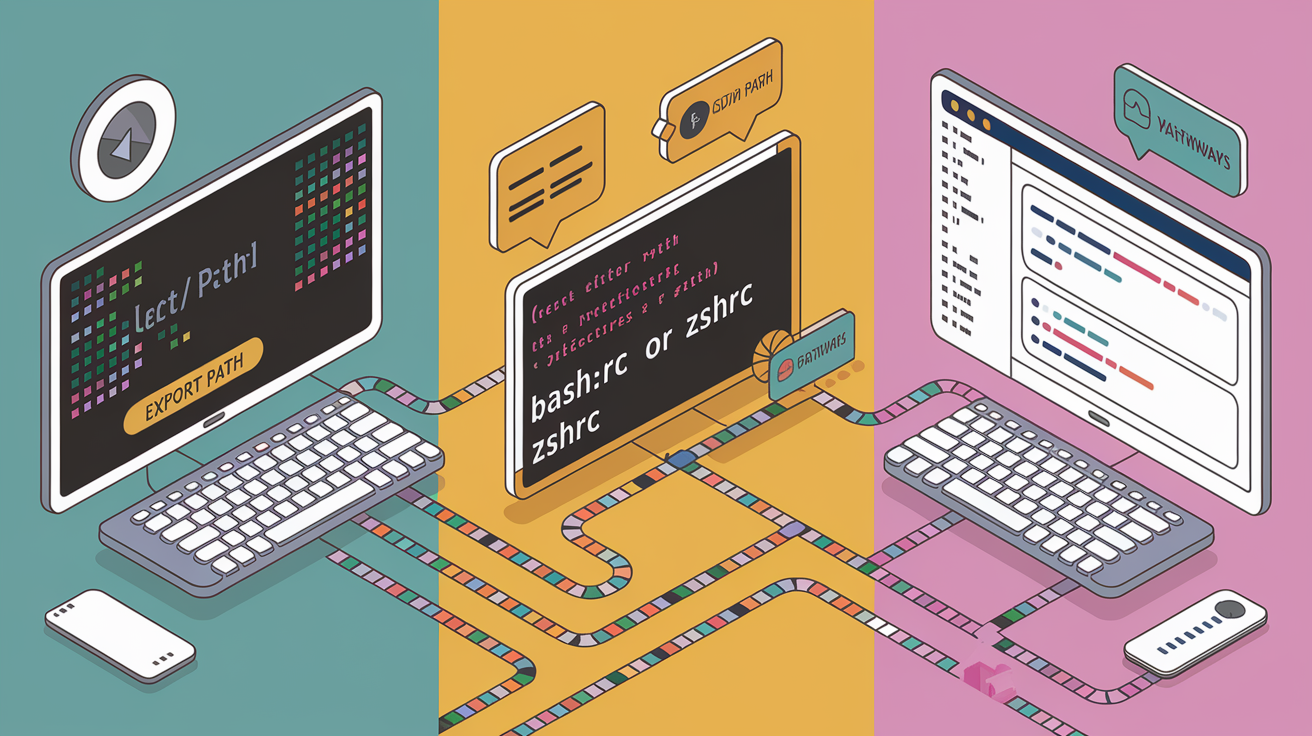
Temporary variables on macOS and Linux get created with export VAR="value" in bash or zsh. The variable sticks around until you close the terminal or kill the shell. Persistent variables need you to edit shell config files. System-wide variables need root privileges and global config files.
To create a temporary variable in bash or zsh, open a terminal and run export TWILIO_ACCOUNT_SID="ACxxxxxxxxxxxxxxxxxxxxxxxxxxxxxxxx". Type echo $TWILIO_ACCOUNT_SID to verify. Any command or script you run from that shell can see it, but close the terminal and it’s gone. Good for quick tests or one-off deployments.
For a permanent user variable, add the export line to a shell startup file. Different shells read different files at startup. Most Linux distributions default to bash, macOS Catalina and later default to zsh. Run echo $SHELL to see which one you’re using. If it says /bin/bash, edit ~/.bashrc or ~/.bash_profile. If it says /bin/zsh, edit ~/.zshrc. For fish shell, use set -Ux VAR value to create a universal variable that persists automatically. Verification is the same: echo $VAR or printenv VAR or env | grep VAR.
- bash (Linux): Add
export MY_VAR="value"to~/.bashrcfor interactive non-login shells. For login shells, use~/.bash_profileor~/.profile. - zsh (macOS/Linux): Add
export MY_VAR="value"to~/.zshrc. - fish: Run
set -Ux MY_VAR valuein the terminal. The-Uxflag makes it universal and persistent. - System-wide (all users): Edit
/etc/environmentand add a line likeMY_VAR="value"(no export keyword). Or create a script in/etc/profile.d/myvar.shwithexport MY_VAR="value". Both need root or sudo. - Verification: Run
echo $MY_VAR,printenv MY_VAR, orenv | grep MY_VARto check it’s set.
Persisting Variables Across Sessions
Shell startup files control which variables load when you open a new terminal. ~/.bashrc runs for interactive non-login shells (most terminal windows in Linux desktop environments). ~/.bash_profile or ~/.profile runs for login shells (SSH sessions, macOS Terminal by default). If you add an export to ~/.bashrc but your macOS Terminal only reads ~/.bash_profile, the variable won’t appear. Fix it by sourcing ~/.bashrc from ~/.bash_profile (add source ~/.bashrc), or just put all your exports directly in ~/.bash_profile.
In zsh, ~/.zshrc handles both interactive and login scenarios, so exports there usually work everywhere. For system-wide variables that all users need, /etc/environment is the simplest option. It uses the format KEY="value" without the export keyword. Changes kick in after logout or reboot. /etc/profile.d/ works well for shell-specific setup scripts. Create a file like /etc/profile.d/myapp.sh, add export MY_VAR="value", and make it executable with chmod +x. All login shells will source it automatically.
After editing a startup file, you can run source ~/.bashrc or source ~/.zshrc to reload without closing the terminal. This applies the new variables right away in the current session. For system-wide changes, you might need to log out and back in, or just open a new terminal window.
How to Modify or Extend PATH When Creating Environment Variables

The PATH variable tells the OS where to look for executable programs. Adding a directory to PATH lets you run commands from that directory without typing the full path. Linux and macOS use a colon (:) to separate directories in PATH. Windows uses a semicolon (;).
To append a directory to PATH on Linux or macOS, use export PATH="$PATH:/opt/myapp/bin". The $PATH part keeps existing directories, and :/opt/myapp/bin adds the new one at the end. Put this in your ~/.bashrc or ~/.zshrc to make it permanent. On Windows, run setx PATH "%PATH%;C:\tools\bin" from Command Prompt. This appends C:\tools\bin and saves it to the registry. Be careful: if you run setx PATH "C:\tools\bin" without %PATH%, you’ll overwrite all existing directories and break most command-line tools. Always include the existing PATH when you modify it. Older Windows versions have a PATH length limit around 1024 characters. If setx silently chops your PATH, use the GUI instead. Open Environment Variables via sysdm.cpl, find PATH in System or User variables, click Edit, and add your directory in the list view. This avoids truncation and lets you reorder entries visually.
| OS | Command Example | Separator | Notes |
|---|---|---|---|
| Linux / macOS | export PATH=”$PATH:/opt/bin” | : | Prepend by placing new path before $PATH |
| Windows CMD | setx PATH “%PATH%;C:\tools” | ; | Risk of truncation with very long PATH; use GUI for safety |
| Windows PowerShell | [Environment]::SetEnvironmentVariable(“PATH”,”$env:PATH;C:\tools”,”User”) | ; | Use $env:PATH to preserve existing directories |
| Windows GUI | Edit via sysdm.cpl → Environment Variables | ; | Safest method for long PATH values and visual reordering |
Using .env Files for Application-Level Environment Variables

.env files store environment variables in plain text, one per line, using the format KEY=VALUE. They sit at the root of a project and get loaded at runtime by language-specific libraries. This keeps secrets and config out of version control and lets you change settings without touching code.
A typical .env file looks like this:
NODE_ENV=development
DATABASE_URL="postgres://user:pass@db.example.com:5432/appdb"
TWILIO_ACCOUNT_SID=ACxxxxxxxxxxxxxxxxxxxxxxxxxxxxxxxx
TWILIO_AUTH_TOKEN=your_auth_token_here
Node.js projects use the dotenv package. Install with npm install dotenv, then add require('dotenv').config(); at the top of your entry file. After that, access variables through process.env.DATABASE_URL. .NET projects can use dotenv.net or DotNetEnv. Java has similar libraries, and most frameworks provide built-in .env support or community packages. Always add .env to your .gitignore to prevent committing secrets. Create a .env.example with dummy values and commit that so other developers know which variables the project needs.
.env files are plaintext, so secrets there are only as secure as the file’s permissions and the host’s access controls. For highly sensitive data, consider a dedicated secret manager like HashiCorp Vault, AWS Secrets Manager, or Azure Key Vault. Use .env files for local development and non-production environments. In production, inject secrets via your cloud provider’s environment variable settings or a secret store, not a .env file baked into a container image.
Creating Environment Variables in Containers, CI/CD, and Cloud Providers

Containers, CI pipelines, and cloud platforms each have specific ways to inject environment variables at build or runtime. Docker supports the ENV instruction in a Dockerfile to set variables during image build. These values are baked into the image and visible to all containers started from it. For runtime injection, use docker run -e KEY=value to pass variables when starting a container. docker-compose supports an env_file directive to load variables from a .env file without hardcoding them in the YAML.
Kubernetes offers ConfigMaps for non-sensitive config and Secrets for sensitive data like API keys. Both can be mounted as environment variables in pod specs. A deployment YAML can reference a Secret named twilio-creds and expose TWILIO_ACCOUNT_SID as an environment variable in the container. CI platforms like GitHub Actions, GitLab CI, and Jenkins let you define encrypted variables in repository or project settings. GitHub Actions uses repository secrets, injected into workflow steps as ${{ secrets.MY_SECRET }}. GitLab CI supports protected and masked variables available only to protected branches. Jenkins uses credential bindings to inject secrets as environment variables in build steps.
Cloud providers expose environment variables through their application hosting services. Azure App Service and Azure Functions let you configure application settings in the Azure Portal, which become environment variables at runtime. AWS Lambda supports environment variables directly in function config, with optional encryption via AWS KMS. AWS Elastic Beanstalk, Google Cloud Run, and similar platforms give you web consoles or CLI commands to set variables without editing code or rebuilding images. Always use the platform’s secret management features over plaintext variables for production credentials.
Differences Between Build-Time and Runtime Environment Variables
Build-time variables are set during image or artifact creation. In Docker, ENV instructions and build arguments (ARG) are resolved when you run docker build. These values are embedded in the final image and can’t change without rebuilding. Runtime variables get injected when a container or process starts. docker run -e and Kubernetes pod environment fields are runtime mechanisms. This matters for secrets: build-time variables can leak into image layers and show up in docker history. Runtime variables stay outside the image and can be rotated or updated without rebuilding. Most workflows use build-time variables for version numbers or static config, and runtime variables for credentials, database URLs, and API endpoints that differ between environments.
Verifying, Troubleshooting, and Debugging Newly Created Environment Variables
After creating a variable, verify it right away to avoid problems later. On Linux and macOS, run echo $MY_VAR or printenv MY_VAR or env | grep MY_VAR. On Windows Command Prompt, run echo %MY_VAR%. In PowerShell, run echo $Env:MY_VAR or Get-ChildItem Env:MY_VAR. If the output is blank, the variable isn’t set in the current session. Double-check your syntax and scope.
To list all environment variables, run env or printenv on Linux/macOS, set in Windows CMD, or Get-ChildItem Env: in PowerShell. This helps you spot typos in variable names or unexpected values. If you set a persistent variable but don’t see it, open a new terminal or shell window. Changes written to ~/.bashrc, the Windows registry, or system profiles don’t apply to processes already running. On macOS or Linux, run source ~/.bashrc or source ~/.zshrc to reload the file in the current session without opening a new terminal. On Windows, there’s no reload command. Close and reopen Command Prompt or PowerShell.
- New session required: Persistent changes via
setx, GUI, or profile files affect only new processes. Restart your terminal or IDE. - Wrong startup file: Bash reads
~/.bash_profileon macOS by default, not~/.bashrc. Add your exports to the correct file or source one from the other. - PATH truncation:
setx PATHon older Windows systems might silently chop values over 1024 characters. Use the GUI or registry editor to avoid losing data. - Permissions: System-level variables need admin or root privileges. Run Command Prompt or PowerShell as administrator, or use
sudoon Linux/macOS. - Quoting and escaping: Values with spaces need quotes. Windows CMD uses double quotes:
setx MY_VAR "value with spaces". Bash and zsh also use double quotes:export MY_VAR="value with spaces". - Service restarts: System services, web servers, and background daemons don’t pick up new variables until restarted. Run
systemctl restart myserviceon Linux or restart the service via Services.msc on Windows.
To remove a variable, use unset MY_VAR in bash or zsh. In Windows CMD or PowerShell, delete the variable via the GUI or run setx MY_VAR "" to set it to an empty string (which removes it from new sessions). In PowerShell, [Environment]::SetEnvironmentVariable("MY_VAR",$null,"User") deletes the user-level variable.
Security and Best Practices When Creating Environment Variables

Environment variables are convenient but not encrypted. Values stored in shell profile files, the Windows registry, or .env files stay in plaintext. Anyone with read access to the file or registry key can see them. For highly sensitive credentials, use a secret manager or credential store.
Follow these practices to keep your environment variables organized and secure:
- Use uppercase letters and underscores: Name variables like
MY_APP_API_KEY, notmyAppApiKey. This convention makes them easy to spot and consistent across teams. - Restrict file permissions: On Linux and macOS, run
chmod 600 ~/.bashrcorchmod 600 .envso only the file owner can read or write. This prevents other users on the system from viewing secrets. - Add .env to .gitignore: Never commit .env files to version control. Create a
.env.examplewith placeholder values and commit that instead. - Use secret managers for production: HashiCorp Vault, AWS Secrets Manager, Azure Key Vault, and Google Secret Manager encrypt secrets at rest and provide audit logs and access controls that environment variables lack.
- Scope variables minimally: Prefer user-level variables over system-level when the variable only applies to your account. This reduces the attack surface and avoids conflicts with other users.
- Rotate secrets regularly: If an API key or token gets exposed, revoke it and generate a new one. Update the environment variable and restart services that depend on it.
- Avoid duplicate PATH entries: Before appending to PATH, check whether the directory is already there. Duplicate entries slow down command lookup and clutter the variable.
After creating a variable, validate its value at application startup. Many frameworks and libraries check required variables on boot and fail fast with clear error messages if something’s missing or malformed. This catches config mistakes before they cause runtime errors in production.
Keep backups of your shell profile files and system environment configs. If you accidentally overwrite PATH or delete a critical variable, you can restore from backup instead of manually reconstructing the value. Use version control for scripts and profile files when possible, and document which environment variables each project or service requires in a README or setup guide.
Final Words
Quick recap: we jumped straight into actionable steps for Windows, macOS, and Linux, covering temporary exports, persistent shell files, and Windows setx/GUI. You also got PATH tips, .env usage, container/CI notes, verification commands, and security hygiene.
Remember the usual gotchas: new sessions for persistent vars, quoting/escaping, PATH truncation on Windows, and admin/root needs for system-level edits. Use echo/printenv/Get-ChildItem to check values.
If you just need to create environment variable, follow the OS-specific quick steps and verify in a new shell. Do that and you’ll avoid most headaches and ship with fewer surprises.
FAQ
Q: How to create a new environment variable in Windows 10 or Windows 11?
A: Creating a new environment variable in Windows 10 or 11 uses the System Properties GUI (sysdm.cpl → Advanced → Environment Variables → New), or CLI: setx VAR value (CMD) or [Environment]::SetEnvironmentVariable in PowerShell; open a new shell.
Q: What is an example of an environment variable?
A: An example of an environment variable is PATH, which lists directories to search for executables; other common examples are JAVAHOME, NODEENV, and DATABASE_URL used by builds and apps.
Q: Why set java_home environment variable?
A: Setting JAVA_HOME tells tools where your JDK is installed so Maven, Gradle, IDEs, and scripts can find Java binaries, preventing misconfigured builds and runtime errors.