


Ever spent ten minutes scrolling through a wall of gray text trying to find that one ERROR message buried in 500 INFO lines?
Raw terminal logs are technically functional but brutally inefficient. Your brain has to parse each line, identify the severity, and decide whether to care. Colorized log formatters solve this by mapping log levels to distinct colors, red for errors, yellow for warnings, green for info, so your eyes catch critical issues instantly. The setup takes under five minutes with libraries like colorlog, winston, or logrus, and the payoff is immediate: faster debugging, fewer missed warnings, and way less eye strain during incident response.
Quick Start: Popular Log Formatting Libraries with Code Examples

The fastest path to colorized logs depends on your language ecosystem. Python developers usually go with colorlog or loguru, Node.js teams pick winston, and Go projects lean on logrus. Each library handles ANSI escape code injection automatically so you can focus on what to log instead of how to color it.
Python: colorlog, loguru, and Custom Formatters
Install colorlog with pip install colorlog and configure it in four lines:
import colorlog
handler = colorlog.StreamHandler()
handler.setFormatter(colorlog.ColoredFormatter('%(log_color)s%(levelname)s:%(message)s'))
logging.root.addHandler(handler)
For zero dependencies, extend the standard library instead:
import logging

class ColorFormatter(logging.Formatter):
    COLORS = {
        'DEBUG': '\033[36m', 'INFO': '\033[32m',
        'WARNING': '\033[33m', 'ERROR': '\033[31m',
        'CRITICAL': '\033[35m'
    }
    RESET = '\033[0m'

    def format(self, record):
        log_color = self.COLORS.get(record.levelname, self.RESET)
        record.levelname = f"{log_color}{record.levelname:8}{self.RESET}"
        return super().format(record)
The ColorizedArgsFormatter approach adds alternating colors to each logged argument using Python 3.2+ brace style formatting: {param}. If your project accepts dependencies, colorama provides cross platform ANSI code support. It’s especially helpful on older Windows terminals.
Node.js: winston Logger
Install winston with npm install winston and configure colors like this:
const winston = require('winston');
const logger = winston.createLogger({
  format: winston.format.combine(
    winston.format.colorize(),
    winston.format.simple()
  ),
  transports: [new winston.transports.Console()]
});
Winston automatically maps severity levels to colors and works right after installation.
Go: logrus and zap
Install logrus with go get github.com/sirupsen/logrus and enable color output:
import log "github.com/sirupsen/logrus"

log.SetFormatter(&log.TextFormatter{ForceColors: true})
log.Info("Colored output enabled")
Quick Implementation Checklist
Evaluate dependencies first. Choose between zero dependency custom formatters or feature rich libraries based on your project constraints. Install with your package manager: pip install colorlog, npm install winston, or go get github.com/sirupsen/logrus. Configure handler and format by setting up StreamHandler for console output with a color formatter class. Test in your target terminal to verify ANSI code support by running a test script with all five log levels. Check license compatibility since most implementations use Apache 2.0, MIT, or similar permissive licenses for commercial use.
Understanding Log Levels and Color-Coding Benefits
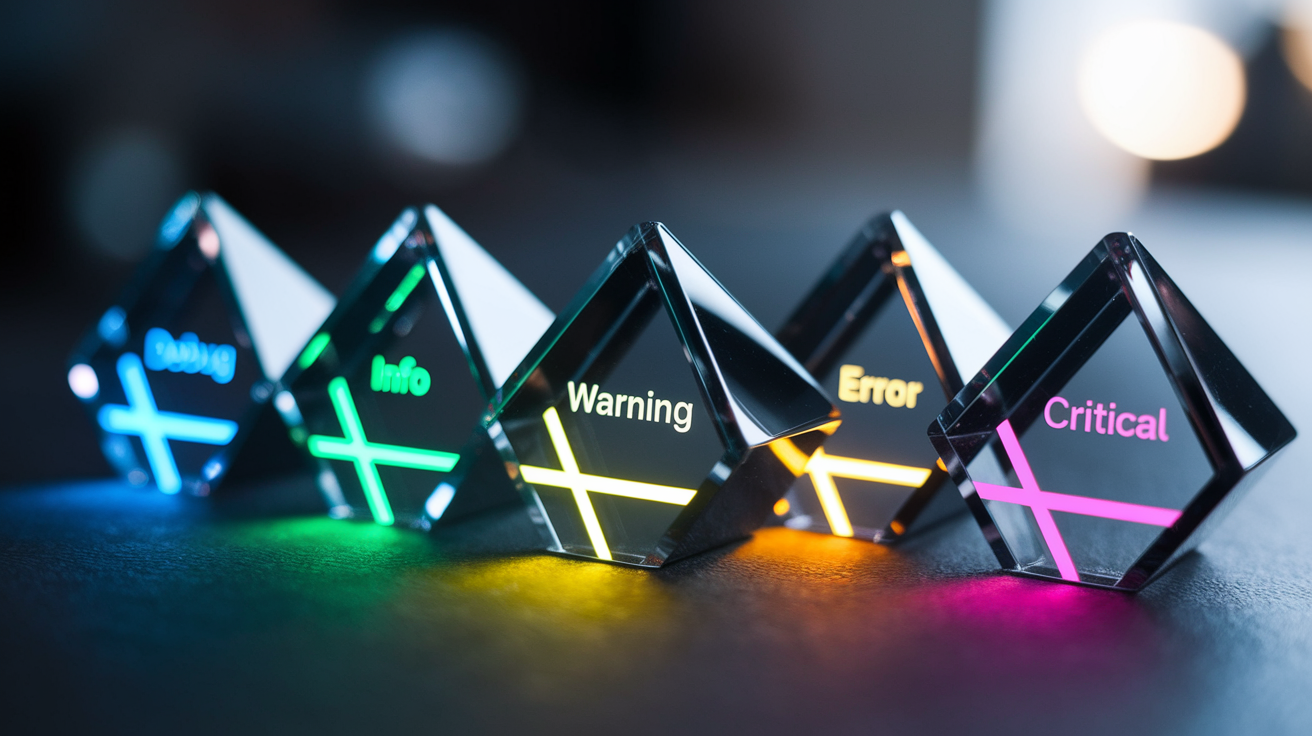
Every logging framework implements five severity levels arranged in a strict hierarchy: DEBUG (most verbose), INFO (routine information), WARNING (potential issues), ERROR (failures requiring attention), and CRITICAL (system threatening problems). DEBUG captures granular execution details useful during development. INFO records normal operations like “Server started on port 8080.” WARNING flags suspicious conditions that don’t stop execution, like deprecated API usage. ERROR indicates something failed but the application continues running. CRITICAL means the entire system is at risk and immediate action is required.
Setting your logger to WARNING level filters out DEBUG and INFO messages. You get precise verbosity control without code changes.
Color coding transforms these abstract severity levels into instant visual signals. Your eyes catch red ERROR messages immediately while scanning hundreds of log lines. No mental translation needed. The 8 character right aligned formatting creates a clean vertical column in terminals: DEBUG, INFO, WARNING, ERROR, CRITICAL. This alignment makes level changes stand out during rapid scrolling. ANSI escape codes insert color control sequences before and after each level name, instructing the terminal which foreground color to render. When DEBUG appears in cyan, INFO in green, WARNING in yellow, ERROR in red, and CRITICAL in magenta, you identify problem severity in under a second.
| Log Level | Use Case | Visual Benefit |
|---|---|---|
| DEBUG | Variable values, function entry/exit, loop iterations during development | Cyan color separates verbose detail from operational messages |
| INFO | Server startup, configuration loading, successful request completion | Green indicates normal healthy operation at a glance |
| WARNING | Deprecated function usage, approaching resource limits, retry attempts | Yellow draws attention without alarming, signals review needed |
| ERROR | Failed database queries, unhandled exceptions, invalid user input | Red immediately highlights failures requiring investigation |
| CRITICAL | Database connection lost, out of memory, security breach detected | Magenta stands out from standard red errors as maximum severity |
Comprehensive Formatting Customization and Color Schemes
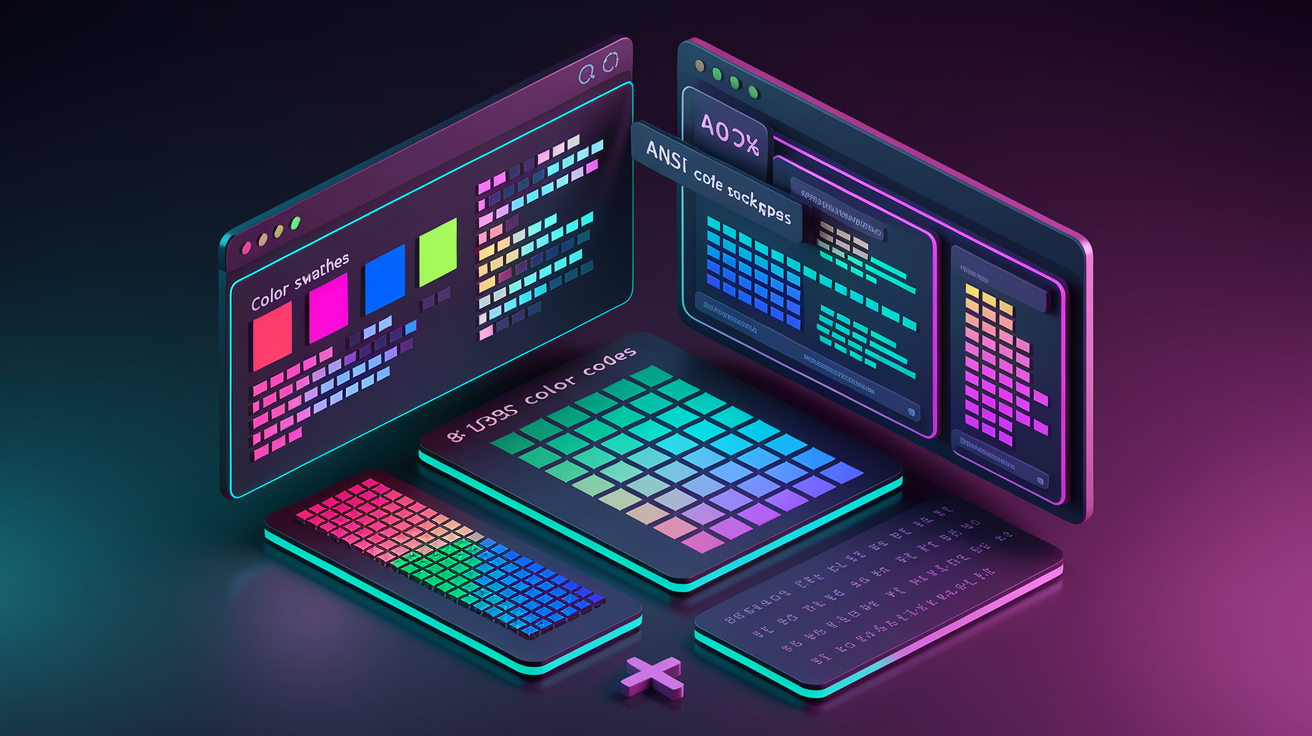
ANSI escape codes work across three terminal capability levels: 8 color (basic ANSI), 16 color (extended ANSI), and 256 color (xterm 256). Most modern terminals support at least 16 colors, giving you eight standard colors plus eight bright variants. The 256 color palette provides fine grained control over shades, useful for creating distinct visual hierarchies beyond the five standard log levels. Check your terminal’s documentation or use echo $TERM on Unix systems to verify capability. If ANSI codes don’t render correctly, the terminal likely doesn’t support them or requires specific configuration flags.
The arg_colors list defines alternating colors for each logged argument. The level_to_color dictionary maps severity names to ANSI codes. For example, arg_colors = ['\033[36m', '\033[35m'] alternates between cyan and magenta for each {param} in your message. The level_to_color dictionary looks like {'ERROR': '\033[31m', 'WARNING': '\033[33m'}, directly controlling level name colors. Modifying these two structures customizes your entire color scheme without touching formatter logic. If you prefer blue errors and green warnings, just swap the codes.
Log format structure typically includes three components in this order: timestamp, level name, and message content. A common pattern is '%(asctime)s %(levelname)s %(message)s', where asctime might render as “2025-05-15 14:32:18” and levelname gets padded to 8 characters with right alignment. The formatter class handles inserting the level name with proper spacing before processing the message. This consistent structure makes logs greppable and easy to parse with awk or sed when you need to extract specific time ranges or severity levels.
Python 3.2+ brace style formatting using {param} notation enables per argument colorization through ANSI code insertion. The ColorizedArgsFormatter detects brace placeholders by counting curly brace pairs and matching them against the number of arguments passed to the logging call. Before each {param}, it inserts an opening ANSI color code from the arg_colors list. After each parameter, it inserts the reset code \033[0m. This creates alternating colors for each variable: logger.info("User {0} logged in from {1}", username, ip_address) renders username in one color and ip_address in another. The technique helps distinguish between separate data points in dense log messages.
Custom arg_colors list means defining two or more ANSI codes that rotate for each logged parameter. Level to color mapping sets specific colors for DEBUG, INFO, WARNING, ERROR, CRITICAL in the dictionary. Timestamp format strings use %(asctime)s with date format codes like %Y-%m-%d %H:%M:%S for precise time representation. The 8 character level alignment applies :8 formatting to levelname placeholders for clean vertical columns. 256 color palette codes use extended ANSI codes like \033[38;5;208m for orange when 16 colors aren’t enough. Structured JSON output switches to JSON formatters for non terminal outputs while keeping colors for console streams.
Accessibility matters when choosing color schemes. The common red/green pairing for ERROR/INFO creates problems for users with deuteranopia (red green color blindness). Consider using blue for INFO and orange for ERROR instead. Dark themes need lighter color variants to maintain contrast, while light themes require darker shades. Test your color scheme in both terminal backgrounds before deployment.
One limitation to note: kwargs mapping format like {name}.format(name="David") isn’t supported in most custom formatters. Stick to positional arguments or indexed placeholders for reliable colorization.
Environment-Specific Configuration and Deployment Integration

Dual handler architecture solves the fundamental problem of needing colored console output during development and clean plain text logs in files for long term storage. Set up a StreamHandler with your ColorFormatter attached for terminal display. Add a separate FileHandler with a standard Formatter (no ANSI codes) pointing to a log file. Both handlers connect to the same logger instance, so every log call writes to both destinations simultaneously. The file gets searchable plain text compatible with grep and log aggregation tools. Your terminal stays colorized for rapid debugging. Configure file rotation to create new log files daily, preventing single files from growing to unwieldy sizes.
StreamHandler sends output to sys.stderr or sys.stdout and respects ANSI escape codes if the terminal supports them. BraceFormatStyleFormatter (or similar non colorized formatter) handles file outputs by processing the same log format string without inserting color codes. Without this separation, your log files fill with escape sequences like \033[31mERROR\033[0m, breaking text searches and wasting disk space. The TypeError failures occur when brace style formatters encounter percent style format strings or vice versa. Using separate formatter instances for each handler prevents these conflicts. “Using BraceFormatStyleFormatter for file handlers eliminated our TypeErrors overnight.”
File rotation creates logs named with timestamps like app_2025-05-15.log, automatically switching to app_2025-05-16.log when the date rolls over. Python’s TimedRotatingFileHandler handles this automatically with parameters like when='midnight' and interval=1. Cross platform compatibility mostly works out of the box since ANSI codes function on Linux, macOS, and modern Windows terminals (Windows 10+ with VT100 emulation enabled). Older Windows Command Prompt requires colorama to translate ANSI codes into Windows API calls, but most developers now use Windows Terminal or WSL (Windows Subsystem for Linux) where standard ANSI works fine.
CI/CD pipelines typically don’t support ANSI color codes because the output gets captured to plain text logs or displayed in web interfaces that can’t render terminal colors. Most CI systems (Jenkins, GitHub Actions, GitLab CI) ignore ANSI sequences, but they create visual noise when reviewing logs in the web UI. Detect CI environments with environment variables like CI=true and conditionally disable colorization: use_colors = not os.getenv('CI'). Docker container logging works best with plain text because docker logs and container orchestration platforms display logs in web dashboards where ANSI codes appear as garbage characters. Kubernetes aggregates logs from multiple pods into centralized systems, and those systems expect clean text without formatting codes.
Log aggregation systems like the ELK stack (Elasticsearch, Logstash, Kibana) parse structured log data and provide their own colorization in the web interface. Feeding ANSI codes into Elasticsearch wastes storage and breaks field parsing. Configure your file handler to strip all ANSI codes or use a plain formatter from the start. Log shippers like Filebeat, Fluentd, or Logstash forward file based logs to aggregation platforms, so file handlers must produce clean text. When integrating with API testing tools, colorized console logs help debug request/response cycles during test development. For developer productivity tools workflows, real time colorized output in terminal based log viewers improves troubleshooting speed.
| Environment | Color Output | Handler Type | Special Considerations |
|---|---|---|---|
| Development | Enabled | StreamHandler with ColorFormatter | Full ANSI support, enable all log levels including DEBUG |
| CI/CD | Disabled | StreamHandler with plain Formatter | Detect CI environment variables and disable colors automatically |
| Container | Disabled | StreamHandler to stdout with plain format | Kubernetes and Docker dashboards can’t render ANSI codes |
| Production | File: Disabled, Console: Optional | TimedRotatingFileHandler plus optional colored StreamHandler | Always use plain text for files sent to log aggregation systems |
Zero third party dependencies mean simpler deployments with no pip install surprises during container builds or serverless cold starts. Apache 2.0 licensed implementations available on GitHub let you copy formatter classes directly into your codebase without legal concerns. This approach works well when company policy restricts external package usage or when targeting minimalist production environments.
Performance Considerations for Colorized Log Formatting
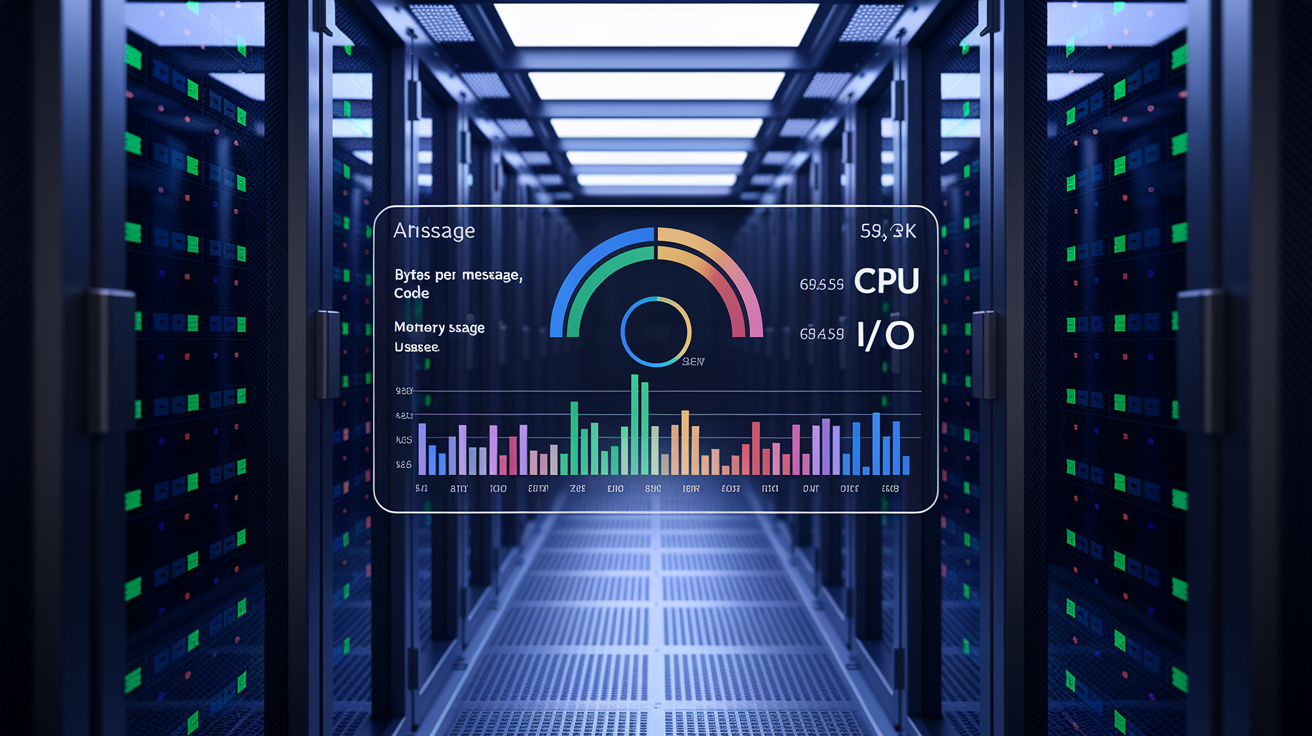
ANSI escape code insertion adds roughly 10 to 20 bytes per log message (color code plus reset code), creating minimal performance overhead. String concatenation to build the colored output happens in memory and completes in microseconds on modern hardware. The bottleneck in most logging systems is I/O, not the formatting step. Writing to disk or sending logs over network sockets takes far longer. If you’re logging thousands of messages per second, the cost of ANSI code insertion stays negligible compared to the cost of flushing to a file or sending logs over a network socket.
Memory usage increases slightly because each formatted log message holds extra bytes for color codes before being written to the output stream. During high volume scenarios (100,000+ messages per minute), this memory overhead might add a few megabytes to your application’s footprint. CPU overhead comes from string formatting operations: inserting color codes into format strings, padding level names to 8 characters, and calling str.format() for brace style parameters. Profiling typically shows these operations consuming less than 1% of total application CPU time unless logging itself is the primary workload. If you notice performance degradation, benchmark with and without colorization to isolate the cause.
Production environments should disable console colorization when logs only go to files or log aggregation systems. There’s no benefit to inserting ANSI codes that immediately get stripped or ignored, and you avoid wasting CPU cycles on formatting that serves no purpose. CI/CD pipelines definitely should disable colors since the codes add noise without visual benefit in captured text logs. Real time monitoring dashboards already provide their own colorization, so sending colorized logs to services like Datadog or Splunk just increases network payload size. Use environment variable checks or configuration flags to toggle colorization based on runtime context.
Troubleshooting Common Colorization Issues

Terminal compatibility issues arise when ANSI escape codes don’t match the terminal’s supported color depth or when the terminal doesn’t support ANSI at all. Most modern terminals (iTerm2, GNOME Terminal, Windows Terminal) support 256 color ANSI codes, but older terminals or minimal environments like embedded Linux might only handle 8 colors. Test ANSI support by echoing a simple colored string: echo -e "\033[31mRed Text\033[0m". If you see literal escape codes instead of colored text, the terminal doesn’t support ANSI or requires explicit enabling. Heuristic format style detection prevents crashes when mixing percent style (%s) and brace style ({0}) format strings by checking for the absence of % characters and matching curly brace pair counts with argument counts.
No colors appear in terminal? Verify ANSI support with echo -e "\033[31mTest\033[0m". Check if TERM environment variable is set correctly (should be xterm-256color or similar). Confirm the handler is a StreamHandler, not a FileHandler.
TypeError: not all arguments converted usually means you’re using percent style format strings with a brace style formatter or vice versa. Switch to BraceFormatStyleFormatter for file handlers to prevent this conflict.
Colors appear in log files when the file handler is using ColorFormatter instead of a plain Formatter. Attach ColorFormatter only to StreamHandler and use standard Formatter for file outputs.
Wrong colors for severity levels? Check the leveltocolor dictionary for incorrect ANSI codes or typos in level names (must match ‘DEBUG’, ‘INFO’, ‘WARNING’, ‘ERROR’, ‘CRITICAL’ exactly).
Alternating argument colors not working means you need to verify you’re using brace style placeholders like {0} and {1}, not percent style %s. Confirm arg_colors list contains valid ANSI codes.
Garbled output in CI/CD logs happens because ANSI codes are being sent to environments that don’t render them. Add CI environment detection and conditionally disable ColorFormatter.
Best practices for preventing colorization issues start with environment detection. Check for os.isatty(sys.stdout.fileno()) to confirm you’re writing to an actual terminal before enabling colors. In production, always use dual handlers with plain text going to files and colorized output going to console only when a terminal is attached. Implement a plain text fallback by setting up a configuration flag that switches between ColorFormatter and standard Formatter based on runtime context. “We learned the hard way that checking isatty() before applying colors saved us from months of garbled CI logs.”
Final Words
Colorized log formatters transform raw terminal output into readable, scannable information that speeds up debugging and incident response.
Pick a library that fits your language ecosystem, install it in under a minute, and test the output against your real logs.
Configure dual handlers early so you get colors during development and clean plain text for production aggregation systems.
If you hit terminal compatibility issues or TypeError failures, check the heuristic detection settings and fall back to BraceFormatStyleFormatter for file outputs.
Start with a basic setup, then tune color schemes and formatting patterns as your team’s workflow evolves.
FAQ
What are the most popular libraries for colorized log formatting?
The most popular libraries for colorized log formatting include colorlog and loguru for Python, winston for Node.js, and logrus for Go, with each offering ANSI-based color-coding for terminal output.
How does colorized logging improve debugging and readability?
Colorized logging improves debugging by using visual color emphasis to differentiate severity levels (DEBUG, INFO, WARNING, ERROR, CRITICAL), enabling faster visual scanning and quicker identification of critical issues in terminal output.
Can I implement colorized logging without external dependencies?
You can implement colorized logging without external dependencies by extending Python’s standard logging.Formatter class to add ANSI escape codes, eliminating the need for third-party packages like loguru or colorlog.
What are ANSI escape codes and how do they work for log formatting?
ANSI escape codes are special character sequences inserted before and after log level names and formatting parameters to trigger color changes in terminal output, supporting 8-color, 16-color, and 256-color terminal types.
How do I configure different log outputs for development versus production?
Configure different log outputs using a dual-handler setup where StreamHandler provides colorized console output for development while file handlers use BraceFormatStyleFormatter to write plain text logs for production and aggregation systems.
Should colorized logging be disabled in CI/CD pipelines?
Colorized logging should be disabled in CI/CD pipelines because ANSI escape codes create unreadable artifacts in build logs and interfere with log parsing tools that expect plain text formatting.
What is the performance impact of adding colorization to logs?
The performance impact of adding colorization is minimal since ANSI escape code insertion creates negligible CPU overhead, especially when using zero-dependency implementations with Python’s standard logging module.
How do I prevent TypeError failures when using custom formatters?
Prevent TypeError failures by using BraceFormatStyleFormatter for file handlers, which maintains compatibility through heuristic detection by checking for ‘%’ absence and matching curly brace pairs with argument counts.
Are colorized logs compatible with Docker and Kubernetes environments?
Colorized logs work in Docker and Kubernetes environments for local debugging, but plain text output is recommended for container logs to ensure compatibility with orchestration logging systems and aggregation tools.
How can I make log formatting accessible for color-blind users?
Make log formatting accessible for color-blind users by configuring color-blind friendly palettes through the leveltocolor dictionary and ensuring sufficient contrast between severity levels beyond color differentiation alone.
Can I customize the color scheme for different log levels?
You can customize the color scheme by adjusting the leveltocolor dictionary to map severity levels to preferred colors and using the arg_colors list for alternating argument colors in log messages.
Why aren’t colors appearing in my terminal output?
Colors may not appear due to terminal ANSI support limitations, disabled color settings, or incorrect handler configuration—verify terminal compatibility and ensure StreamHandler is used instead of file-based handlers for console output.