


Still eyeballing CSV diffs in a text editor?
That’s how migrations and analytics quietly break.
Automated CSV comparison scans files, matches rows by key, normalizes dates and numbers, and spits out reliable reports without you babysitting.
In this post I cut through hype and show tools that actually work — Python scripts (pandas), fast CLI utilities (mlr, csvkit), quick browser checks, and cloud/enterprise options — with concrete rules for when to use each.
You’ll learn practical picks to save time and stop shipping bad data.
Leading Options for Automated CSV Comparison

Automated CSV comparison scans two CSV files, matches rows using unique identifiers or position, spots schema changes, and flags differences at the cell, row, or column level. The whole thing runs without you touching it, spitting out structured reports that show inserts, updates, deletions, and schema drift. It handles delimiter detection, numeric rounding, date normalization, and encoding quirks on its own.
Manual CSV comparison burns hours and opens the door to human error. One missed row or misread decimal can break your analytics downstream or kick off a migration with bad data. Automation takes the guesswork out, runs whenever you schedule it, and delivers the same reliable output every time. You need it when you’re comparing nightly exports, testing ETL pipelines, or checking migrations across thousands of rows. If you’re still scanning CSV diffs in a text editor, you’re wasting time you won’t get back.
Python scripts using pandas or csv-diff parse CSVs into DataFrames, use merge with indicator or DataFrame.compare(), then export diff reports as CSV or JSON. Works well for datasets under a few GB. Easy to schedule with cron.
CLI utilities like csvkit and Miller (mlr) are stream-processing tools that chew through multi-GB files quickly, let you filter and sort before running the diff, and drop cleanly into shell scripts or CI/CD pipelines.
Desktop diff apps (Beyond Compare, Araxis Merge, WinMerge) give you visual side-by-side comparison with manual merge controls. Perfect for one-off reviews or when business users need a GUI.
Free browser-based tools process files locally in your browser, highlight differences with color, export unified diffs, and don’t require an upload. Fast for files under 100MB.
Cloud automation platforms are SaaS tools that accept scheduled uploads or API triggers, run comparisons, and send alerts. Best fit for recurring workflows across multiple systems.
Enterprise diff platforms come with audit logging, role-based access, API integrations, and support for massive datasets via chunking and distributed processing. Built for financial reconciliation and compliance.
Go with Python or CLI tools if you’re automating recurring comparisons under 10GB and want full control. Desktop apps work best for manual spot checks or when stakeholders need visual confirmation. Browser tools are right for quick one-off diffs where privacy matters. Cloud platforms make sense when you’re orchestrating multi-system workflows. Enterprise solutions pay off when you need audit trails, SLAs, and support for files that won’t fit in memory.
Step‑by‑Step: How Automated CSV Comparison Works

Automated CSV comparison follows a repeatable workflow that removes guesswork and delivers consistent results. You configure it once, then let it run on schedule or trigger it through an API call. The core steps are data ingestion, schema alignment, row matching, difference detection, and report generation.
First, the tool reads both CSVs and figures out delimiters automatically, whether it’s comma, semicolon, tab, or pipe. If encoding varies (UTF-8, Latin-1, Windows-1252), it normalizes everything to one encoding before parsing. Headers get extracted and converted to a standard form, usually UPPERCASE, so you don’t get false positives from capitalization differences. Columns that only exist in one file get flagged right away. If data types differ (string vs integer, for example), the tool logs the mismatch and proceeds with string comparison or applies whatever casting rules you configured.
Next, rows get matched using one or more unique identifier columns. You specify these in the config—order ID, transaction ID, email, composite keys. The tool hashes each row’s identifier and stores a map of identifier, row hash, and byte offset. For each identifier in the old file, it checks if it exists in the new file. If both hashes match, the row hasn’t changed and gets removed from both maps to free memory. If hashes differ, the row gets marked as updated and the new-file offset gets recorded. If the identifier is missing in the new file, the row is marked as deleted. After processing all old-file keys, any remaining new-file keys are inserts.
- Ingest both files. Read headers, detect delimiter and encoding, parse rows into in-memory maps or stream line by line.
- Align schemas. Compare column names and data types, flag added, removed, or renamed columns, apply normalization rules.
- Configure tolerance. Set rounding precision for decimals, define date format normalization, specify columns to exclude from comparison.
- Match rows. Hash unique identifiers, build maps keyed by identifier, compare hashes to spot unchanged or updated rows.
- Detect differences. Iterate old-file keys, check for presence and hash equality in new-file map, record offsets for inserts, updates, and deletes.
- Generate report. Fetch full row data using stored offsets, format output as unified diff, JSON, HTML, or CSV with color-coded rows, export for review or downstream processing.
Tolerance configuration stops false positives. You set numeric precision (for example, round to two decimals so 17.0 and 17.00 count as equal), define date formats to normalize (01-May-2025, 01.01.25, 01/01/25 all become 2025-01-01), and exclude volatile columns like timestamps or audit fields. The tool applies these rules before hashing, so only meaningful changes trigger alerts. Output formats vary depending on what you need: unified diff for version control, side-by-side HTML for visual review, JSON for API consumption, or CSV for downstream analytics.
Automation happens through scheduled cron jobs, CI/CD pipeline hooks, or API triggers. You configure the tool to compare nightly exports, run post-deployment data checks, or validate data sync between systems. Reports get emailed, posted to Slack, or saved to cloud storage. If differences cross a threshold, the job fails and alerts the team. This setup catches data drift early and keeps pipelines trustworthy without anyone lifting a finger.
Using Python for Automated CSV Comparison

Python gives you the most control for automated CSV comparison. The pandas library loads CSVs into DataFrames, supports large datasets, and comes with built-in comparison methods. The csv-diff package is lighter and returns structured diffs as dictionaries. Both integrate easily with schedulers and CI/CD tools.
A typical workflow loads both CSVs, sets a primary key column as the index, then calls DataFrame.compare() to highlight cell-level differences. For row-level changes (inserts and deletes), use merge with indicator=True to flag rows present in only one file. The merge produces a column named merge with values leftonly, rightonly, or both. Filter on leftonly for deletes, right_only for inserts. For updates, filter on both and compare hash values or run a row-wise equality check.
Load and align keys. Use pd.readcsv() with dtype and parsedates to control schema, set the index to unique identifier columns with set_index(), so rows align automatically.
Detect cell changes. Call dfold.compare(dfnew) to get a DataFrame showing old and new values for every differing cell, export with tocsv() or tojson().
Find inserts and deletes. Merge with how=’outer’, indicator=True, then filter merged[merged[‘_merge’] != ‘both’] to isolate rows present in only one file.
Apply tolerance. Round numeric columns with round(2) before comparison, normalize dates with pd.to_datetime() and a single format string, drop excluded columns with drop().
Automate execution. Wrap the script in a main() function, schedule with cron (crontab -e), or trigger from a CI job using subprocess or a webhook listener.
Scheduled execution turns a one-time script into continuous validation. On Linux, add a cron entry like 0 2 * * * /usr/bin/python3 /path/to/compare_csv.py to run the comparison every night at 2 AM. On Windows, use Task Scheduler. The script reads file paths from environment variables or a config file, runs the comparison, writes the diff report to a timestamped file, and exits with a non-zero code if critical differences show up. That exit code triggers alerts in monitoring systems or fails the CI pipeline, stopping bad data before it spreads.
Command‑Line Utilities for Fast CSV Automation

CLI tools work best when you need repeatable automation, shell script integration, or fast processing of multi-GB files without writing code. csvkit provides csvdiff for simple comparisons and csvstat for schema analysis. Miller (mlr) streams CSVs and supports complex transformations and joins. Standard Unix tools (sort, diff, join) combine into powerful workflows when CSVs are normalized first.
The simplest automated workflow normalizes both files, sorts on key columns, then runs diff -u to produce a unified diff. Normalization means consistent quoting, trimmed whitespace, and stable column order. Sort both files on the same key columns (sort -t, -k1,1 -k2,2) to align matching rows, then diff -u sortedold.csv sortednew.csv produces a line-by-line diff that version control systems understand. Pipe the output to a file or email it. This approach works for files up to a few GB and integrates cleanly into CI pipelines or nightly batch jobs.
Miller (mlr) handles larger files and supports tolerance rules in a single command. For example, mlr –csv join -f old.csv -j id then filter ‘$newvalue != $oldvalue’ new.csv produces rows that changed. You can round numeric fields, exclude columns, and format output as JSON or CSV in one pipeline. Shell scripts wrap these commands, loop over directories of CSVs, and produce diff reports for every pair. That setup is common in ETL validation: every time new data lands, a script compares it to the previous snapshot and alerts if schema or row counts drift beyond thresholds.
Feature Comparison of Automated CSV Tools
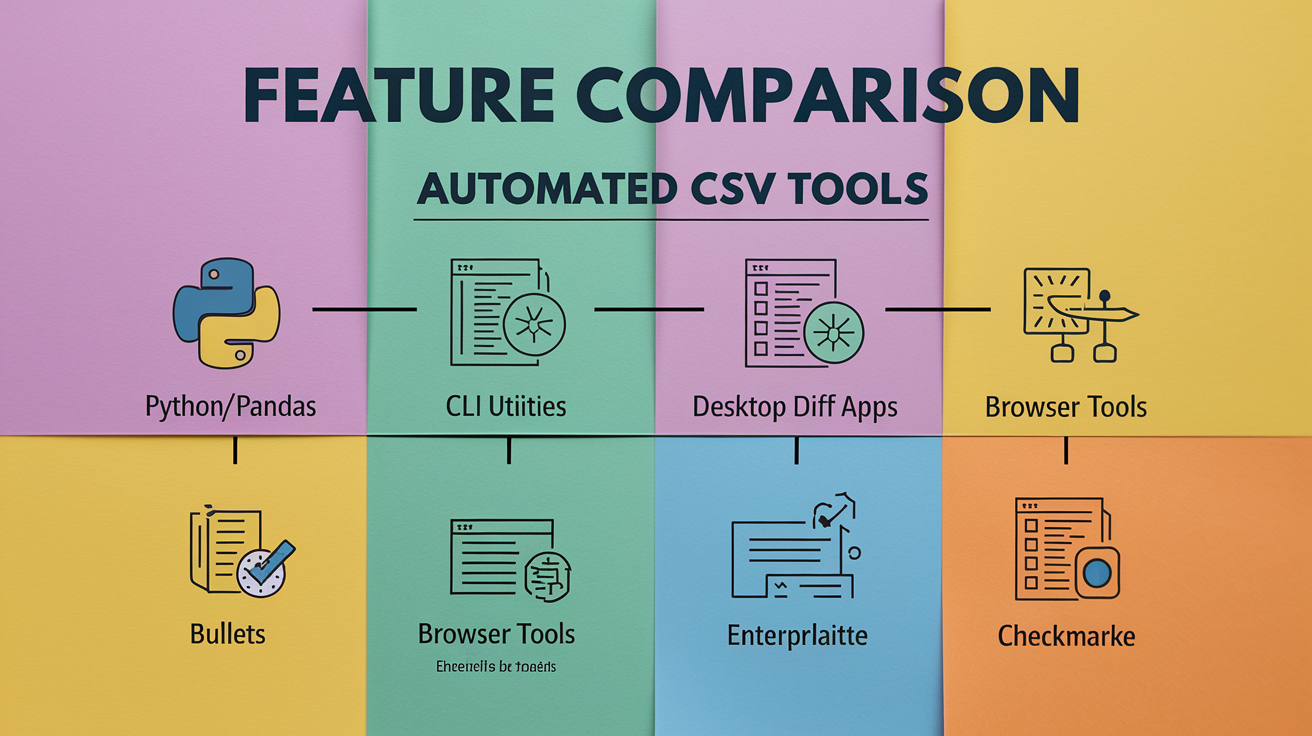
Picking the right tool depends on file size, workflow complexity, and output requirements. Some tools focus on speed and simplicity, others offer deep configuration or enterprise features. This table breaks down the tradeoffs.
| Tool Type | Strengths | Best For |
|---|---|---|
| Python scripts (pandas, csv-diff) | Full control, flexible merging, tolerances, chunking, easy to schedule, export to any format | Datasets under 10GB, custom logic, recurring automation, teams comfortable with code |
| CLI utilities (csvkit, Miller, sort+diff) | Fast streaming, handles multi-GB files, integrates with shell scripts, minimal dependencies | Large files, CI/CD pipelines, nightly batch jobs, quick one-liners |
| Desktop diff apps (Beyond Compare, Araxis, WinMerge) | Visual side-by-side, manual merge, syntax highlighting, GUI for non-technical users | One-off reviews, manual conflict resolution, stakeholder presentations |
| Browser-based tools (local processing) | No upload, instant diff, color-coded rows, export unified diff, works offline | Quick spot-checks, files under 100MB, privacy-sensitive data, no install required |
| Enterprise platforms (SaaS, on-prem) | Audit logging, role-based access, API integrations, distributed processing, SLA support | Financial reconciliation, compliance workflows, files exceeding memory, multi-system orchestration |
Python and CLI tools cover most automation needs at zero cost. Desktop apps are worth the license if business users need visual confirmation or you’re resolving merge conflicts manually. Browser tools fit quick comparisons where installation and data upload are blockers. Enterprise platforms pay off when audit trails, uptime guarantees, and scale beyond single-machine limits are required.
Handling Large Datasets in Automated CSV Comparison

Files over a few GB hit memory limits when you load them fully into DataFrames or in-memory maps. Streaming, chunking, and external sorting keep processing fast and memory stable. The right strategy depends on whether your bottleneck is I/O, CPU, or RAM.
Chunking splits a large file into smaller pieces, processes each chunk independently, then merges results. In pandas, use the chunksize parameter in readcsv() to yield DataFrames of manageable size (for example, pd.readcsv(‘large.csv’, chunksize=100000)). For each chunk, compare against the corresponding slice of the second file, collect diffs, and append to a results file. This keeps peak memory under control and lets you process files larger than available RAM.
External sorting handles files too large to sort in memory. Use Unix sort with -S to set buffer size and –parallel to use multiple cores (sort -t, -k1,1 -S 4G –parallel=4 large.csv -o sorted.csv). Once both files are sorted on the same key columns, a single streaming pass detects differences. Tools like Miller and csvkit stream sorted files and emit diffs without loading everything into memory. This workflow supports multi-GB files on commodity hardware.
Stream line by line. Avoid read_csv() without chunksize. Use Python csv.reader or Miller to process rows one at a time, build hash maps incrementally, delete matched keys during iteration to free memory.
Pre-filter columns. Drop unused columns before comparison (mlr –csv cut -x -f audittimestamp,createdat) to reduce row width and memory footprint.
Validate schema first. Run a quick header-only check (head -n 1 file.csv) before processing data. If schemas differ, fix upstream and avoid wasted full-file processing.
Use external databases. Load both CSVs into SQLite or Postgres, create indexes on key columns, run SQL joins and GROUP BY queries to detect differences. Databases handle sorting and deduplication efficiently.
Parallel processing. Split CSVs by key ranges (for example, rows where ID starts with A–M vs N–Z), run comparisons in parallel threads or processes, merge results at the end. Tools like GNU Parallel automate this pattern.
For files exceeding tens of GB, push to a database or use distributed tools like Dask or Spark. Dask reads CSVs in parallel partitions, performs lazy merges, and computes diffs only when you call compute(). Spark handles petabyte-scale joins across clusters. These tools add complexity but remove memory and CPU ceilings. If you’re hitting those limits regularly, the investment in setup pays back in faster run times and fewer out-of-memory crashes.
Practical Use Cases for Automated CSV Comparison

Automated CSV comparison catches data drift before it breaks downstream systems. In ETL pipelines, you compare source extracts to transformed outputs to verify that transformations applied correctly. No dropped rows, no corrupted values. If row counts or key columns diverge, the pipeline fails and alerts the team. That stops bad data from landing in production analytics or triggering faulty business decisions.
QA testing uses automated comparison to validate application exports against known-good baselines. After a code change, you export user data or transaction reports and diff them against pre-change snapshots. Differences highlight bugs or unintended side effects. Financial reconciliation workflows compare bank feeds to internal ledgers, flagging mismatches for manual review. Inventory sync checks compare warehouse CSVs to e-commerce platform exports, keeping stock levels consistent across systems.
Data migration verification is the highest-stakes use case. Before cutting over to a new system, you export data from the old platform and the new one, then run automated comparisons to prove every row migrated intact. Schema changes, encoding issues, and rounding errors surface immediately. You fix them in staging, re-run the comparison, and repeat until the diff is clean. That loop turns risky migrations into controlled, repeatable processes where nothing gets lost.
Final Words
in the action we covered top tools, a repeatable workflow, Python scripts, CLI options, feature tradeoffs, scaling techniques, and real use cases for automated CSV comparison.
Pick a fast path: a small Python script or CLI for dev builds, and a cloud or enterprise tool when you need scheduling, audit logs, or big-file handling. Watch headers, row-matching rules, and tolerance settings—they’re the usual gotchas.
Start small, automate the checks, and you’ll stop wasting time on manual diffs. automated csv comparison saves hours and cuts down surprises.
FAQ
Q: What does automated CSV comparison do?
A: Automated CSV comparison compares CSV files row-by-row, highlights differences, validates schemas, and produces machine-readable reports (CSV/JSON/HTML) so you can spot mismatches without manual review.
Q: Why should I automate CSV comparison?
A: Automating CSV comparison removes manual errors, scales checks across large datasets, and lets you run scheduled or trigger-based validations for continuous data integrity checks.
Q: What are the basic steps in an automated CSV comparison workflow?
A: An automated CSV workflow ingests files, aligns headers, normalizes data/delimiters, applies row-matching rules and tolerances, then generates diffs and reports for review or downstream automation.
Q: Which tools or approaches are top choices for automated CSV comparison?
A: Top approaches include Python scripts (pandas), CLI diff utilities, lightweight open-source diff tools, desktop diff apps, cloud automation services, and enterprise platforms with APIs and audit logs.
Q: How do I use Python to compare CSV files automatically?
A: Using Python, you load CSVs with pandas, normalize and sort, use merge or compare to extract differences, apply tolerance checks, then save reports and schedule the script with cron or task scheduler.
Q: When should I choose command-line CSV tools over Python scripts?
A: Use CLI tools when you need fast, scriptable, low-dependency checks in CI/CD or nightly jobs; they’re great for batch runs, simple ignore-column flags, and shell automation.
Q: How do I handle large CSV files for automated comparison?
A: Handling large CSVs requires streaming or chunked processing, external sorting, indexing, memory-efficient merges, and possibly multi-threading or cloud-based tools for files over 1GB.
Q: What features should I compare when choosing a CSV comparison tool?
A: Compare supported file size, performance, output formats, schema validation, tolerance settings, automation triggers, API access, and audit or logging for enterprise needs.
Q: What report formats do automated CSV comparison tools provide?
A: Automated CSV tools commonly output diffs as CSV, JSON, or HTML reports, and some provide machine-readable APIs or structured logs for easy integration into pipelines.
Q: What common pitfalls should I watch for and how do I avoid them?
A: Common pitfalls are mismatched headers, delimiter or encoding differences, floating-point precision, and unordered rows; avoid them by normalizing headers, setting tolerances, and defining row-matching keys.
Q: What real-world use cases benefit most from automated CSV comparison?
A: Automated CSV comparison is best for ETL validation, QA testing, financial reconciliations, inventory syncs, and migration checks where repeatable, scheduled verification prevents costly data drift.