


Ever spent 30 minutes chasing why a command won’t run because PATH is wrong?
Windows environment variables are the small key-value shortcuts that tell the OS and your tools where to look.
In this post you’ll learn how to open and edit system and user variables across Windows versions, add entries to PATH safely, and run quick command-line checks.
I’ll also warn you about common gotchas, like admin rights, duplicate entries, and processes that need restarting.
Follow these steps and save yourself an hour of debugging.
Accessing and Managing Windows System Environment Variables in All Windows Versions
Windows environment variables are basically shortcuts. They map simple names to actual system locations like drives, folders, and files, or to config values and system properties. Instead of typing out “C:\Users\YourName\AppData\Roaming” every time, you can just use “%APPDATA%” in File Explorer, the Run dialog, or your batch scripts.
System variables work across the entire machine. Every user account sees them, and they control critical paths that programs, scripts, and Windows itself depend on. User variables are different. They’re tied to whoever’s logged in right now and will override system values when there’s a conflict. Both types sit together in the Environment Variables dialog, and knowing which one to edit matters if you want things to stay stable.
You’ll need admin privileges to touch system variables. Once you save changes, Windows updates the stored values, but apps and shells that are already running won’t notice until you restart them or log off and back on. For something like PATH, the safest move is usually just rebooting. Compatibility’s strong across Windows 11, 10, 8.1, 7, and Vista. The UI might look slightly different, but the function’s the same.
To get to environment variables on most Windows versions, press Windows key + R, type “sysdm.cpl,” and hit Enter. That opens System Properties straight to the Advanced tab. Click “Environment Variables…” at the bottom and you’ll see two lists: User variables for your account and System variables for everyone. In the System variables section, scroll until you find “Path,” select it, and click Edit to add, remove, or reorder directories. Separate each new folder with a semicolon (;). Want to create a new variable? Click New, enter the name and value, then click OK in each dialog to save.
Here’s a quick checklist if you need it:
- Open Run (Windows key + R) and type “sysdm.cpl”
- Click the Advanced tab, then Environment Variables
- Pick User variables for your own settings or System variables for machine-wide changes
- Select a variable and click Edit, or click New to create one
- Click OK everywhere to save, then restart affected apps or reboot
Understanding the Structure and Purpose of Environment Variables in Windows
Environment variables in Windows are just key–value pairs the OS stores. Each variable name gets wrapped in percent signs when you use it in commands or scripts, like “%APPDATA%” or “%USERNAME%.” That syntax tells Windows to swap the variable for its actual value before running the command. Type “%APPDATA%” into File Explorer’s address bar and Windows expands it to the full roaming app data path, usually “C:\Users\YourName\AppData\Roaming.”
Not every environment variable points to a file location. Some hold identifiers, config strings, or flags. “%COMPUTERNAME%” returns your machine’s name. “%PATHEXT%” lists executable file extensions the shell recognizes. “%PROMPT%” defines what your command-line prompt looks like. These non-location variables support scripting logic, conditional execution, and system ID tasks. Developers and admins use them to write portable batch files and PowerShell scripts that adapt automatically to different profiles or machines.
Variables come in two scopes. User variables are stored per account and only apply when that account’s logged in. System variables are machine-wide and get inherited by every user session. When the same variable name exists in both, Windows either merges or overwrites them depending on the variable. PATH, for instance, concatenates user and system versions into one effective PATH. Other variables just favor the user value if both are defined.
Common built-in ones include:
- APPDATA – Current user’s roaming app data folder
- HOMEPATH – User’s profile folder, with Desktop, Documents, Downloads
- COMPUTERNAME – Machine’s network name
- PATHEXT – File extensions Windows treats as executable (.EXE, .CMD, .BAT)
- USERNAME – Currently logged-in user’s account name
- USERDOMAIN – Domain or workgroup the user belongs to
Variable Scope and Precedence
Windows keeps user variables and system variables in separate registry locations. User variables get saved under HKEYCURRENTUSER\Environment. System variables live under HKEYLOCALMACHINE\SYSTEM\CurrentControlSet\Control\Session Manager\Environment. When a process starts, Windows loads system variables first, then adds or overlays user variables, so user settings can extend or override system defaults.
For PATH, Windows concatenates the system PATH with the user PATH and puts user entries at the end. System directories get searched first, user additions come after. For most other variables, if a user variable shares a name with a system variable, the user version wins in that user’s session. This lets individual accounts customize their dev tools or temp directories without needing admin rights, while still inheriting the base system config. Conflicts don’t happen often, but when they do, checking both scopes in the Environment Variables dialog shows which value’s actually active.
Working with the Windows PATH Variable and Other Development Variables

PATH is the most critical environment variable for developers and admins. It tells Windows where to look for executable files when you type a command name without the full path. If “python” or “git” isn’t in the current directory, the shell checks each directory in PATH, left to right, until it finds a match. Get PATH wrong and your command-line tools and build scripts break instantly.
Adding a new folder to PATH? Open the Environment Variables dialog via “sysdm.cpl,” find “Path” in System variables, and click Edit. In the Edit window, click New and type the directory path, like “C:\tools\bin.” Each entry shows up on its own line in Windows 10/11, making it easy to reorder or delete duplicates. On older versions, directories are semicolon-separated in a single text field. Once saved, the new PATH works for future sessions, but already-running command prompts and apps won’t see it until you close and reopen them. Testing in a fresh PowerShell window is the fastest way to verify.
Beyond PATH, dev environments often need extra variables. JAVA_HOME points to the JDK root so build tools like Maven and Gradle can find the Java compiler and runtime. PYTHONPATH adds custom module directories for Python imports. CLASSPATH tells Java where to look for class libraries. TEMP and TMP define scratch space for installers and temporary files. Developers either create these manually or let installers set them during software setup.
| Variable | Purpose |
|---|---|
| JAVA_HOME | Points to the JDK root folder for Java build tools |
| PYTHONPATH | Adds directories to Python’s module search path |
| CLASSPATH | Lists locations for Java class and JAR files |
| TEMP / TMP | Defines temporary file storage for apps and installers |
Preventing PATH-Related Issues
Duplicate entries bloat PATH and slow down command resolution. When the same directory appears twice, Windows checks it multiple times and the PATH gets harder to read. Always review the list before adding a new folder. See the same path twice? Delete the extra copy.
Missing semicolons cause problems on legacy Windows where PATH is one long concatenated string. Forget the semicolon between entries and Windows treats two directories as one invalid path, breaking command execution. The modern line-by-line editor in Windows 10/11 fixes this, but if you’re manually editing PATH in the registry or on older systems, double-check your punctuation.
Incorrect variable scope creates confusion. A user PATH entry might shadow a system PATH directory, or a missing system PATH might break commands for all users. If a tool works for your account but fails for others, check that the directory’s in System variables, not User variables. Conversely, if you want a custom tool directory visible only to yourself, keep it in User variables.
Viewing, Testing, and Troubleshooting Environment Variables Using Command-Line Tools

PowerShell and Command Prompt both give you fast ways to check current environment variables without opening GUI dialogs. In PowerShell, run “Get-ChildItem Env: | Sort Name” to list every variable alphabetically. Each line shows the name and value, making it easy to scan for mistakes or verify recent changes. In Command Prompt, the “set” command with no arguments dumps the entire environment block. “set PATH” shows only PATH.
To change variables from the command line, use “setx” in Command Prompt. Unlike “set,” which only changes the current session, “setx” writes permanent changes to the registry. For example, “setx JAVAHOME C:\jdk-17″ sets JAVAHOME for the current user. Add “/M” to update system variables, but you’ll need an elevated prompt running as admin. After using setx, close and reopen the shell to see the new value. The old session won’t refresh automatically.
When troubleshooting, remember that environment variables only propagate to new child processes. If you edit PATH and then start a program from an already-running shell, that program inherits the old PATH. Close the shell, open a fresh one, and verify the change with “echo %PATH%” in Command Prompt or “$env:PATH” in PowerShell. If the value still looks wrong, check both user and system scopes in the Environment Variables dialog. Sometimes an old user variable overrides a corrected system variable, or the other way around.
- Open the Environment Variables dialog and check for duplicate PATH entries in both User and System sections
- In Command Prompt, run “set PATH” or in PowerShell run “$env:PATH -split ‘;'” to see the merged result
- Verify that each directory in PATH uses correct syntax and ends without a trailing backslash (optional but tidy)
- Confirm the variable scope matches your intent: system-wide changes go in System variables, personal tools in User variables
- Restart the application or log off and back on if changes don’t appear in active sessions
- Test command resolution by typing the executable name in a new PowerShell window and checking if it runs
Understanding Variable Expansion
Windows uses percent signs to signal variable expansion in batch scripts and command-line contexts. When a batch file or CMD session sees “%PATH%,” the shell replaces it with the stored PATH value before executing the line. PowerShell uses different syntax (“$env:PATH”) but the concept’s identical: read the variable, inject its value, proceed.
Delayed expansion is a CMD feature that postpones variable substitution until a block of code finishes evaluating. Normally, a FOR loop or IF statement expands variables once before the block runs, which can cause stale values if the variable changes mid-loop. Enabling delayed expansion with “setlocal enabledelayedexpansion” and using “!VAR!” instead of “%VAR%” forces fresh lookups on every iteration. This matters in advanced batch scripts but rarely affects interactive shell use.
Batch scripts and child processes inherit the environment block from their parent. Launch a program from File Explorer and it inherits Explorer’s environment. Start it from a command prompt and it inherits the prompt’s variables. That’s why restarting the shell or the whole machine is sometimes necessary. Parent processes loaded before your edit won’t see new values, and neither will their children.
Default Windows Environment Variables and Their Practical Uses
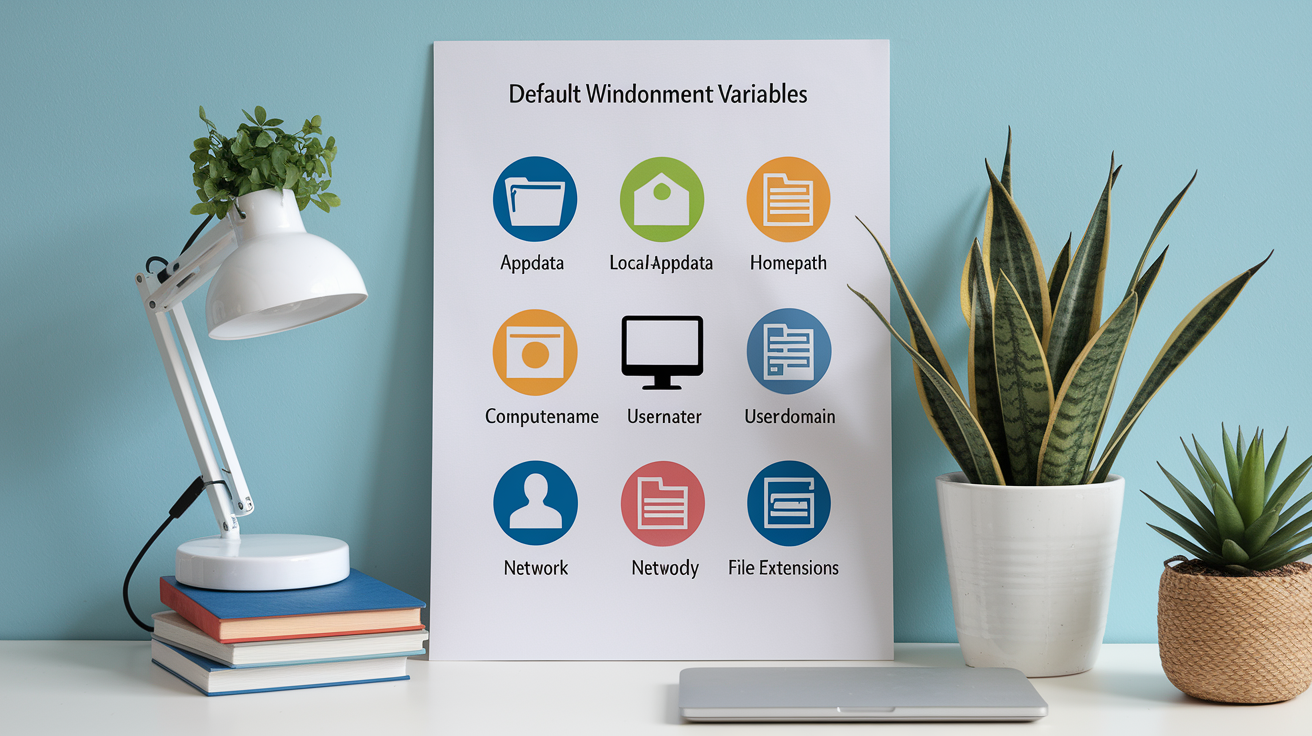
Windows ships with dozens of built-in environment variables. Some are essential for the OS itself, like “%SystemRoot%” pointing to “C:\Windows” or “%ProgramFiles%” mapping to “C:\Program Files.” Others serve developer and admin workflows, offering shortcuts to user-specific or machine-wide directories without hardcoding usernames or drive letters in scripts.
“%APPDATA%” is one of the most frequently used. It expands to “C:\Users\YourName\AppData\Roaming,” where installed apps store per-user config files and settings that roam across domain profiles. “%LOCALAPPDATA%” points to the non-roaming sibling, “C:\Users\YourName\AppData\Local,” used for cache files and machine-specific data. “%HOMEPATH%” resolves to the user’s profile folder root (like “\Users\YourName”), which contains Desktop, Documents, Downloads, and OneDrive folders.
Non-location variables provide system metadata. “%COMPUTERNAME%” returns the machine’s network name, useful in scripts that log which system performed an action. “%USERNAME%” gives the currently logged-in account name, essential for dynamic path construction. “%USERDOMAIN%” shows the domain or workgroup. “%PATHEXT%” lists executable file extensions like “.COM;.EXE;.BAT;.CMD;.VBS,” telling the shell which files to treat as runnable commands. These variables make scripts portable and cut down on user input or hardcoded values.
Common default variables:
- SystemRoot – Path to the Windows installation folder (usually C:\Windows)
- ProgramFiles – Default install directory for 64-bit programs on 64-bit Windows
- ProgramFiles(x86) – Install directory for 32-bit programs on 64-bit Windows
- USERPROFILE – Full path to the current user’s profile folder
- TEMP / TMP – Temporary file storage location
Using Variables for Quick Navigation
Typing an environment variable directly into Windows Explorer’s address bar or the Run dialog (Windows key + R) is a fast way to jump to system or user folders without typing full paths or clicking through nested directories. Press Windows key + R, type “%APPDATA%,” hit Enter, and you’re at “C:\Users\YourName\AppData\Roaming” instantly. “%TEMP%” jumps to the temp folder. “%USERPROFILE%” opens your profile root. “%SystemRoot%\System32” lands you in the core Windows directory.
This shortcut’s especially useful on shared or managed machines where drive letters or usernames vary. Instead of asking “Where’s the roaming app data folder on this system?” you just use “%APPDATA%.” Scripts benefit the same way. Batch files and PowerShell scripts that reference “%USERPROFILE%\Desktop” work identically on any Windows account, adapting automatically to whoever’s logged in. The variable syntax abstracts away machine-specific details, making navigation and automation faster and more reliable.
Advanced Editing & System-Level Behavior of Windows System Environment Variables
Environment variables are stored in the Windows Registry, not plain-text config files. User variables live under “HKEYCURRENTUSER\Environment.” System variables reside in “HKEYLOCALMACHINE\SYSTEM\CurrentControlSet\Control\Session Manager\Environment.” Each variable is a registry value of type REGSZ (string) or REGEXPAND_SZ (expandable string, allowing nested variables like “%SystemRoot%\System32”). When Windows starts a new process, it reads these registry keys, expands any embedded variables, merges user and system scopes, and passes the final environment block to the process.
Administrator privileges are required to write to HKEYLOCALMACHINE, which is why system variable edits demand elevation. On corporate or managed machines, Group Policy may lock system variables entirely, preventing local changes. In those scenarios, only domain admins can modify machine-wide settings. User variables are always editable by the account owner because HKEYCURRENTUSER is writable without elevation.
Process inheritance means child processes clone the environment block of their parent at launch time. If you edit the registry directly, the change won’t appear in already-running shells or apps. Logging off and back on reloads the user environment from the registry. Rebooting ensures every system service and shell picks up new system variables. This propagation delay is why the GUI prompts you to restart or why CLI edits with “setx” require reopening the terminal.
Historical context: Windows 2000 and XP marked the shift from autoexec.bat-based PATH management to registry storage. Earlier Windows versions executed autoexec.bat on boot to set environment variables, a holdover from MS-DOS. From Windows 2000 onward, the OS manages PATH and other variables internally via the registry, and autoexec.bat (or its NT equivalent, autoexec.nt) no longer controls system-wide settings. This change improved security, multi-user support, and reliability.
| Location | Registry Key |
|---|---|
| User variables | HKEY_CURRENT_USER\Environment |
| System variables | HKEY_LOCAL_MACHINE\SYSTEM\CurrentControlSet\Control\Session Manager\Environment |
When to Use Registry-Level Editing
Direct registry editing is for scenarios where the GUI’s unavailable or broken, or when you’re automating configuration via scripts or deployment tools. Remote management scripts might use PowerShell’s “Set-ItemProperty” cmdlet to write registry values on headless servers or during OS provisioning. Group Policy Preferences can also push environment variable changes by modifying registry keys across many machines at once.
The risk is high. Typos in registry paths or value types corrupt the environment block, potentially breaking Windows login, system services, or installed apps. Always back up the registry key before editing. Export “HKEYLOCALMACHINE\SYSTEM\CurrentControlSet\Control\Session Manager\Environment” to a .reg file so you can restore it if something breaks. Use the GUI whenever possible. It validates syntax, prevents duplicate entries, and commits changes safely. Reserve direct registry edits for advanced automation, troubleshooting when the GUI’s inaccessible, or applying config templates in scripted deployments.
Final Words
You opened System Properties → Advanced → Environment Variables, inspected user vs system variables, and edited PATH or created new entries.
We covered GUI access across Windows 11 through Vista, testing with PowerShell and setx, and when admin rights or registry edits are needed. Remember to test changes in a new shell and reboot if a process doesn’t pick them up.
Managing windows system environment variables like %APPDATA% or %HOMEPATH% gets easier with a short checklist. You’ve got this.
FAQ
Q: Where can I find system environment variables in Windows?
A: System environment variables in Windows are found in the Environment Variables dialog under System Properties → Advanced. Open it via sysdm.cpl, Control Panel → System, or Settings → About → Advanced system settings.
Q: How do I edit system environment variables in Windows?
A: You edit system environment variables by opening the Environment Variables dialog in System Properties, selecting a system variable, clicking Edit or New, entering name and value, and saving with admin rights; restart apps.
Q: What is JAVA_HOME and PATH variable?
A: JAVAHOME points to your Java installation folder; PATH is an ordered list of directories the shell searches for executables. Set JAVAHOME for tools and add %JAVA_HOME%\bin to PATH to run java commands.
Q: How to set environment variables for Windows service?
A: To set environment variables for a Windows service, add them at system level (Environment Variables) or set per-service registry values under the service’s HKLM key; restart the service or reboot for changes to take effect.