


Ever spent two hours squinting at spreadsheets trying to catch what changed between yesterday’s data export and today’s? Manual CSV comparison isn’t just tedious—it’s error-prone and wastes time you could spend shipping features. Dedicated comparison tools parse both files in seconds, highlight exact differences at the cell level, and catch edge cases your eyes would miss. Whether you’re validating a database migration, reconciling financial records, or debugging why QA’s test data doesn’t match production, the right tool turns a frustrating audit into a 30-second check.
Top CSV File Comparison Tools for Data Analysis

CSV file comparison tools detect differences between two spreadsheet files by analyzing each row and column for additions, deletions, and modifications. Developers use these tools for database migration verification, QA testing, and data reconciliation workflows where manual comparison would waste hours.
| Tool Name | Type | Key Features | Pricing | Best For |
|---|---|---|---|---|
| csvdiff | Command-line | Hash-based algorithm, 6 output formats (diff/json/rowmark), compound primary keys, 2-second processing for millions of records | Free (open source) | Database dump comparison, ETL validation, automated workflows |
| ExtendsClass CSV Diff | Online | Client-side processing, no file uploads, URL-based comparison, red highlighting for differences, unlimited file size | Free (open source) | Quick ad-hoc comparisons, privacy-sensitive data, no installation required |
| xlCompare | Desktop | Local processing, custom delimiters, merge tables, common rows extraction, save report functionality | Varies (contact vendor) | Offline environments, recurring comparison tasks, regulated industries |
| Beyond Compare | Desktop | Three-way merge, folder comparison, syntax highlighting, batch processing, FTP/cloud integration | $60 Standard, $80 Pro | Professional developers, multi-format comparisons, version control workflows |
| WinMerge | Desktop (Windows) | Side-by-side view, folder comparison, plugin support, tabbed interface, portable version | Free (open source) | Windows users, basic comparison needs, developers on tight budgets |
| CSV Compare Tool | Online | Visual diff viewer, row-level matching, export to Excel, column ignoring, header detection | Free tier, $9/month Pro | Non-technical users, occasional comparisons, visual learners |
| DiffNow | Online | Multi-format support, anonymous comparison, copy-paste interface, side-by-side display | Free with ads | One-time comparisons, students, testing different tools |
| Meld | Desktop (cross-platform) | Three-way comparison, Git/SVN integration, directory comparison, real-time editing | Free (open source) | Linux/Mac developers, version control users, open source projects |
| KDiff3 | Desktop (cross-platform) | Three-file merge, conflict resolution, automatic merge, encoding detection | Free (open source) | Complex merge scenarios, conflict resolution, multi-platform teams |
Hash-based tools like csvdiff process data fundamentally differently than line-by-line comparison utilities. csvdiff creates uint64 key-value maps for primary key matching and identifies changes in under 2 seconds for files with millions of records. Browser-based tools like ExtendsClass perform client-side processing without server uploads to protect sensitive data. Desktop applications like xlCompare run entirely offline with custom delimiter support for edge cases like pipe-separated or tab-delimited formats. The processing approach affects speed. Command-line tools handle batch automation best, browser tools excel at quick checks, and desktop software balances features with usability.
User reviews consistently highlight processing accuracy as the primary concern. ExtendsClass users praise the zero-configuration setup and instant feedback, though some report browser slowdowns with 100MB+ files. csvdiff earns trust from DevOps teams for its reproducible hash-based algorithm and JSON output that integrates cleanly with CI/CD pipelines. xlCompare receives mixed feedback. Users appreciate local processing for compliance requirements, but some complain about dated interfaces. Support quality varies widely. Open source tools like csvdiff and ExtendsClass rely on GitHub issues and community forums, while commercial tools like Beyond Compare provide email and chat support with response times under 24 hours.
For files under 50,000 rows without sensitive data, start with ExtendsClass for instant browser-based comparison. When handling database dumps with millions of records or building automated validation into deployment pipelines, csvdiff delivers the speed and scriptability you need. If you’re working in healthcare, finance, or other regulated environments where data can’t leave your network, xlCompare or Beyond Compare provide offline processing with audit trail features. Budget-conscious developers should test WinMerge or Meld first. Both handle typical comparison tasks without licensing costs. Power users managing complex schemas with frequent comparisons justify Beyond Compare’s $60-80 price tag through saved time and advanced three-way merge capabilities. Check out Essential Developer Tools for Modern Development for how comparison utilities fit into broader development workflows, and explore Code Generators and Development Utilities for complementary tools that work alongside CSV comparison in data pipeline projects.
Comprehensive Comparison Features and Methodology

Modern CSV comparison tools use two distinct technical approaches to identify differences between files.
Hash-based algorithms like csvdiff’s 64-bit xxHash create fingerprints for each row based on primary key values, then compare these fingerprints to detect changes. This method processes millions of records in under 2 seconds because it builds maps of uint64 key-value pairs for both files and performs set operations to find additions, modifications, and deletions. Traditional line-by-line diff utilities like GNU diff compare files sequentially as raw text without understanding CSV structure. They’ll flag a difference when columns appear in different orders even if the data is identical. Specialized CSV tools understand delimiters, quote characters, and escape sequences, so they parse the data structure correctly and compare actual field values rather than text strings. csvdiff goes further by supporting compound primary keys (like customerid plus orderdate) and selective column comparison, letting you ignore timestamp fields like created_at that always differ between database exports. ExtendsClass takes a simpler line-by-line approach with field-level comparison, highlighting which specific cells changed rather than just which rows differ.
Additions show up as new rows present in the second file but missing from the first, like new customer records added since yesterday’s export. Deletions mean rows that existed in the first file but disappeared from the second, indicating removed or archived records. Modifications are rows with matching primary keys but different field values, such as updated addresses or price changes. Duplicates are identical rows appearing multiple times within a single file, often indicating data quality issues. Missing records are expected entries that should exist based on business logic but are absent from both files. Field-level differences show specific columns that changed within modified rows, shown as red highlights in ExtendsClass or detailed in csvdiff’s JSON output. Unchanged data means rows that match perfectly across both files, confirming data integrity for validation workflows.
ExtendsClass highlights differences in red and offers display filtering to show only changed rows or all rows with color coding for quick scanning. csvdiff outputs to six formats. Git-style diff for human reading, JSON for programmatic processing, rowmark for spreadsheet import with change indicators, and three visual variants (word-diff, color-words, legacy-json) that emphasize different aspects of the changes. The visual presentation matters when you’re validating a production migration and need to spot unexpected changes quickly, versus building automated regression tests where JSON output feeds into test assertions.
| Feature Category | Capabilities | Purpose |
|---|---|---|
| Delimiter customization | Comma, semicolon, tab, pipe, custom characters supported by tools like xlCompare and ExtendsClass | Parse files from different database exports, European CSV formats, or legacy system outputs |
| Encoding support | UTF-8, UTF-16, ASCII, ISO-8859-1 detection and handling | Compare files from international systems with special characters, avoid garbled text from encoding mismatches |
| Header handling | Header detection, column name mapping, header row skipping | Align columns by name when files have different column orders, handle exports with or without headers |
| Whitespace options | Ignore leading/trailing spaces, collapse multiple spaces, trim all whitespace | Prevent false positives from formatting differences that don’t affect data meaning |
| Case sensitivity | Case-sensitive or case-insensitive comparison modes | Match “John Smith” with “john smith” in systems with inconsistent capitalization |
| Filtering capabilities | Show only differences, show all with highlights, filter by change type | Focus review on actual problems rather than scrolling through thousands of unchanged rows |
| Column selection | Compare specific columns, ignore timestamp/metadata fields, selective field comparison | Exclude auto-generated fields like created_at that always differ but aren’t meaningful changes |
| Primary key configuration | Single or compound key specification, column position or name based | Define which fields identify unique rows for accurate modification detection versus false additions/deletions |
Delimiter and encoding support directly determine whether a tool can parse your files correctly. If you’re comparing exports from a European ERP system that uses semicolons and ISO-8859-1 encoding with a US database using commas and UTF-8, the tool needs configurable separators and encoding detection. ExtendsClass lets you set separator, quote, and escape characters before comparison. csvdiff accepts custom delimiters through command-line flags. Without proper delimiter handling, a tool might interpret a single row with embedded commas as multiple malformed rows, producing meaningless comparison results.
Comparison tools automatically validate data integrity during migration projects by detecting unexpected changes. When migrating 2 million customer records from an old CRM to a new platform, you export both systems to CSV and compare them to verify every record transferred correctly. The tool flags missing records (deletions that shouldn’t happen), modified fields (where data transformation might have failed), and duplicate entries (indicating a logic error in the migration script). This automated validation catches problems that manual spot-checking would miss, especially for fields deep in wide tables with 50+ columns. csvdiff’s selective column comparison lets you ignore known differences like auto-generated IDs while focusing validation on business-critical fields like customer names, email addresses, and account balances.
Online CSV Comparison Tools vs Desktop Software

CSV comparison tools deploy in three primary ways. Browser-based online tools, desktop applications, and command-line utilities. Each with distinct tradeoffs for security, performance, and workflow integration.
Browser-based tools like ExtendsClass run entirely in client-side JavaScript without uploading files to external servers. You paste data, drop files, or load from URLs, and the comparison happens in your browser’s memory. This approach protects sensitive data because nothing leaves your machine, making it viable for comparing customer lists or financial records without security review. The catch is browser performance. Modern browsers handle files up to 50-100MB reasonably well, but processing 500MB files will freeze the tab or crash. Browser tools excel for quick ad-hoc comparisons when you need an answer in the next 30 seconds. No installation, no setup, just paste and compare. They work on any operating system with a modern browser, including Chromebooks or locked-down corporate laptops where you can’t install software. The limitation is feature depth. Browser tools rarely support advanced capabilities like three-way merges, batch processing, or scheduled comparisons. They’re designed for interactive use, not automation.
Desktop applications like xlCompare and Beyond Compare install on your computer and process files locally with full access to system resources. They handle larger files than browser tools because they’re compiled native code rather than interpreted JavaScript, and they don’t compete with browser memory limits. Desktop software typically offers richer features. xlCompare provides merge table functionality, report saving, and common row extraction that go beyond basic difference detection. These tools integrate with file explorers, so you right-click two CSV files and select “Compare with xlCompare” instead of launching a separate interface. The security story is solid for regulated environments. Files never touch the network, and you control exactly where comparison reports are saved. Desktop tools require upfront installation and often cost money, but for recurring comparison tasks, the productivity gains from keyboard shortcuts, saved configurations, and batch operations justify the setup time. They’re the right choice when CSV comparison is part of your regular workflow rather than an occasional task.
Command-line utilities like csvdiff target power users and automation scenarios. You write shell scripts that compare files on schedule, integrate comparison into CI/CD pipelines, or process hundreds of file pairs in batch jobs. csvdiff processes millions of records in under 2 seconds because it’s optimized compiled code with minimal overhead. No GUI rendering, no interactive features slowing things down. The JSON output format lets you pipe results into other tools, fail builds when unexpected differences appear, or generate reports programmatically. Command-line tools require technical comfort with terminals and scripting, making them wrong for casual users who just need to check two files occasionally. But for DevOps teams validating database migrations, QA engineers running regression tests, or data engineers monitoring ETL pipeline outputs, command-line tools are the only practical option. They scale to enterprise workloads that would choke browser tools and provide repeatability that manual desktop clicking can’t match.
For occasional comparisons of moderately-sized files without automation needs, browser tools like ExtendsClass get you unblocked fastest. When you’re comparing files weekly and need features like report generation or merge capabilities, desktop software provides better ergonomics. If you’re building comparison into automated workflows or handling files with millions of rows, command-line tools are the only viable path. Most teams end up using two types. A browser tool for ad-hoc checks and a command-line tool for automated validation.
Step-by-Step Guide to Comparing CSV Files

Before comparing files, ensure both CSVs are sorted by the same column if you’re using tools that rely on row order. Some tools will report every row as different if one file is sorted by customerid ascending and the other by customerid descending, even when the data is identical.
Select your comparison tool based on file size and environment. Browser-based ExtendsClass for quick checks under 50MB, desktop xlCompare for offline analysis, or command-line csvdiff for files with millions of rows. Load the first file (baseline) by dragging and dropping into ExtendsClass, clicking FILE 1 upload in xlCompare, or specifying the path in csvdiff like csvdiff base.csv delta.csv --primary-key=id. Load the second file (comparison target) using the same method. ExtendsClass supports copy-paste, local upload, drag-drop, or HTTPS URLs, while xlCompare has a FILE 2 upload button. Configure delimiter settings by selecting comma, semicolon, tab, or custom separators in ExtendsClass’s format settings, or passing flags like --separator=";" to csvdiff if your files use non-standard delimiters. Set primary key columns in tools like csvdiff by specifying which column(s) uniquely identify rows, such as --primary-key=0 for the first column or --primary-key=0,2 for compound keys combining customerid and orderdate.
Execute the comparison by clicking Compare in browser tools, selecting Compare Tables in xlCompare, or running the command in csvdiff which processes results in 1-2 seconds for typical files. Review results starting with the summary counts showing how many additions, modifications, and deletions were detected, then examine specific highlighted differences. Red cells in ExtendsClass indicate changed fields, while csvdiff outputs detailed change lists. Export findings using Save Report in xlCompare, downloading JSON output from csvdiff for further processing, or taking screenshots of ExtendsClass’s visual diff for documentation.
Comparison results show three categories of changes. Additions appear when rows exist in the second file but not the first. New records added since the baseline was captured. Deletions indicate rows present in the baseline but missing from the comparison file. Removed or archived data. Modifications are rows with matching primary keys but different field values, shown with red highlighting for specific changed cells in visual tools or detailed field-by-field diffs in command-line output. Pay attention to modification counts that seem too high. If 80% of rows show modifications, double-check your primary key configuration and sort order. A properly configured comparison typically shows modifications in 1-5% of rows for incremental updates, while higher percentages suggest configuration issues or genuine mass data changes. ExtendsClass offers display options to show only rows with differences, filtering out the unchanged data so you focus review time on actual problems rather than scrolling through thousands of identical rows.
For documentation and stakeholder communication, save comparison reports in formats that match your audience. xlCompare’s Save Report feature generates formatted output suitable for email attachments or project documentation. csvdiff’s JSON output feeds into automated systems and test frameworks, while its rowmark format exports results with change indicators to spreadsheets for business users who need to investigate specific differences. Direct file comparison via URL parameters like ?url1=https://example.com/file1.csv&url2=https://example.com/file2.csv in ExtendsClass enables sharing comparison links with team members who need to verify the same results without running the comparison themselves.
Handling Large CSV Files and Performance Optimization

Files exceeding 100MB expose performance differences between comparison tools quickly. Browser-based tools slow down as file size increases because JavaScript processing competes with browser memory limits and garbage collection pauses.
Tool-specific limitations vary widely. ExtendsClass imposes no hard size limit. The constraint is your browser’s available memory and processing power. In practice, this means smooth performance up to 50-60MB files on modern laptops, degrading to slow but functional at 100-150MB, and potential crashes beyond 200MB depending on your hardware and other open tabs. Command-line tools like csvdiff handle millions of records efficiently because they process data in optimized compiled code with minimal memory overhead. The tool creates hash maps of both files and performs set comparisons rather than loading everything into memory simultaneously. csvdiff’s 64-bit xxHash algorithm computes fingerprints fast enough to process 2 million rows in under 2 seconds. Desktop applications fall somewhere in the middle, with performance dependent on implementation quality and how much memory the tool allocates for processing.
Pre-sort both files by primary key columns before comparison to enable optimized sequential processing rather than random lookups that thrash memory. Split extremely large files into chunks if hitting tool limits. Compare files in 1 million row batches rather than processing 10 million rows at once. Close unnecessary applications to free system memory before comparing large files, especially browser tabs that consume RAM. Use command-line tools for files over 100MB or when comparing multiple file pairs. csvdiff and similar utilities handle scale better than GUI tools. Leverage selective column comparison to process only the fields you care about rather than comparing entire 50-column tables when only 10 columns matter. Run comparisons on dedicated hardware with SSDs and 16GB+ RAM for optimal performance with multi-gigabyte files.
Command-line tools enable enterprise-scale comparisons that run unattended overnight or as part of scheduled jobs. You write scripts like find ./exports -name "*.csv" | while read file; do csvdiff baseline.csv "$file" --format=json > "results/$(basename $file).json"; done to compare hundreds of export files against a known-good baseline in a single batch operation. This automation catches data quality issues early. A nightly comparison job detects when your database replication starts missing records before customers complain about missing data. The JSON output format integrates cleanly with monitoring systems that alert when difference counts exceed thresholds, or with test frameworks that fail builds when database migrations produce unexpected changes. For recurring validation workflows comparing the same file structure repeatedly, store csvdiff configuration in shell scripts or Makefiles so team members run standardized comparisons with a single command rather than remembering complex flag combinations.
Common CSV Comparison Use Cases
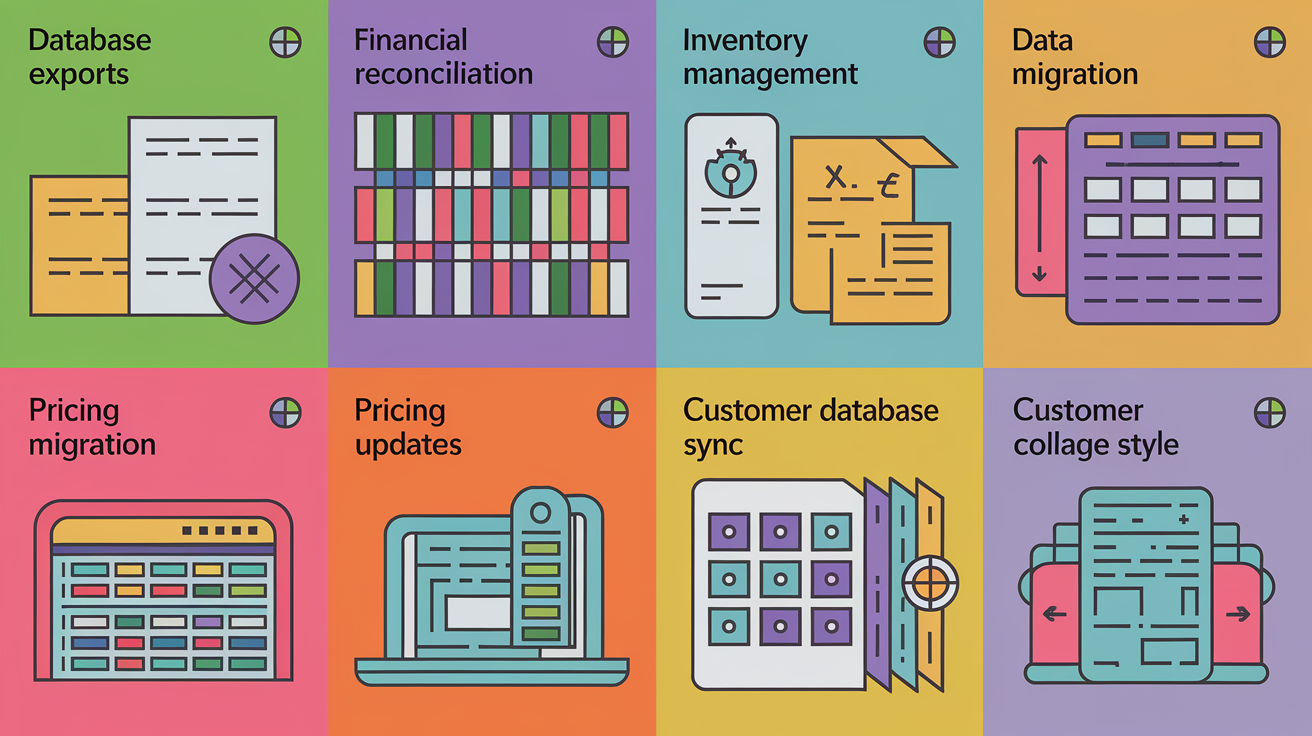
CSV comparison tools solve specific problems across database administration, financial operations, inventory management, and quality assurance workflows where data accuracy determines business outcomes.
| Use Case | Scenario | Comparison Goal |
|---|---|---|
| Database exports | Comparing production database table dumps before and after schema migrations or data transformations | Verify zero data loss and correct field transformations during migration |
| Financial reconciliation | Matching transaction exports from payment processors against internal accounting records | Identify missing transactions, incorrect amounts, or duplicate entries requiring investigation |
| Inventory management | Comparing warehouse system exports with supplier manifests or prior period inventory counts | Detect stock discrepancies, missing SKUs, or quantity mismatches before physical audits |
| Data migration | Validating complete customer, product, or order data transfer when moving between ERP or CRM systems | Confirm all records migrated successfully with correct field mappings and no corruption |
| Pricing updates | Verifying catalog price changes applied correctly across all sales channels and distributors | Ensure new pricing took effect, no products reverted to old prices, and margin calculations are correct |
| Customer database sync | Checking that customer profile updates in one system propagated to downstream marketing and support platforms | Validate email address changes, preference updates, and demographic data synchronized correctly |
| QA testing | Comparing application output files against expected results as part of regression test suites | Detect when code changes produce different export formats or calculation results breaking downstream systems |
Database administrators rely on csvdiff for validating table dumps during ETL processes. When loading data from external partners or migrating between database platforms, you export the source table, run the transformation, export the target table, then compare them with primary keys and selective column ignoring. The comparison catches transformation bugs like truncated text fields, incorrect date formats, or NULL values appearing where the business rules require data. Ignoring timestamp columns like createdat and updatedat is critical because those fields always differ between exports even when business data is identical. csvdiff’s --exclude=created_at,updated_at flag handles this cleanly. ETL validation becomes part of the deployment checklist: run transformation in staging, compare output against expected results, investigate any unexpected modifications, then promote to production only after comparison shows clean results.
Business operations teams use comparison tools for inventory reconciliation and pricing management. A retail chain exports current inventory levels from each store’s point-of-sale system, compares them against central warehouse records, and investigates discrepancies exceeding tolerance thresholds before physical counts. This catches systematic issues like faulty barcode scanners or database sync failures weeks before quarterly audits. For pricing updates, merchandising teams export product catalogs before and after price changes, compare them to verify new prices applied correctly, and catch edge cases where bulk update scripts missed products or applied incorrect percentages. The comparison serves as quality control before customer-facing systems display new prices. Better to catch a $999 price tag that should be $99.90 in testing than in production.
Advanced Capabilities and Integration Options

Power users and enterprise environments demand capabilities beyond basic file comparison for workflow automation, custom output, and system integration.
Output format flexibility matters when comparison results feed into different downstream systems. csvdiff provides six distinct formats: diff shows line-by-line changes in git-style format for human reading, word-diff highlights changed words within modified lines, color-words adds color coding for terminal display, json outputs structured data for programmatic processing, legacy-json maintains backward compatibility with older scripts, and rowmark exports to spreadsheet-compatible format with change indicators in an additional column. Use JSON when feeding comparison results into monitoring dashboards or test assertion frameworks that need to parse additions, modifications, and deletions programmatically. Choose rowmark when business analysts need to investigate differences in Excel with clear visual markers for which rows changed. The diff format works best for documentation and code review scenarios where developers need to understand what changed without running code.
Schema validation verifies both files have identical column structures and data types before comparing values, failing early when comparing incompatible files. Field mapping defines which columns correspond between files with different header names, like mapping “CustomerID” to “customer_id” for cross-system comparisons. Scheduled comparisons automate comparison jobs that run nightly or weekly, generating alerts when difference counts exceed baselines indicating data quality issues. Automation scripting wraps comparison tools in shell scripts, Python, or PowerShell for batch processing of file pairs or integration with deployment pipelines. API access calls comparison functions programmatically from applications without spawning command-line processes, enabling embedded validation in custom tools. Version control integration hooks comparison tools into Git or SVN workflows to diff CSV files committed to repositories as configuration or test data. Custom delimiter handling processes non-standard file formats with unusual separators, escape sequences, or quoting rules through configurable parsing options.
Integration with development workflows transforms comparison from a manual task into automated validation. Developers commit expected output files to Git repositories alongside test code, then run comparison tools in CI/CD pipelines to verify application changes don’t alter export formats unexpectedly. When a pull request modifies report generation logic, the pipeline exports sample reports, compares them against committed baselines, and fails the build if additions or modifications appear without corresponding baseline updates. This catches regressions where code changes inadvertently alter calculation logic or output formatting. csvdiff’s JSON output integrates cleanly with pytest assertions. assert diff_result["modifications"] == 0 fails tests when unexpected changes occur. Version control integration also helps review proposed data changes by diffing CSV configuration files that define product catalogs, user permissions, or system settings.
API and programmatic comparison capabilities enable embedding validation directly into applications. Instead of exporting files, running command-line tools, and parsing results, applications call comparison libraries programmatically and handle results in memory. This pattern works for SaaS platforms that need to show customers which records changed during data imports, or internal tools that validate database replication by comparing table snapshots on schedule. Python libraries wrap csvdiff functionality for programmatic access: from csvdiff import compare; result = compare('base.csv', 'delta.csv', primary_key=['id']) returns structured difference data for processing within application logic. This approach reduces latency and eliminates temporary file management complexity.
Open source options like csvdiff and ExtendsClass provide customization opportunities and self-hosting control for organizations with specific requirements. You download ExtendsClass source code, modify the comparison algorithm to handle custom business logic, and deploy it internally behind your firewall for comparing sensitive data without internet connectivity. The source code serves as a starting point for building custom comparison tools that integrate proprietary file formats or implement company-specific validation rules. Open source tools also eliminate vendor lock-in concerns. If your comparison workflow depends on a commercial tool that discontinues, you’re scrambling for alternatives. With open source code, you maintain it yourself or pay someone to fork and extend it.
Platform Compatibility and Installation Options
Operating system support determines which tools you can actually run in your environment, especially in locked-down corporate networks or cross-platform development teams.
Operating system compatibility means checking whether tools support Windows, Mac, and Linux before committing, especially for teams with mixed development environments. File size requirements involve estimating typical file sizes you’ll compare and verifying tools handle that scale without performance degradation or crashes. Security needs determine if data sensitivity requires local processing, offline operation, or client-side browser execution without server uploads. Budget constraints mean deciding between free open source tools with community support or commercial software with guaranteed updates and vendor assistance. Technical expertise assesses team comfort with command-line tools versus preference for GUI applications with point-and-click interfaces. Collaboration requirements consider whether multiple users need to share comparison results or work independently. Automation needs identify if comparisons will run interactively or as scheduled batch jobs requiring scriptable command-line tools. Support availability evaluates whether community forums suffice or if response-time SLAs from commercial vendors are required.
Installation methods vary across platforms. csvdiff installs via Homebrew on Mac and Linux with brew install csvdiff, providing automatic dependency management and updates through the standard package manager. Pre-built binaries download from GitHub releases for Windows users who don’t have Homebrew, requiring manual PATH configuration to run from any directory. Source code compilation offers maximum flexibility but requires Go compiler installation and build toolchain setup. Run git clone followed by go build to generate platform-specific executables. Browser-based tools like ExtendsClass require zero installation, working immediately in Chrome, Firefox, Safari, or Edge on any operating system including tablets and Chromebooks. Desktop applications like xlCompare distribute as platform-specific installers. MSI packages for Windows, DMG files for Mac, and DEB/RPM packages for Linux distributions. Cross-platform desktop tools built with Electron or Java run on all three major operating systems from a single download.
Free tools deliver impressive functionality but come with tradeoffs. Open source options like csvdiff and WinMerge provide complete comparison features without license costs, but support relies on community forums and GitHub issues where response times range from hours to weeks. Updates happen when maintainers have time, meaning feature requests and bug fixes follow community priorities rather than your schedule. Commercial tools charge $60-150 per license but include email or chat support with defined response times, regular updates on predictable schedules, and accountability when critical bugs need fixing. The feature gap has narrowed. Many free tools now match commercial offerings for core functionality. The premium value comes from support quality, polished user interfaces, and vendor stability. For teams where comparison downtime blocks critical workflows, paying for support insurance makes sense. For individual developers or budget-constrained projects, free tools provide plenty of capability.
Trial-based evaluation sidesteps analysis paralysis when choosing between tools. Download three different options. A browser tool, a desktop application, and a command-line utility. Then compare the same pair of files with each. Time how long setup takes, note which interface feels most natural, and check whether the difference output answers your actual questions. Some tools highlight every changed cell making visual scanning easy, while others provide summary counts requiring manual investigation of specifics. Try realistic file sizes, not just small test datasets. Performance characteristics change dramatically between 10MB and 100MB files. Run comparisons that match your actual workflow, like ignoring timestamp columns or comparing files with different column orders. The tool that works best after 30 minutes of testing usually stays best over months of actual use.
Final Words
The right csv file comparison tool depends on your file size, security requirements, and technical comfort level.
Browser-based options like ExtendsClass work great for quick checks with no setup. Desktop tools like xlCompare handle sensitive data locally with custom delimiter support. Command-line utilities like csvdiff process millions of records in seconds for automation workflows.
Start with a free tool that matches your primary use case. Test it with real data before committing to premium features.
Most developers keep two or three options in their toolkit since different projects have different needs.
FAQ
What is the best tool to compare CSV files?
The best tool to compare CSV files depends on your specific needs: ExtendsClass CSV Diff works great for quick browser-based comparisons with no uploads, xlCompare handles desktop processing for sensitive data, and csvdiff processes millions of records in under 2 seconds via command line for large-scale operations.
Can ChatGPT analyze CSV data?
ChatGPT can analyze CSV data when you upload files directly to the chat interface, but it’s limited to general insights and basic pattern recognition rather than precise line-by-line comparison, hash-based change detection, or structured difference reporting that specialized CSV comparison tools provide.
Can I use AI to compare two documents?
You can use AI to compare two documents for general content similarity and pattern differences, but specialized CSV comparison tools deliver more accurate results for structured data by using hash algorithms, primary key matching, field-level difference detection, and configurable delimiter support that AI chat tools don’t offer.
Does Windows have a file compare tool?
Windows includes the built-in fc (file compare) command-line utility for basic text file comparison, but it lacks CSV-specific features like delimiter configuration, header mapping, primary key matching, and structured data visualization that dedicated CSV comparison tools like xlCompare or ExtendsClass provide for accurate data reconciliation.
How do CSV comparison tools identify changes between files?
CSV comparison tools identify changes between files using hash-based algorithms that create key-value maps for each file, then detect additions when the base file lacks a matching key, modifications when values differ for the same key, and deletions when the delta file is missing records present in the base file.
What file size limitations do online CSV comparison tools have?
Online CSV comparison tools like ExtendsClass have no server-imposed size or row limitations since all processing happens directly in your browser, though browser performance may vary with extremely large files, while command-line tools like csvdiff handle millions of records in under 2 seconds without practical size constraints.
Do CSV comparison tools upload my data to servers?
CSV comparison tools like ExtendsClass and xlCompare do not upload your data to servers because ExtendsClass processes everything client-side in your browser and xlCompare operates locally on your desktop, making them secure options for sensitive financial data, customer databases, or proprietary business information requiring privacy protection.
What output formats do CSV comparison tools support?
CSV comparison tools support multiple output formats including diff, word-diff, color-words for visual review, json and legacy-json for programmatic processing, rowmark for annotation, and report formats with options to save reports, merge tables, extract common rows, or display only changed records with color coding.
Can CSV comparison tools ignore specific columns during comparison?
CSV comparison tools can ignore specific columns during comparison by supporting selective column comparison features, letting you exclude timestamp fields like createdat and updatedat, auto-generated IDs, or other fields that change frequently but aren’t relevant to your data reconciliation or validation workflow.
How do I prepare CSV files before running a comparison?
You prepare CSV files before running a comparison by ensuring both files use the same delimiter (comma, semicolon, or tab), verifying encoding matches (preferably UTF-8), sorting rows by primary key if required by your tool, and confirming header rows align properly for accurate field-level matching.
What are common use cases for CSV file comparison?
Common use cases for CSV file comparison include validating database exports before and after migration, reconciling financial transaction records between systems, detecting inventory discrepancies across warehouses, verifying ETL process accuracy, tracking pricing updates across product catalogs, and synchronizing customer database changes during system integrations.
Are there free CSV comparison tools available?
Free CSV comparison tools are available including ExtendsClass as an open source browser-based option with full feature access and no size limits, csvdiff as a command-line tool installed via Homebrew or pre-built binaries, and various online utilities offering basic comparison capabilities without premium feature paywalls or usage restrictions.