


Ever copied the same basic HTML structure into a new project for the tenth time this month? You’re not alone. Most developers waste 10-15 minutes per project retyping DOCTYPE declarations, meta tags, and semantic structure that should just exist by default. An HTML boilerplate generator eliminates this setup friction by producing clean, standards-compliant starter code in seconds. Paste it into your editor, customize the content, and start building features instead of scaffolding. This guide walks through using a boilerplate generator, explains what each part of the generated code actually does, and shows you how to customize it for different project types.
Interactive HTML Boilerplate Generator Tool

The tool below generates production-ready HTML5 starter code in your browser. No signup, no server uploads, just instant code generation with live preview.
<!DOCTYPE html>
<html lang="en">
<head>
    <meta charset="UTF-8">
    <meta name="viewport" content="width=device-width, initial-scale=1.0">
    <meta name="description" content="Your page description here">
    <title>Your Page Title</title>
    <link rel="stylesheet" href="styles.css">
</head>
<body>
    <main>
        <h1>Your Main Heading</h1>
        <p>Your content goes here.</p>
    </main>
    <script src="script.js"></script>
</body>
</html>
Select your configuration options from the checkboxes above the code window, customize meta tags and favicon settings, then either copy the generated code directly or download it as a ready-to-use HTML file. The live preview updates as you make changes, so you can see exactly what you’re getting before exporting. All processing happens locally in your browser. Your customization choices and generated code never leave your machine.
Understanding Your Generated HTML5 Code

Your generated HTML document contains several building blocks that work together to create a valid, browser-compatible webpage. Each structural element serves a specific purpose in how browsers interpret and display your content.
The DOCTYPE declaration at the top tells browsers to render your code as HTML5. Without it, browsers might fall back to quirks mode, which can break modern HTML elements like section, article, and nav. This single line prevents hours of debugging weird layout issues.
The HTML root element wraps everything and includes a lang attribute that specifies your page language. Setting lang=”en” helps screen readers pronounce content correctly and assists search engines in serving your page to the right audience. Skip it and browsers default to “unknown,” which hurts accessibility.
The head section contains metadata that’s invisible to visitors but critical for search engines, social media platforms, and browser functionality. The body section holds all visible content including text, images, headings, and interactive elements. Inside the body, semantic elements like main define your primary content area. Proper heading hierarchy (h1 through h6) structures your information logically. Only one h1 should exist per page since it represents your main topic. Don’t skip levels like jumping from h2 straight to h5.
SEO and Accessibility in Your Generated Boilerplate

Modern web standards demand that every page serves both search engine crawlers and users who rely on assistive technologies. Your generated boilerplate includes both SEO optimization and accessibility features built in from the start.
Critical meta tags define how your page behaves across different contexts. The charset meta tag (usually UTF-8) ensures special characters display correctly in every browser. The viewport meta tag controls how your page scales on mobile devices, preventing that awful horizontal scrolling experience on phones. Title and description meta tags directly impact how your page appears in search results. The title shows as the clickable blue link and the description appears as the preview text underneath.
Social media metadata uses Open Graph tags to control how your page looks when someone shares it on Facebook, Twitter, or LinkedIn. Instead of letting platforms guess which image and text to display, og:title, og:description, and og:image tags specify exactly what shows up in link previews. This transforms generic looking shares into compelling previews that actually get clicks.
For accessibility, ARIA attributes add context for screen readers. Semantic HTML elements like nav, article, and aside communicate page structure to assistive technologies. A proper heading hierarchy also serves double duty, helping both screen readers navigate content and search engines understand your page organization.
Structured data and schema markup use JSON-LD format to tell search engines what type of content your page contains. Whether that’s an article, product, recipe, or event. Canonical URL tags prevent duplicate content penalties when the same page is accessible through multiple URLs. Setting these foundations correctly from the beginning saves massive amounts of refactoring later.
| Element Type | SEO Benefit | Accessibility Benefit |
|---|---|---|
| Meta description | Controls search result preview text and click-through rates | Provides page summary for screen reader users |
| Title tag | Primary ranking signal and tab/bookmark label | First content announced by screen readers |
| Heading hierarchy | Signals content structure and keyword relevance | Navigation landmarks for assistive technology users |
| Alt attributes | Image indexing and context for search crawlers | Image descriptions for visually impaired users |
| Semantic HTML | Clearer content categorization for crawlers | Page region identification for navigation shortcuts |
| Lang attribute | Helps serve content to appropriate language searches | Ensures correct pronunciation by screen readers |
Asset Integration and Build Options

CSS reset and normalization establish consistent styling across browsers by eliminating the quirky default styles each browser applies. Normalize.css preserves useful defaults while smoothing out inconsistencies, whereas CSS resets strip everything back to bare elements. Your generated boilerplate typically includes one or the other in the main.css file. External stylesheet linking happens through link tags in the head section, with the href attribute pointing to your CSS file path.
JavaScript file inclusion works differently depending on where you place the script tag and which loading strategy you use. Putting scripts at the bottom of the body ensures HTML content loads before JavaScript execution begins, preventing blank pages while scripts download. The defer attribute loads scripts asynchronously without blocking page rendering, then executes them in order after the DOM is ready. The async attribute also loads asynchronously but executes immediately when ready. This can cause race conditions if scripts depend on each other.
Framework integration brings pre-built components and utilities into your project. Bootstrap provides a complete grid system, components, and utilities through a single CDN link or npm package. Tailwind CSS uses utility classes for rapid styling, though it requires a build step to purge unused classes for production. jQuery simplifies DOM manipulation and AJAX calls with a smaller API surface. FontAwesome adds scalable vector icons through either CDN links or self-hosted files.
CDN links reduce your server bandwidth and use browser caching across sites, but create external dependencies that can fail if the CDN goes down. Local files give you complete control and work offline. But they increase your initial page size and require manual updates when libraries release security patches. For production builds, local hosting with proper cache headers usually wins.
Build tool integration transforms your development workflow from manual file management to automated optimization. Webpack bundles all your JavaScript modules into optimized chunks, processes CSS through PostCSS, and handles asset optimization. Package.json defines your project dependencies and npm scripts, letting you run complex build tasks with simple commands like “npm run build.”
Server configuration files optimize delivery for production environments. HTML5 Boilerplate includes .htaccess for Apache, web.config for IIS, and nginx.conf snippets covering gzip compression, cache headers, security headers, and MIME type configurations that can shave seconds off load times.
Responsive Design Elements in HTML Templates

Mobile-first development isn’t optional anymore when over 60% of web traffic comes from phones and tablets. Starting with mobile layouts and progressively enhancing for larger screens produces faster, more focused designs than trying to cram desktop layouts into small viewports.
The viewport meta tag with “width=device-width, initial-scale=1.0” tells mobile browsers to match their logical width to device width instead of pretending to be 980px wide and forcing users to zoom. Without this single line, your responsive CSS media queries won’t work correctly on phones.
Flexbox and CSS Grid provide layout systems that adapt to available space without brittle pixel calculations. Flexbox excels at one-dimensional layouts like navigation bars or card rows. Grid handles complex two-dimensional layouts where content needs to align in both rows and columns. Fluid design principles use percentages and viewport units instead of fixed pixels, letting content scale smoothly across screen sizes.
Key responsive design elements included in quality boilerplates:
- Viewport meta tag configured for proper mobile scaling
- CSS media queries organized from mobile base styles to desktop overrides
- Flexible images with max-width: 100% to prevent overflow
- Relative units (em, rem, %) instead of fixed pixels for spacing
- Touch-friendly tap targets at least 44×44 pixels for mobile users
Cross-browser compatibility testing reveals how your site performs in Chrome, Firefox, Safari, and Edge, each with their own rendering quirks. BrowserStack and similar services let you test on real devices without maintaining a device lab.
Dark mode implementation uses CSS custom properties (variables) that switch between light and dark color schemes based on the prefers-color-scheme media query. This gives users control over their viewing experience. The approach keeps all color definitions in one place instead of scattered throughout your stylesheets.
Customization Options in Template Generators

Different projects need different starting points. A blog, ecommerce site, and web app each have unique meta tag requirements, library dependencies, and structural patterns that make generic templates frustrating to adapt.
Customization categories typically cover meta tag configuration (description, keywords, author, Open Graph tags), CSS and JavaScript library selection (Bootstrap, Tailwind, jQuery, Vue), SEO preset templates tailored to content types, favicon and touch icon setup, dark mode toggle implementation, and framework-specific scaffolding.
Quality generators let you check boxes for the features you need, then assemble only those components into your final boilerplate. This prevents downloading megabytes of Bootstrap CSS when you’re building a minimal landing page. Or manually stripping out accessibility features when you need them.
Specific elements available for customization in quality generators:
- Meta tags including charset, viewport, description, keywords, and Open Graph properties
- CSS framework integration for Bootstrap, Tailwind, Foundation, or custom stylesheets
- JavaScript library inclusion for jQuery, React, Vue, Alpine, or vanilla setups
- Dark mode functionality with CSS variable switching and user preference detection
- SEO preset configurations optimized for blogs, portfolios, ecommerce, or documentation
- Favicon and touch icon generation with multiple size variants for different platforms
Balancing customization with simplicity means offering enough options to cover common use cases without overwhelming users with dozens of checkboxes. Standards compliance shouldn’t be optional. Critical elements like DOCTYPE, charset, and viewport settings should be included by default regardless of customization choices. The best generators make opinionated decisions about fundamentals while leaving stylistic and functional choices to developers.
Using Your Generated HTML Boilerplate Code

Exporting your generated code takes seconds through either copy-paste or direct file download. The live preview shows exactly what you’re getting, so there are no surprises when you paste it into your editor.
- Configure your options by selecting meta tags, frameworks, and features from the available checkboxes
- Preview the generated code in the live editor panel to verify it includes what you need
- Export via the copy button for quick pasting or download button for a ready-to-use index.html file
- Create your project folder structure and place the HTML file as your starting point
Modifying the boilerplate while maintaining web standards means understanding why each element exists before deleting it. That meta viewport tag might seem unnecessary until you test on an iPhone and everything’s microscopic. The lang attribute on the HTML element looks redundant until a screen reader mispronounces every word.
Make intentional changes based on your project requirements rather than randomly removing lines that seem unfamiliar. The browser-based generation with no data storage means you can experiment freely, generate multiple variations, and compare approaches without worrying about privacy implications or account management. Every operation runs locally in your browser’s JavaScript engine.
File Organization and Project Structure Setup

Messy file organization at the start of a project compounds into a maintenance nightmare six months later when you’re hunting for that one CSS file buried three folders deep. Starting with clear structure saves hours of future frustration.
Standard folder conventions separate concerns into logical groups that any developer can navigate without explanation. A typical structure puts all CSS files in a styles or css directory, JavaScript files in scripts or js, images in assets/images or img, and fonts in assets/fonts. Configuration files like package.json, webpack.config.js, and .gitignore live in the project root. This organization pattern is so common that build tools and deployment pipelines expect it by default.
| Folder Name | Purpose | Typical Contents |
|---|---|---|
| css/ or styles/ | Stylesheet storage and organization | main.css, normalize.css, component stylesheets |
| js/ or scripts/ | JavaScript code and modules | main.js, utility functions, third-party libraries |
| assets/ or static/ | Non-code resources | images/, fonts/, icons/, videos/ |
| vendor/ or lib/ | Third-party code and dependencies | Bootstrap files, jQuery, plugin packages |
| dist/ or build/ | Production-ready compiled code | Minified assets, bundled scripts, optimized images |
| docs/ | Project documentation | README files, API docs, component guides |
Planning for project growth means anticipating where new files will live as features get added. When your single main.css file grows to 2000 lines, having a components directory ready makes refactoring easier. Team collaboration improves when everyone follows the same structure. New team members onboard faster, and code reviews focus on logic instead of arguing about file locations.
Server configuration files like .htaccess or nginx.conf typically live in the root directory or a dedicated config folder. Icon files (favicon.ico, apple-touch-icon.png) belong in the root directory where browsers expect to find them automatically.
Common Mistakes When Using Generated Boilerplates

Generated code provides a solid foundation, but blindly copying it without understanding what each part does leads to problems down the line. A boilerplate is a starting point, not a finished product. Treating it like magic code that shouldn’t be touched creates technical debt.
- Skipping heading hierarchy by jumping from h2 directly to h5, which breaks screen reader navigation and confuses search engines about content importance
- Using multiple h1 elements on a single page instead of the standard one h1 that defines the main topic
- Ignoring meta tags by leaving placeholder text like “Your description here” in production, wasting valuable SEO opportunities
- Not testing responsiveness across actual devices, assuming the viewport meta tag handles everything automatically
- Overlooking accessibility features by removing ARIA attributes or semantic HTML elements to “clean up” the code
- Failing to validate code through W3C validators, letting syntax errors slip into production
- Not customizing for project needs by using every included library and feature regardless of actual requirements
Validation through the W3C HTML validator catches syntax errors, missing closing tags, and deprecated attributes before they cause rendering issues. Testing across Chrome, Firefox, Safari, and Edge reveals browser-specific quirks that don’t show up in your primary development browser.
Mobile testing on actual devices uncovers touch interaction problems, viewport issues, and performance bottlenecks that desktop browsers never trigger. Just because code was generated correctly doesn’t mean it’s being used correctly in your specific context.
Understanding the purpose of each included element, from meta tags to script loading strategies, lets you make informed decisions about what to keep, modify, or remove based on your project’s actual needs rather than guessing.
Comparing Popular HTML Boilerplate Solutions
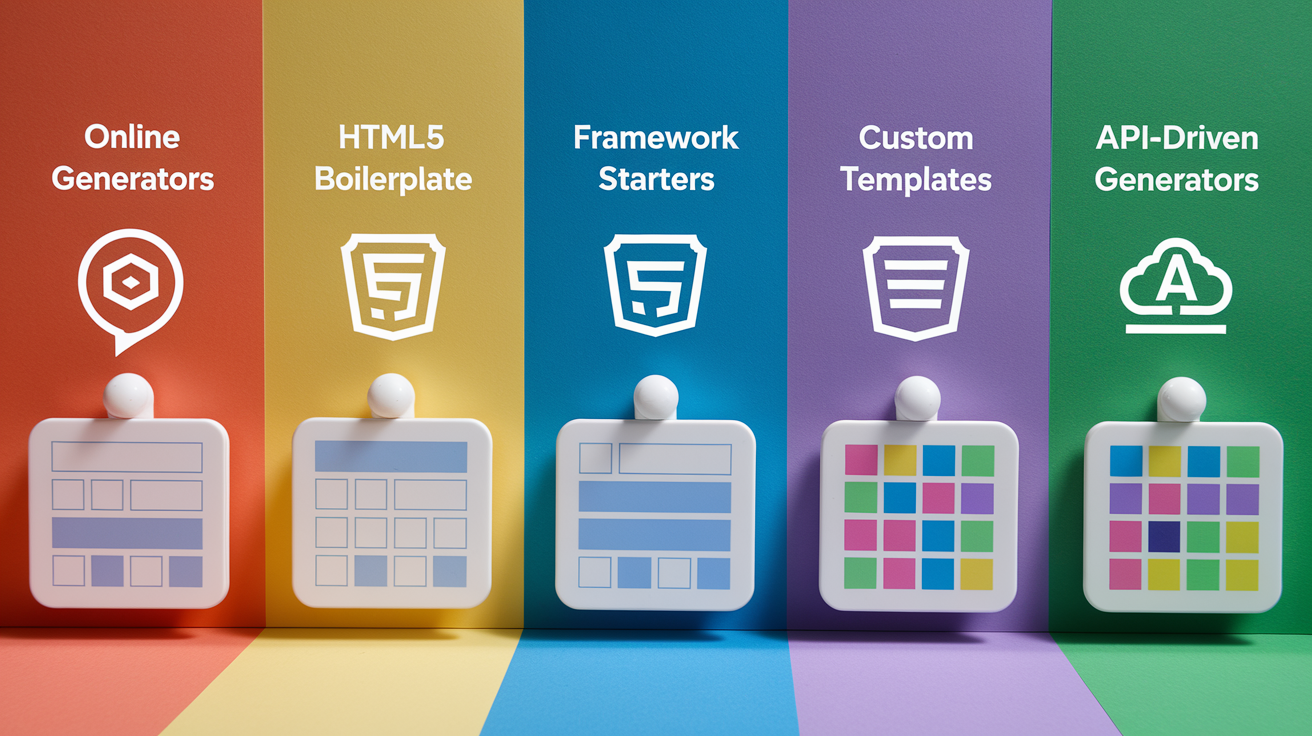
Developers can choose from online generators, downloadable packages, and framework-specific starters, each serving different workflows and project requirements.
| Solution Type | Best For | Key Advantage | Learning Curve |
|---|---|---|---|
| Online generators | Quick prototypes and one-off projects | Instant use with no installation or setup | Minimal, just select options |
| HTML5 Boilerplate package | Production sites needing battle-tested defaults | Community-maintained by hundreds of contributors | Low, well-documented conventions |
| Framework starters (Create React App, Next.js) | Complex applications with build requirements | Integrated tooling and framework optimization | Moderate to steep, requires framework knowledge |
| Custom organization templates | Teams enforcing internal standards | Tailored to specific tech stack and conventions | Varies by complexity |
| API-driven generators | Automated project scaffolding in CI/CD | Programmatic generation for tooling integration | High, requires API integration |
Choosing the right tool depends on project scope, team size, and long-term maintenance needs. Online generators excel at getting started in under a minute with no dependencies. Perfect for learning or prototyping.
The HTML5 Boilerplate package maintained by Rob Larsen, Christian Oliff, and the H5BP community represents collective knowledge from past contributors including Paul Irish, Nicolas Gallagher, and Mathias Bynens. It provides server configs, optimized defaults, and years of real-world refinement.
Framework starters bring integrated build systems and opinionated structures that match their ecosystem’s best practices. Custom templates enforce team standards but require maintenance investment.
Community-maintained solutions like HTML5 Boilerplate offer extensive documentation, active issue tracking, and Stack Overflow support from thousands of users who’ve solved similar problems. Free utilities such as the 324+ tools from Infyways Technologies provide browser-based generation with no account requirements, while commercial options might offer premium templates or support contracts.
API availability for programmatic generation lets you integrate boilerplate creation into larger toolchains. Automatically scaffolding projects through CI/CD pipelines or internal developer portals. Documentation quality matters more than feature count when you’re debugging an edge case at 2am.
Time-Saving Benefits for Different Developer Levels
Free browser-based generators with no signup requirements democratize access to professional-quality starter code regardless of experience level. The time savings and learning benefits scale differently based on where you are in your development journey.
Benefits for Beginner Developers
Learning proper HTML structure through examining well-formed boilerplates teaches best practices faster than trial and error. Instead of wondering which meta tags matter or where scripts should load, beginners get working examples that follow current web standards.
Common setup mistakes like forgetting DOCTYPE declarations, using deprecated attributes, or breaking heading hierarchy get avoided entirely when starting from validated code. The educational value comes from having a reference implementation to study. Showing how professionals structure documents and why certain patterns exist.
Advantages for Intermediate Developers
Efficiency gains hit hardest for intermediate developers who understand HTML structure but waste 15 minutes on every new project recreating the same boilerplate. Consistency across projects improves when every site starts from the same foundation, making context switching between projects faster.
Instead of remembering whether the last project used normalize.css or a custom reset, whether scripts loaded with defer or async, or which Open Graph tags were included, intermediate developers can focus on unique features and business logic rather than repetitive setup tasks.
Value for Professional Teams
Standardization benefits emerge when multiple developers work on shared codebases. Everyone starting from the same boilerplate eliminates arguments about code style, file organization, and structural conventions during code reviews.
Collaborative workflow improvements come from reduced onboarding time when new team members recognize familiar patterns, consistent quality baselines across projects, and fewer “wait, why did you structure it that way” discussions. Maintaining code quality across team members becomes easier when everyone builds on the same foundation rather than each developer inventing their own approach.
Rapid prototyping capabilities serve all skill levels when testing ideas or building demos. Generating production-ready HTML in 30 seconds beats manually typing out boilerplate for the hundredth time. Regardless of whether you’re shipping your first site or your thousandth.
Final Words
An html boilerplate generator does one thing really well: it gets you coding faster.
Pick your options, grab the generated code, and you’re building in under two minutes. No wasted time hunting down meta tags, debating folder names, or fixing broken DOCTYPE declarations.
The tool runs entirely in your browser. No account needed, no data stored anywhere. Just clean, standards-compliant HTML5 starter code whenever you need it.
Whether you’re shipping a quick prototype or starting a production project, having the right foundation saves debugging headaches later. Start with solid structure, then focus on what makes your project unique.
FAQ
How to generate boilerplate code in HTML?
To generate boilerplate code in HTML, use an online HTML boilerplate generator tool that lets you customize options like meta tags, CSS/JS libraries, and SEO presets, then copy or download the generated code directly into your project files.
What is a boilerplate in HTML?
An HTML boilerplate is a starter template that includes the fundamental HTML5 document structure, essential meta tags, DOCTYPE declaration, head and body sections, and recommended best practices to help developers start new web projects quickly and correctly.
How to autofill an HTML boilerplate?
To autofill an HTML boilerplate, type an exclamation mark (!) in most modern code editors like VS Code and press Tab or Enter, which triggers Emmet abbreviation to instantly insert a complete HTML5 document structure with all essential elements.
What is the shortcut for boilerplate in HTML?
The shortcut for generating an HTML boilerplate in most code editors is typing “!” or “html:5” and pressing Tab or Enter, which uses Emmet to automatically create the complete HTML5 document structure including DOCTYPE, html, head, and body tags.
Does the HTML boilerplate generator require signup or installation?
The HTML boilerplate generator requires no signup or installation because it operates entirely in your browser as a free online tool, allowing you to generate, customize, preview, and download HTML5 starter templates without creating an account or storing data server-side.
Can I customize meta tags in the generated HTML boilerplate?
You can customize meta tags in the generated HTML boilerplate by selecting options for character encoding, viewport settings, page title, description, social media metadata, and SEO-specific tags before generating your code, with some generators offering pre-configured SEO presets for specific project types.
What frameworks can I include in my generated HTML template?
You can include popular frameworks in your generated HTML template such as Bootstrap, Tailwind CSS, jQuery, and FontAwesome by selecting the appropriate library integration options during the generation process, with links added either via CDN or as local file references.
How do I export the generated HTML boilerplate code?
To export the generated HTML boilerplate code, either copy the code directly to your clipboard using the copy-paste function or download it as a complete HTML file to your local machine, then integrate it into your project’s root directory.
Should I validate my generated HTML boilerplate code?
You should validate your generated HTML boilerplate code using W3C validators to ensure standards compliance, proper heading hierarchy, and accessibility requirements are met, especially after making custom modifications to the generated template for your specific project needs.
What folder structure works best with HTML boilerplates?
The best folder structure with HTML boilerplates includes separate directories for styles (CSS files), scripts (JavaScript files), images (media assets), icons (favicons and touch icons), and server configuration files, keeping your index.html in the project root for standard web server conventions.