

Ever copy the same date formatting function for the third time this month and wonder why you don’t just save these things somewhere? Most developers waste 20–30 minutes daily rewriting code they’ve already written or hunting through old projects for that one regex pattern. Code snippet organizers solve this by giving you a searchable library of reusable code fragments, turning repeated work into instant recalls. The right tool doesn’t just store snippets, it integrates with your editor, supports your languages, and fits how you actually work, whether you’re coding offline on a flight or collaborating with a remote team.
Top-Rated Snippet Organizer Applications for Developers

Developers can pick from dozens of code snippet organizers, everything from completely free open-source tools to premium platforms packing AI features. What works for you depends on your workflow. Do you need offline access for reference docs? Team collaboration with shared libraries? Quick in-browser management without installing desktop software?
Tools like massCode and 3Cols give you full functionality at no cost. Others follow freemium models where paid tiers unlock team features or visual presentation capabilities. Some developers prefer one-time purchases (like Dash) over recurring subscriptions. Privacy-focused users often lean toward self-hosted solutions that keep sensitive code off third-party servers.
| Tool Name | Type | Starting Price | Key Strength |
|---|---|---|---|
| massCode | Desktop (open-source) | Free | 160+ languages, expandable to 600+ |
| Dash | Desktop | $29.99 one-time | Offline access to 200+ API docs |
| Cacher | Cloud-based | Free tier available | GitHub Gist 2-way sync |
| CodePen | Web-based | Free tier available | 1.8M+ developer community |
| 3Cols | Cloud-based | Free | Unlimited cloud storage |
| Snappify | Web-based | Free tier available | Visual code presentations |
| Pieces | Desktop | Free | AI-powered OCR and enrichment |
When evaluating snippet organizers, think about how you actually write code day-to-day. If you work on planes or in areas with spotty internet, offline-first tools become essential. Teams shipping production code together need solid sharing features and permission controls. Front-end developers building interactive demos might prioritize live preview over language breadth. The best snippet manager fits your actual workflow, not the one with the longest feature list.
Essential Features in Snippet Management Software

A snippet organizer needs to do more than store code. It should make finding, organizing, and reusing that code faster than searching through old projects or Stack Overflow tabs.
Multi-level folder organization lets you structure snippets by project, language, or framework. Tools like massCode support unlimited nesting so you can mirror your mental model of how code relates. Hierarchical folders and subfolders matter when you’re managing dozens of snippets.
Syntax highlighting for 140 to 600+ languages makes code readable at a glance. massCode supports 160 languages out of the box and extends to 600+ using TextMate grammar files (.tmLanguage). Snipp.in handles 140+ languages for in-browser use. Proper color coding isn’t just aesthetic, it helps you spot errors before running anything. A missing bracket or mismatched quote stands out immediately when the colors break.
Full-text search should return matches as you type, with highlighted keywords showing exactly where your search term appears. Waiting for results breaks focus. Fragment or tab support organizes related files together (HTML, CSS, JavaScript for a component) in one snippet, saving time hunting through separate entries. Each fragment lives in its own tab within a single snippet.
Tagging systems work alongside folders for cross-cutting organization. A React hook might live in a “React” folder but carry tags like “authentication” and “hooks” for alternate access paths. Auto-save functionality means edits save in real time without clicking save buttons. You shouldn’t lose work because you forgot to save before closing a window.
Code formatting and Prettier integration keeps snippets consistent and readable. Built-in formatting tools mean less manual cleanup. IntelliSense-like suggestions (smart autocomplete for certain languages) speed up snippet editing and help catch syntax errors before you copy code back into your project.
Markdown support with live preview turns snippet tools into mini knowledge bases. Documentation matters. Being able to write notes in Markdown with instant preview (and even Mermaid diagrams) helps future you understand what past you was thinking. Real-time HTML/CSS preview saves seconds on every iteration. Seeing rendered output alongside code without switching to a browser works well for front-end snippets and email templates.
Team libraries and collaboration let teams standardize on common patterns. Tools like Cacher include Slack integration and team-specific libraries. GitHub Gist syncing provides version control and cross-tool access without manual export/import cycles. Cacher offers two-way sync with GitHub Gists in the free tier.
The range of supported languages matters because modern development touches everything from YAML configs to GraphQL schemas to SQL migrations. Even obscure config files and markup languages deserve proper formatting, whether you’re working with mainstream JavaScript or niche domain-specific languages.
What Software Tools Manage Your Code Snippets
Code snippet organizers are software applications designed to collect, categorize, and manage reusable code fragments across different programming languages.
These tools let you save code from multiple sources (clipboards, IDEs, files, even images using OCR technology), then organize everything using folders, tags, and hierarchical categories. The core workflow is simple: save a useful piece of code once, categorize it so you can find it later, then retrieve it in seconds when you need it again. Instead of digging through old projects or browser bookmarks, you search your snippet library and copy exactly what you need.
The efficiency gain compounds over time. Common patterns you write weekly (API authentication boilerplate, database connection setup, responsive CSS grids, error handling wrappers) all become instant recalls instead of 5-minute rewrites or Stack Overflow searches. Some tools add search functionality that finds snippets by description, tags, or even the code content itself, so you don’t need to remember exactly where you filed something six months ago.
Storage approaches vary by tool. Some keep everything local in a JSON database, useful for sensitive code like API keys or proprietary algorithms. Others sync to the cloud for cross-device access. Many support hybrid setups where local storage can optionally sync through Dropbox, Google Drive, or Git repositories. Integration with development environments (through extensions, context menus, or keyboard shortcuts) means saving and retrieving snippets happens without leaving your code editor.
Integration Options with IDEs and Code Editors

Switching between your code editor and a separate snippet app breaks focus and slows you down. Tight IDE integration keeps everything in one place.
The best integrations work through editor extensions that add context menus and keyboard shortcuts directly into your existing workflow. massCode’s Visual Studio Code extension lets you search your snippet library and insert code without ever leaving VS Code. Select code you want to save, run a command, and it’s added to your massCode library instantly. Dash integrates with VSCode, Atom, IntelliJ, and Sublime, providing quick access to both snippets and offline API documentation from within your editor. Cacher supports the same major editors with plugins that let you browse team libraries and insert shared snippets in a couple keystrokes.
Some tools go beyond editor plugins to offer system-wide access through launcher apps. On macOS, massCode integrates with Raycast and Alfred, making your entire snippet library searchable from anywhere. Whether you’re in your IDE, a terminal, or writing documentation in Notion, hit a hotkey, start typing what you need, and the snippet appears ready to paste. These launcher integrations work particularly well for snippets you use across multiple applications, like boilerplate email responses or frequently-referenced terminal commands.
The integration depth matters more than the feature list. A VS Code extension that only displays snippets isn’t as useful as one that lets you save new snippets from selected code, search with keyboard shortcuts, and insert without touching your mouse. Look for context menu options that feel native to your editor rather than bolted on. The goal is making snippet access fast enough that using it becomes automatic, not something you consider and decide to skip because it’s too much friction.
Cloud Sync vs Local Storage for Code Repositories

The fundamental split in snippet storage comes down to where your code lives: on your machine or on someone else’s server.
Local-first tools like massCode store everything in a JSON database on your computer. This means your snippets work offline, load instantly, and never touch a third-party server. This matters when you’re saving sensitive API keys, proprietary algorithms, or client code that can’t leave your machine. No login required, no account to create, no risk that a service shutdown deletes your library. The tradeoff is cross-device access. You’re working from your laptop, your desktop, and sometimes a borrowed machine at a conference.
Hybrid approaches split the difference. massCode is local-first but lets you point the storage folder to Dropbox, Google Drive, iCloud, or a Git repository. You maintain control over where data lives while gaining cross-device sync. Cloud-based tools like 3Cols and Pieces handle syncing automatically but introduce a dependency on their infrastructure. If the service goes down or changes its pricing model, you need export/migration capabilities or you’re stuck.
Local-first security keeps sensitive code on your machine, eliminating accidental exposure of secrets through shared libraries or compromised cloud accounts. Offline reliability means it works on planes, in basements, anywhere without internet. No waiting for sync or dealing with connectivity issues mid-coding session. Cloud convenience gives you access to your snippets from any device without manual file copying or version conflicts.
Backup complexity with local storage requires you to handle backups yourself (though pointing to iCloud or Dropbox automates this). Collaboration limitations mean true local-only tools make team sharing harder without manual exports or adding a sync layer. Performance differences matter too. Local tools load instantly. Cloud tools depend on network speed and server response times.
Team Collaboration and Sharing Snippets

Shared snippet libraries turn individual productivity gains into team-wide consistency. When everyone uses the same authentication flow or error handling pattern, code reviews get faster and fewer bugs slip through.
Team-focused tools like Cacher provide dedicated team libraries separate from personal collections, with permission controls that let you decide who can view, edit, or delete shared snippets. The Team plan at $20/month covers 5 users and includes Slack integration, so snippet updates can post to team channels. Two-way GitHub Gist syncing (available even in the free tier) means snippets can live in version control alongside the rest of your code. 3Cols takes a different approach by offering collaboration features in a 100% free tool funded through Patreon, with an API for custom integrations into existing team workflows.
CodePen’s community of 1.8 million developers shows the value of public snippet sharing for learning and inspiration. While most professional teams need private libraries for proprietary code, CodePen’s model works well for open-source teams, educational content, and building reputations through shared work. Pieces adds sharing through custom links and GitHub Gists, letting you send a snippet to a coworker without requiring them to have Pieces installed. Snappify’s 32,000+ users focus on creating visual presentations of code snippets for documentation, tutorials, and conference talks. A different kind of sharing that prioritizes explanation over direct code reuse.
Key collaboration features to evaluate include permission systems that control who can view, edit, or delete snippets in shared libraries. Slack, Discord, or Microsoft Teams integrations for notifying the team about new or updated snippets. Version history showing who changed what and when, with ability to roll back to previous versions. GitHub integration for treating snippets as code artifacts under version control. Team analytics showing which snippets get used most (helps identify valuable patterns worth documenting). Comment and discussion threads attached to individual snippets for explaining context or tradeoffs. Approval workflows for reviewing proposed snippets before they join the official team library.
AI-Powered Search and Snippet Discovery

Basic text search finds what you’re looking for when you remember what you’re looking for. AI-powered search finds things you forgot you had.
Pieces uses AI to automatically enrich every saved snippet with descriptions, tags, and suggested search terms the moment you save it. This means you can search by what a snippet does (“validates email format”) rather than remembering the exact function name you used. The search engine handles both enrichment-based queries (searching descriptions and tags) and code-based queries (searching actual code content), so you can find things either way depending on what you remember.
Snippet discovery goes further by proactively scanning your existing files, folders, and GitHub Gists to suggest useful code fragments you should save. Instead of manually building your library one snippet at a time, the tool finds reusable patterns in code you’ve already written. This addresses the cold-start problem. New users get value immediately instead of waiting months to build a useful collection. The feature works particularly well for onboarding new team members who inherit a large codebase but don’t know which patterns are worth extracting yet.
| AI Feature | Capability | Benefit |
|---|---|---|
| AI-enriched search | Automatically adds descriptions and tags to snippets | Find snippets by what they do, not what they’re called |
| Auto-tagging | Identifies language, framework, and purpose automatically | Consistent categorization without manual tagging |
| Snippet discovery | Scans files and repos to suggest useful code fragments | Build library from existing code instantly |
| Code-based search | Searches actual code content alongside metadata | Find snippets when you remember the code but not the description |
Advanced Capabilities: OCR and Code Capture

Sometimes the code you need isn’t in a file you can copy from.
Pieces includes a code-specific OCR engine designed to extract code from images. YouTube tutorial screenshots, conference presentation slides, lecture photos, or documentation that only exists as PDFs. The OCR handles syntax-specific formatting better than general-purpose image-to-text tools, recognizing indentation, brackets, and common programming constructs. Useful when you’re watching a video tutorial and want to save a function without typing it out character by character, or when legacy documentation exists only as scanned images.
Practical OCR use cases include capturing code examples from conference talks where the presenter shows working code on slides but doesn’t share the source files. Or grabbing working configurations from screenshot-based bug reports where someone pasted an image instead of code. Or archiving coding patterns from coding challenge solutions shared as images on social media. The accuracy matters. One misread character can break code, so post-capture editing becomes part of the workflow.
Beyond OCR, Pieces supports multiple capture methods: clipboard monitoring that offers to save code when you copy it, drag-and-drop from browser windows, single-click saves from copilot chat conversations, and context menu options in VS Code. Each method fits a different workflow. Clipboard monitoring catches things you’re already copying. Drag-and-drop works when browsing documentation. Context menus make sense when you’re actively writing code and find a pattern worth saving.
Accuracy on OCR-captured code ranges from “needs minor cleanup” to “mostly right with a few typos” depending on image quality and language syntax. Straightforward Python or JavaScript with clear fonts works better than dense C++ templates in a small font on a low-resolution screenshot. Plan on reviewing and testing OCR output before using it in production code, but it still beats retyping 30 lines from a paused video frame.
Platform Compatibility and System Requirements
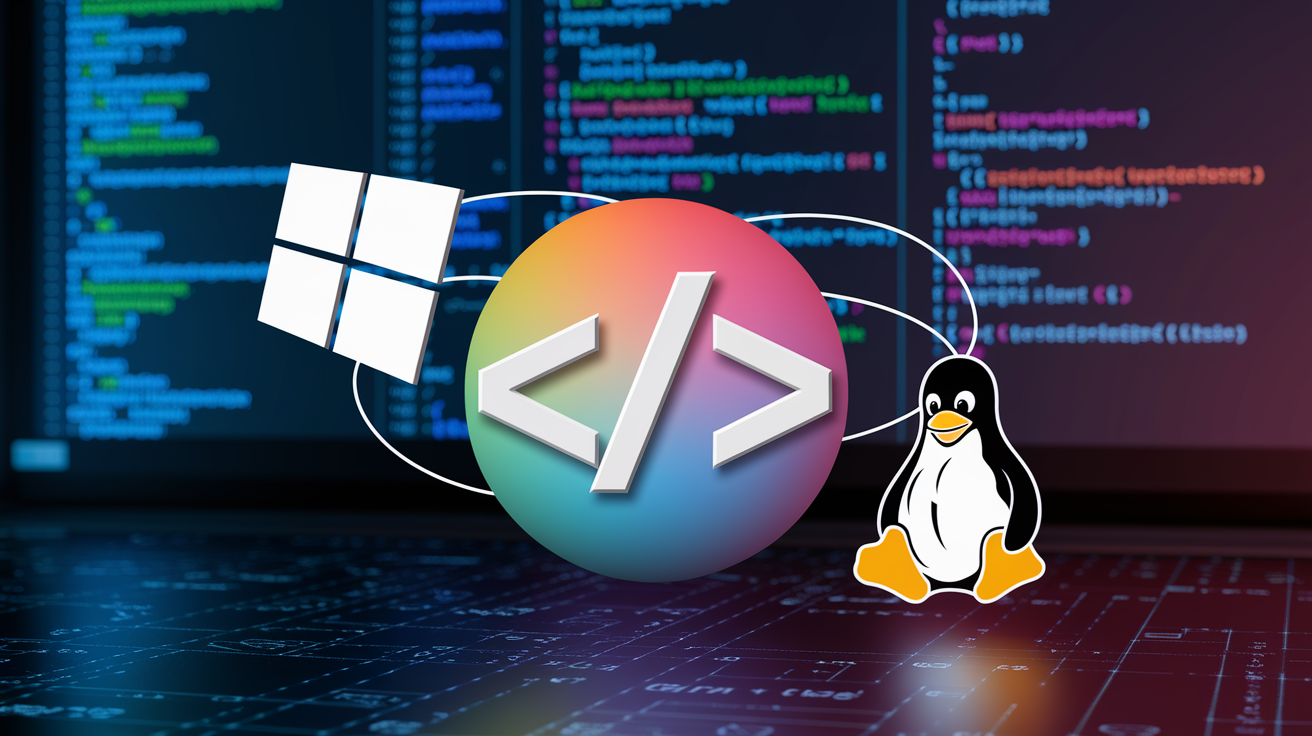
Some tools run anywhere, others lock you to specific operating systems.
massCode delivers true cross-platform support with native apps for Windows, macOS, and Linux, making it a solid choice if your team runs mixed environments or you switch between operating systems. Dash focuses exclusively on macOS with a one-time $29.99 purchase, targeting developers who live in the Apple ecosystem and want deep system integration with tools like Raycast and Alfred. Pieces currently ships for Windows with OS-level AI companion functionality, while Snipp.in sidesteps platform concerns entirely by running in-browser using IndexedDB storage, Vue.js, Dexie, and Monaco Editor.
Browser-based tools offer instant access from any device with a web browser but depend on internet connectivity and lose some of the deep system integration that desktop apps provide. Desktop applications typically offer better performance, offline access, and tighter integration with IDEs and system utilities, but require installation and updates on each machine you use.
Native apps vs browser-based tools. Desktop apps perform better and work offline, web tools require no installation. Cross-platform consistency in features matters because some tools ship macOS versions first with Windows and Linux lagging in functionality. System requirements can be a factor too. Older machines may struggle with Electron-based apps that consume more memory.
Mobile app availability for quick reference on phones or tablets. Browser extension support for capturing snippets while researching documentation online. Integration with platform-specific tools like macOS Spotlight, Windows PowerToys, or Linux desktop search.
If you work from multiple locations using different operating systems (home Windows desktop, work MacBook, Linux server through SSH), prioritize tools with consistent cross-platform support or browser-based options. Working exclusively on macOS opens up tools like Dash that deliver exceptional platform-specific integration. Teams should verify everyone can use the same tool with feature parity before standardizing.
Pricing Models and Free Alternatives
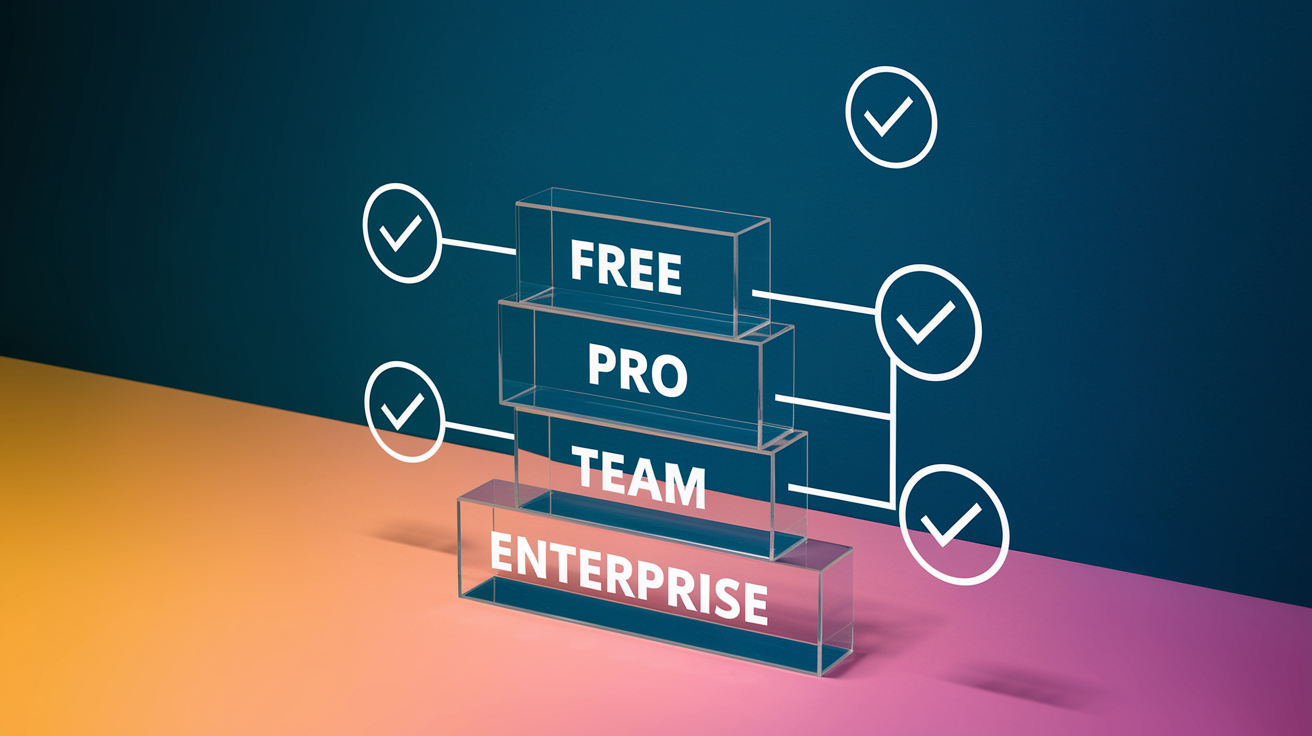
Snippet tools range from completely free to subscription services, with different pricing models fitting different needs.
| Tool | Free Tier | Paid Tier | Pricing Model |
|---|---|---|---|
| massCode | Full features | N/A | Open-source (no cost ever) |
| Dash | Limited features | $29.99 | One-time purchase |
| Cacher | Public snippets only | $6/month individual, $20/month team (5 users) | Freemium subscription |
| CodePen | Public projects | $12/month individual, $26/month per user team | Freemium subscription |
| 3Cols | Unlimited snippets | $1.69/month for premium sharing | Patreon-funded (mostly free) |
| Snappify | Starter features | $9/month unlimited, $15/month business | Freemium subscription |
| Pieces | Full features | N/A | Free with AI features |
| Snipit | None | €7.00/month | Subscription only |
Free open-source tools like massCode deliver full functionality at no cost forever, funded by community contributions rather than user payments. This works well for individual developers and small teams who want control over their data without recurring expenses. One-time purchases (Dash’s $29.99) appeal to developers who prefer owning software outright over renting it monthly, though you may need to buy again for major version upgrades.
Freemium models typically restrict free tiers to public snippets or limited storage, reserving private snippets, team features, and advanced integrations for paid plans. This pricing structure makes sense if you contribute to open-source (where public snippets work fine) but need private storage for work projects. Team plans usually cost more per user but add collaboration features like shared libraries, permission controls, and usage analytics.
When free tools suffice: If you’re a solo developer working on personal projects or open-source code with no sensitive information, massCode or 3Cols provides everything you need. Paid features justify the cost when you need private storage (Cacher’s $6/month individual plan), team collaboration (Cacher’s $20/month for 5 users), or specialized capabilities like Snappify’s visual code presentations ($9 to $15/month depending on features). Built-in IDE snippet managers handle basic needs (simple text expansion and personal collections) without any additional cost or setup, though they lack the organization depth, search capabilities, and cross-IDE accessibility that dedicated tools provide.
Enhancing Coding Efficiency with Snippet Tools
The productivity math is straightforward: save each useful pattern once, retrieve it in seconds instead of rewriting it in minutes.
Pieces users have saved over 1 million code snippets across the platform, generating more than 5 million copilot messages and creating over 17 million associated context points. Those numbers reflect real usage. Developers finding enough value to build substantial snippet libraries and actively search them during daily work. The time savings compound because common patterns appear repeatedly across projects. API authentication, form validation, database queries, error handling, responsive layouts. These show up weekly or daily depending on what you build.
Consider authentication flows. Writing OAuth integration from scratch takes 20 to 30 minutes the first time, debugging edge cases adds another 15 minutes. Save it as a snippet with notes about environment variables and callback URLs, and the next implementation drops to 2 minutes of customization. Over a year of projects touching authentication, that’s hours recovered. Same pattern applies to database connection pooling, email template structures, test fixtures, Docker configurations, GitHub Actions workflows, and any other code you write more than once.
The compounding effect comes from building a library that reflects your actual work. Not generic examples from documentation, but the specific implementations that fit your team’s architecture and coding style. AI-powered tools like Pieces add automatic enrichment with descriptions, tags, and suggested searches, reducing the organizational overhead that often prevents developers from maintaining snippet libraries long-term.
When built-in IDE snippet features suffice: If you’re working exclusively in one editor and need simple text expansion or boilerplate insertion, VSCode snippets, IntelliJ Live Templates, or Sublime Text snippets handle basic needs without installing anything extra. The limitation is organization depth, cross-editor access, and team sharing. Once those become important, dedicated snippet tools deliver value worth the setup time.
Self-Hosted Solutions and Data Privacy
Some code shouldn’t leave your machine, and self-hosted snippet managers ensure it doesn’t.
Self-hosted tools like massCode store snippets locally in a JSON database rather than uploading them to third-party cloud servers. This architecture choice matters when you’re saving API keys, database credentials, proprietary algorithms, or client code under NDA. The local-first approach eliminates accidental exposure through shared libraries, cloud service breaches, or employee accounts at the snippet provider accessing your data. No login required means no password to compromise, no account to hijack, no service terms that change and suddenly claim rights to your uploaded code.
The security advantage extends to compliance requirements. Teams in healthcare, finance, or government often face restrictions on where code and data can be stored. A self-hosted solution running entirely on approved infrastructure satisfies those requirements without filing exception requests or waiting for security reviews of third-party services.
Technical requirements for self-hosted snippet management are minimal compared to running your own mail server or CI/CD infrastructure. massCode runs as a standalone desktop application with no server component to maintain, no databases to tune, no web frameworks to patch. Storage is just files in a folder you control. Point that folder to a Git repository for version control, or to Dropbox/iCloud for automatic cross-device syncing while still maintaining control over where data ultimately lives. The setup complexity is “install app, choose storage folder location.” Not “configure nginx, set up SSL certificates, manage database backups.”
Privacy-focused cloud solutions offer middle ground, encrypting data end-to-end so even the service provider can’t read your snippets. This works when you need cross-device access but don’t want to manage syncing yourself. The tradeoff is trusting the encryption implementation and accepting that your encrypted snippets still live on someone else’s infrastructure, which some compliance frameworks prohibit.
Dynamic Content with Variables and Placeholders
Static snippets save time. Dynamic snippets that adapt to context save more time.
Variables and placeholders transform rigid code templates into flexible starting points that adjust to each use case. Insert a snippet for a React component, and variables prompt for component name, props list, and whether to include PropTypes, generating customized boilerplate in seconds instead of manually editing every instance.
Common variable types include dates (for copyright notices and log timestamps), user names (for author attribution in file headers), project names (for package.json or README templates), and custom inputs that prompt for values at insertion time. Text expansion workflows tie variables to keyboard shortcuts, so typing ;date expands to the current date in ISO format, or ;comp prompts for a component name and generates an entire component file structure.
Powerful variable use cases include API client templates with variable endpoints, authentication tokens, and request headers that customize per environment. Database query builders with parameterized table names, column lists, and WHERE clauses. React/Vue component scaffolds with variable component names, import paths, and prop definitions. Test case templates with variable function names, test descriptions, and assertion values. HTML email templates with variable recipient names, dates, and content blocks. Docker compose configurations with variable service names, ports, and volume mounts. GitHub Actions workflows with variable branch names, trigger conditions, and deployment targets. Function documentation comments with variable function names, parameter lists, and return types.
Fragment and tab support in tools like massCode lets you group related files together with variables that propagate across all fragments. A full-stack component snippet might include HTML, CSS, and JavaScript fragments that all share the same component name variable. Update it once during insertion and all three files adjust automatically.
Code transformation features in Pieces go beyond simple variable substitution, offering AI-powered rewriting to improve readability, optimize performance, or convert between programming languages. Save a working JavaScript function, transform it to TypeScript with proper type annotations, then adapt it again for a different framework’s conventions. This turns single-purpose snippets into adaptable patterns that work across multiple contexts without maintaining separate versions.
Import, Export, and Migration Options
Data portability protects against vendor lock-in and enables disaster recovery.
Export formats determine how easily you can move snippets between tools or back them up outside the original application. JSON exports work well for programmatic processing and custom migrations. Tools like Cacher and massCode use JSON as their native storage format. GitHub Gist integration provides both export and continuous sync, with Cacher offering two-way syncing even in the free tier. This means snippets can live in version control alongside the rest of your code, with full history and diff capabilities. Pieces allows sharing through custom links and GitHub Gists, creating export paths that don’t require recipients to use the same tool.
Backup strategies matter because snippet libraries represent accumulated knowledge. Lose a year’s worth of saved patterns and you lose hours of work in rebuilding or rediscovering solutions. Tools with local storage (massCode’s JSON database) make backups straightforward. Copy the storage folder to an external drive, include it in your system backups, or point it to a folder that already syncs to cloud storage. Cloud-based tools should offer one-click export of your entire library in a standard format, not just individual snippet downloads.
Migration challenges surface when switching between tools with different organization models. A tool that uses hierarchical folders doesn’t map cleanly to one that relies on flat tags. Snippets with multi-file fragments need manual splitting when moving to tools that only support single-file snippets. Syntax highlighting preferences, custom color schemes, and editor settings rarely transfer between tools. Plan for an afternoon of reorganization when migrating a large library, not a quick copy-paste operation.
API access (available in 3Cols and mentioned in relation to API development tools) enables custom integrations and automated backups through scripts. Query your snippet library programmatically to generate documentation, sync to internal knowledge bases, or build custom search interfaces that combine snippets with other developer resources.
Best Practices for Building Your Snippet Library
A well-organized snippet library scales from dozens to hundreds of entries without becoming unsearchable.
Start with clear naming conventions that frontload the most important information. “React useAuth hook with refresh token” beats “authentication hook” because it surfaces the framework and specific implementation detail. Avoid generic names like “utility function” or “helper code.” Six months later you won’t remember what it does.
Add context in descriptions, not just code. Include why this approach works, what problem it solves, and when NOT to use it. Future you will forget the tradeoffs. Tag with both framework and purpose. A snippet gets tags like “React”, “authentication”, and “hooks” so it surfaces in multiple searches. Don’t rely on folders alone.
Include edge cases in comments. Document the weird gotcha you spent 30 minutes debugging. “This breaks if the response contains null instead of empty array.” Save working code, not aspirational code. Only save patterns you’ve actually used in production or tested thoroughly. Untested “I should use this someday” snippets clutter the library.
Version snippets when patterns change. When you find a better approach, save it as a new snippet with version in the name rather than overwriting the old one. Projects using the old pattern need it for consistency. Group related snippets using fragments. Component snippets should include the component file, test file, and style file as separate fragments so they stay together.
Review and prune quarterly. Outdated snippets using deprecated APIs or old framework versions should get archived or updated. A library of broken patterns is worse than no library. Use auto-save but verify before closing. Real-time auto-save prevents data loss, but verify edits actually saved before closing the app, especially after large paste operations.
Extract reusable pieces from project code regularly. Block 15 minutes weekly to review recent work and save useful patterns. Waiting until project end means forgetting what’s worth saving. Document custom variables and placeholders clearly. If a snippet uses variables, explain in the description what each one controls and provide example values.
Consistency in naming and organization matters more than the specific system you choose. Switching between “React – authentication hook” and “authentication hook – React” fragments search results and wastes mental energy remembering which format you used when. Pick a pattern and stick with it. Use auto-enrichment features when available. Pieces automatically adds descriptions, tags, and search terms, reducing manual categorization work while maintaining findability.
Final Words
Managing reusable code doesn’t need to be complicated. The right code snippet organizer saves you time, reduces bugs, and keeps your most-used patterns within reach.
Pick a tool that matches your workflow. If you work solo and value privacy, go local-first. If you’re on a team, prioritize sharing and GitHub integration. If you’re still learning what you need, start with a free option.
Build your library gradually. Save the patterns you actually reuse, document them clearly, and organize them in a way that makes sense when you’re in a rush.
The productivity gains add up fast when you stop rewriting the same validation logic or deployment script for the tenth time.
FAQ
What is a code snippet organizer and how does it help developers?
A code snippet organizer is a software tool that allows developers to collect, categorize, and manage reusable code fragments across different programming languages. These tools store snippets locally or in the cloud, provide organization features like folders and tags, and enable quick retrieval through search functionality to avoid rewriting common code patterns.
Which snippet organizer tools are completely free for developers?
Completely free snippet organizer tools include Masscode (open-source with no paid tiers), 3Cols (100% free cloud-based funded through Patreon), and Pieces (free with AI-powered features). These tools provide core snippet management without subscription fees or feature limitations for individual developers.
How many programming languages do snippet organizers typically support?
Snippet organizers typically support between 25 to 600+ programming languages, depending on the tool. Masscode supports 160+ languages out of the box, expandable to 600+ using TextMate grammars, while tools like Snipp.in offer 140+ languages and 3Cols supports 25+ languages with syntax highlighting.
What are the key differences between cloud-based and local-first snippet storage?
Cloud-based snippet storage provides cross-device syncing and accessibility from anywhere, while local-first storage keeps snippets on your machine for offline access and better security of sensitive code. Local-first tools like Masscode can optionally sync through Dropbox, Google Drive, or Git repositories while maintaining control over your data.
How do snippet organizers integrate with VS Code and other IDEs?
Snippet organizers integrate with VS Code and other IDEs through extensions that enable searching and inserting snippets directly within the editor. Tools like Masscode, Cacher, and 3Cols offer VS Code extensions that allow selecting code and saving it as snippets using commands without switching applications.
What collaboration features should teams look for in snippet organizers?
Teams should look for collaboration features like shared snippet libraries, GitHub Gist syncing, team access controls, and communication tool integrations. Cacher offers team libraries with Slack integration at $20/month for 5 users, while 3Cols provides collaboration features and API for custom integrations.
How does AI-powered search improve snippet discovery and retrieval?
AI-powered search improves snippet discovery by automatically enriching saved snippets with descriptions, tags, and suggested searches, enabling finding code by context rather than exact text. Tools like Pieces scan existing files, folders, and GitHub Gists to suggest useful code fragments you might want to save.
Can snippet organizers capture code from screenshots and images?
Yes, advanced snippet organizers like Pieces use code-specific OCR technology to capture code from images including YouTube screenshots, online presentations, lecture photos, and documentation. This OCR engine extracts code from visual sources and converts it into editable, searchable text snippets.
What is the typical pricing range for premium snippet organizer subscriptions?
Premium snippet organizer subscriptions typically range from $6 to $15 per month for individual plans. Cacher Individual costs $6/month, CodePen Individual PRO costs $12/month, and Snappify Unlimited costs $9/month, while Dash offers a one-time purchase at $29.99.
Which snippet organizers work across Windows, macOS, and Linux platforms?
Cross-platform snippet organizers include Masscode (Windows, macOS, Linux), and browser-based tools like Snipp.in that work on any operating system. Platform-specific tools like Dash focus on macOS at $29.99, while Pieces is available for Windows with OS-level AI companion functionality.
How do snippet organizers prevent data loss with auto-save functionality?
Snippet organizers prevent data loss by automatically saving edits in real time without requiring manual save actions. This auto-save functionality ensures that changes to snippets, including modifications, new fragments, and organizational updates, are immediately persisted to prevent accidental data loss.
What are the advantages of self-hosted snippet management solutions?
Self-hosted snippet management solutions like Masscode prevent accidental exposure of sensitive API keys, configurations, or proprietary code by storing snippets locally in a JSON database. This approach requires no login or third-party cloud servers while still allowing optional syncing through controlled cloud storage.
How do variables and placeholders make code snippets more flexible?
Variables and placeholders make code snippets flexible by allowing dynamic content insertion like dates, user names, project names, and custom inputs at the time of use. This templating capability transforms static boilerplate into adaptable code templates that adjust to different contexts.
Which snippet organizers offer GitHub Gist integration for backup and sharing?
Snippet organizers offering GitHub Gist integration include Cacher (2-way syncing in free tier), Pieces (custom links and Gist sharing), and tools with discovery features that scan Gists. This integration enables version-controlled backup and easy sharing of code snippets with team members or the public.
What organization features should developers prioritize in snippet tools?
Developers should prioritize organization features like hierarchical folders with subfolders, flexible tagging systems, multi-fragment support for related files, and full-text search with instant results. These features enable scaling from dozens to thousands of snippets while maintaining quick retrieval and logical categorization.
How do snippet organizers improve coding efficiency and productivity?
Snippet organizers improve coding efficiency by reducing time spent searching for or rewriting common code patterns, enabling instant access to tested boilerplate code. Building a personal snippet library over time creates compounding productivity gains, with high-value snippets for configuration files, API integrations, and error handling delivering maximum time savings.
What backup and export formats do snippet organizers typically support?
Snippet organizers typically support export formats including JSON, XML, Markdown, and GitHub Gist for data portability and backup. Tools like 3Cols offer API access for custom integrations, while Cacher provides 2-way GitHub Gist syncing, enabling disaster recovery and migration between different platforms.
When should developers use dedicated snippet tools versus built-in IDE features?
Developers should use dedicated snippet tools when managing hundreds of snippets across multiple languages, requiring cross-IDE access, or needing advanced features like AI-powered search and team collaboration. Built-in IDE snippet managers suffice for basic needs with limited snippet collections confined to a single development environment.