


Think you need a dozen apps to build a decent website?
Not true. A few well-chosen tools cover writing code, building UI, running servers, deploying, and catching bugs.
This guide breaks web development software into clear categories—editors/IDEs, front-end and back-end frameworks, DevOps and hosting, site builders, and testing tools—and shows when to use each.
Read on to stop collecting apps you never open and pick the right setup for solo projects, small teams, or production apps.
Core Categories of Web Development Tools and Software

Web development software touches every part of building, testing, and shipping a site. You’ve got tools for writing the first line of HTML and others for monitoring uptime once you’re live. Some let you edit code. Others handle design without touching a text editor. A few manage deployment, performance tracking, or version control. Understanding the main categories saves you from collecting software you’ll never open.
Modern web development breaks into a few clear buckets. Code editors and IDEs are where you write and debug. Front-end frameworks like React or Vue handle UI rendering. Back-end frameworks like Rails or Laravel process requests on the server. DevOps tools like Docker and GitHub Actions automate builds and deployments. Site builders and CMS platforms like WordPress or Webflow let you publish pages with minimal code. Testing and performance tools catch bugs and slow load times before users do.
Most teams pick tools based on two things: what they already know, and what the project actually needs. A solo freelancer building a portfolio site might reach for Webflow or WordPress. A team shipping a SaaS app will probably use an IDE, a front-end library, a CI/CD service, and containerized hosting. Beginners often start with a simple editor and a static site before moving to frameworks and custom servers.
Core categories you’ll see across the ecosystem:
- Code editors and integrated development environments for writing and debugging code
- Front-end frameworks and UI libraries that manage state, rendering, and responsive layouts
- Back-end frameworks and language runtimes that handle server logic, databases, and APIs
- DevOps and hosting tools that automate testing, deployments, and container orchestration
- Site builders and CMS platforms that provide templates, drag and drop editors, and managed hosting
- Testing, debugging, and performance tools that audit speed, accessibility, and code quality
Code Editors and IDE Web Development Tools

A code editor is a text editor designed for writing code, with syntax highlighting, file trees, and quick navigation. An integrated development environment bundles an editor with debugging, terminal access, version control, and project scaffolding in one window. Beginners can start with a lightweight editor and add plugins as they need them. Professionals who debug complex stacks or work across multiple languages often prefer a full IDE to keep everything in one place.
Free options dominate this space. Visual Studio Code ships with extensions for almost every language, a built-in terminal, IntelliSense for code suggestions, and Git integration. On low spec machines it can chew through RAM and battery, but for most workflows it’s fast enough. Sublime Text stays light and snappy with features like Goto Anything for mouse free file jumping and simultaneous multi line edits. Notepad++ is a simple, Windows only editor that replaces Notepad and handles syntax highlighting for dozens of languages. Adobe Dreamweaver supports HTML, CSS, JavaScript, and Bootstrap with a visual interface, but it requires a subscription and targets experienced developers who want advanced code hinting and server integrations. The 7 day trial lets you try it before committing to monthly payments.
| Editor/IDE | Key Strength | Ideal User | Trial/Cost Info |
|---|---|---|---|
| Visual Studio Code | Extensions, terminal, Git, IntelliSense | Developers working across languages | Free, open source |
| Sublime Text | Fast, Goto Anything, multi line editing | Developers who want speed and simplicity | Free evaluation, $99 license |
| Notepad++ | Lightweight, Windows only, quick startup | Beginners editing config files or scripts | Free, open source |
| Adobe Dreamweaver | Visual design view, Bootstrap support | Professionals needing advanced code hints | 7 day trial, subscription only |
Front-End Web Development Software and Frameworks

Front-end frameworks and libraries handle everything users see and interact with: buttons, forms, animations, and data displayed in real time. Component driven development breaks UIs into reusable pieces, so you write a button component once and drop it into every view that needs one. Modern frameworks manage state (the current data in your app), update the DOM efficiently, and handle routing between pages without full reloads. CSS preprocessors like Sass let you write stylesheets with variables, loops, and nesting, making large projects easier to maintain.
React uses a virtual DOM to batch and optimize updates, so changing one piece of data doesn’t repaint the entire page. It supports server side rendering for SEO and faster first page loads, but you need to learn JSX (a syntax that blends JavaScript and HTML like tags). Angular is a full featured framework with two way data binding, a powerful CLI for scaffolding projects, and built-in support for progressive web apps. It defaults to client side rendering, which can hurt SEO unless you configure server rendering. Vue offers declarative rendering and computed properties that cache expensive calculations, but the plugin ecosystem is smaller than React’s. Bootstrap gives you a responsive grid and ready to use components (modals, navbars, forms) but ships more CSS and JavaScript than handwritten code, which can slow initial page load. Sass extends CSS with features like mixins and imports, but performance drops on large files with deeply nested rules.
Figma isn’t a framework. It’s a cloud based UI design tool that many teams use to prototype layouts and hand off specs to developers. It offers a free tier for individual designers and students, and paid plans for teams that need version history and advanced collaboration. You can build interactive prototypes, share live links with stakeholders, and export CSS or inspect spacing and colors directly in the browser. Some users report lag on large files or slower connections, but for most projects it’s fast enough to replace desktop design apps.
Choosing the Right Front-End Stack
Pick React or Vue when you’re building interactive, data heavy UIs (dashboards, real time feeds, SPAs). Use Angular if you want strong conventions, built-in tooling, and enterprise support. Reach for Bootstrap or a similar component library when you need a responsive layout quickly and don’t want to write every button and form field from scratch. Pair any of them with Sass if your stylesheet logic is getting messy or you’re reusing color schemes and spacing values across dozens of files. Start simple. Vanilla JavaScript and plain CSS work fine for landing pages and static sites.
Back-End Web Development Software and Frameworks
Back-end frameworks process requests, query databases, enforce business logic, and serve JSON or HTML to the browser. They also handle user authentication, file uploads, background jobs, and integrations with third party APIs. Choosing a framework usually means choosing a programming language: Ruby for Rails, PHP for Laravel, JavaScript for Node runtimes.
Ruby on Rails ships with built-in automated testing, protection against cross site scripting (XSS) attacks, and conventions that reduce the number of decisions you need to make. It’s a good fit for rapid prototyping and startups that want to ship features fast. The downside is runtime speed. Large Rails apps with complex queries can slow down unless you add caching and background workers. Laravel includes over 20 pre installed libraries, including Laravel Cashier for handling subscriptions and payments. It uses Eloquent ORM to map database tables to PHP objects, so you write queries in a readable syntax instead of raw SQL. Node.js runtimes let you use JavaScript on the server and share code between front end and back end. The npm ecosystem gives you millions of packages, but dependency sprawl and version conflicts are common.
NGINX is a web server and reverse proxy that sits in front of your application server. It uses an asynchronous, event driven model that keeps memory consumption low even under heavy traffic. Built-in rate limiting and request buffering add a layer of security and performance. The catch is limited Windows support. Most production NGINX deployments run on Linux. If you’re hosting a Rails or Laravel app, you’ll often put NGINX in front of it to serve static files and handle SSL termination.
DevOps, Deployment, and Collaboration Software for Web Development
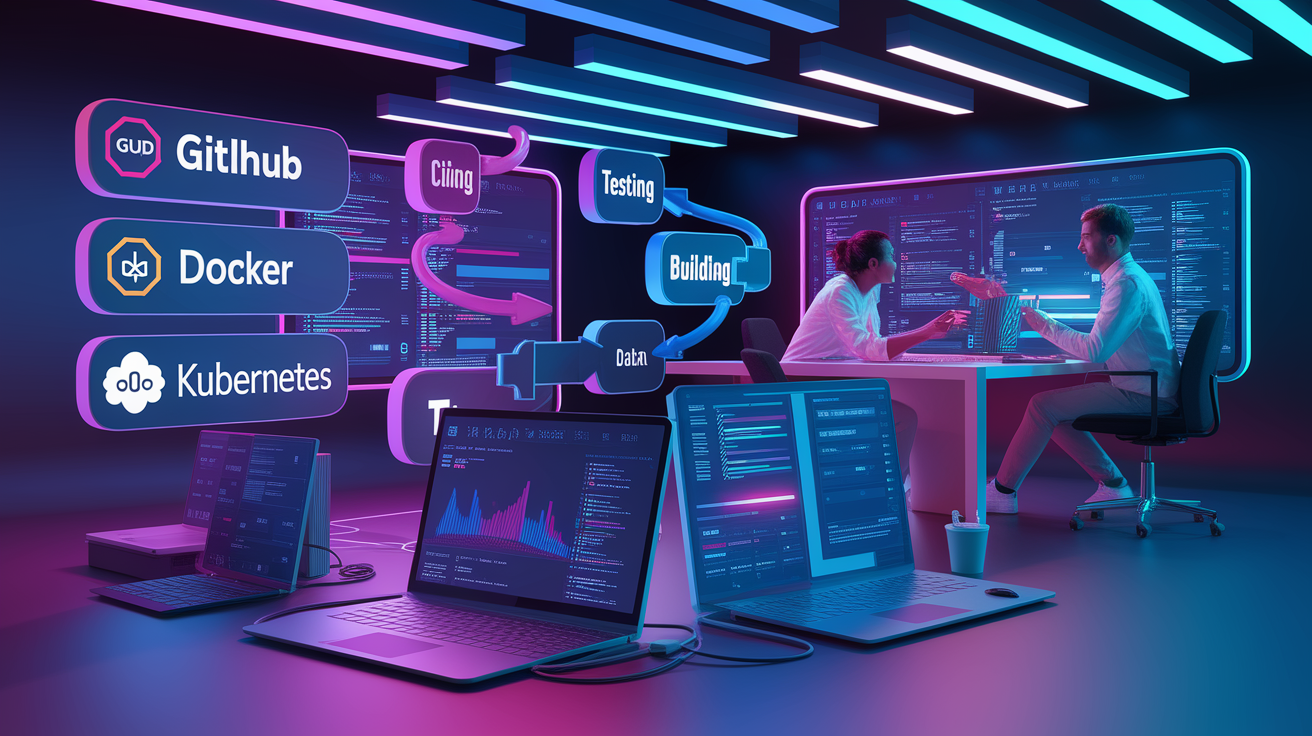
DevOps tools connect development to production. Continuous integration runs your tests every time someone pushes code. Continuous deployment pushes passing builds to staging or production automatically. Containerization packages your app and its dependencies in a portable image that runs the same way on your laptop, a staging server, and a cloud cluster. Version control tracks every change to your codebase, and collaboration platforms add pull requests, code reviews, and issue tracking.
The big difference between manual deployments and automated pipelines is how fast you catch bugs. If you manually SSH into a server and copy files, you’ll skip tests, forget environment variables, or deploy the wrong branch. A CI/CD pipeline catches those mistakes before they hit users. Containers solve the “it works on my machine” problem by bundling your runtime, libraries, and config into one image. Orchestration tools like Kubernetes manage fleets of containers, restarting failed instances and balancing traffic across healthy ones. Cloud hosting providers run the physical servers and charge by the hour or request.
Six tools worth knowing:
- GitHub Actions lets you define CI/CD workflows in YAML files, run tests on every pull request, and deploy to AWS, Azure, or your own servers. GitHub Copilot offers AI driven code suggestions inline.
- Docker packages your application and its dependencies into containers. Images run slower than native deployments because of the virtualization layer, but they’re consistent across environments.
- Kubernetes automates deployment, scaling, and self healing for containerized apps. It has a steep learning curve but handles production workloads at scale.
- npm (Node Package Manager) hosts millions of JavaScript packages. The security audit feature flags known vulnerabilities, but dependency conflicts and slow installs are common.
- Postman provides automated API monitoring at set intervals, generates documentation from request collections, and supports collaboration. The free plan limits sharing to three users.
- Cloud hosting services (AWS, Google Cloud, Azure, DigitalOcean) rent compute, storage, and managed databases by the hour, with autoscaling and geographic distribution.
Site Builders, CMS Platforms, and Low-Code Web Development Software

A content management system stores pages, posts, and media in a database and renders them on demand. A site builder adds a drag and drop editor, templates, and managed hosting so you can publish without writing code. Low code platforms sit in between: they generate clean HTML and CSS from a visual interface but let you add custom code when the built-in components aren’t enough.
WordPress is free for life if you self host and stick to free themes and plugins. Many hosts offer one click installs. Costs rise when you add premium themes, caching plugins, form builders, or WooCommerce extensions for e-commerce. Customization is often drag and drop through page builders, but serious changes require PHP knowledge. Webflow is a web based design tool that produces clean, semantic HTML and CSS. The free Starter plan allows up to two projects. You can’t import existing code or export CMS content, so migrating off Webflow takes effort. Wix offers 500+ templates and a 14 day trial. The free plan includes Wix branding and limited storage. The most popular paid plan (“Unlimited”) removes ads and adds bandwidth. Wix Turbo is a performance feature introduced to speed up page loads. Weebly provides mobile friendly responsive themes, built-in SEO fields, and analytics, but the editor is underpowered and theme selection is narrow. Canva is primarily a graphic design tool but supports simple one page sites and offers a free Canva domain. It excels at quick mockups with a large template and asset library, but you can’t work offline and advanced layout control is missing.
| Platform | Code Required | Pros | Limits |
|---|---|---|---|
| WordPress | None (with page builders), PHP for deep customization | Free core, huge plugin library, self host or managed | Costs rise with add-ons, security depends on updates |
| Webflow | None for design, optional for interactions | Clean code output, visual CSS editor, crash course videos | Can’t import code, CMS export limited, free plan max 2 projects |
| Wix | None | 500+ templates, 14 day trial, Wix Turbo for speed | Free plan has ads and limited storage, migration difficult |
| Weebly | None | Responsive themes, built-in SEO, analytics | Limited themes, weak editor for complex layouts |
| Canva | None | Fast mockups, huge asset library, free plan available | No offline mode, lacks advanced layout tools |
Use a CMS when you’re managing articles, product listings, or any content that changes often. Pick a site builder when you need to launch a portfolio, landing page, or small business site in a weekend and you don’t want to manage hosting. Reach for Webflow or a similar low code platform when you want pixel perfect control over layout and animations without writing CSS by hand. Prototyping tools like Canva or Figma help you test ideas and gather feedback before committing to development.
Testing, Debugging, and Performance Optimization Software for Web Development

Testing and performance tools catch problems before they reach production. A bug caught during development costs minutes to fix. A bug found by a customer on a slow connection in another country costs hours of investigation, a rollback, and lost trust. Automated tests check that new code doesn’t break existing features. Performance audits reveal slow database queries, oversized images, render blocking scripts, and accessibility issues that search engines and screen readers flag.
Chrome DevTools is built into the browser and includes Lighthouse, an automated auditor that scores your page on performance, accessibility, SEO, and best practices. Device mode lets you test responsive layouts across different viewport sizes. You can set JavaScript breakpoints, inspect network requests, profile memory usage, and see how long each function takes. WebPageTest runs free speed tests from different worldwide locations using Internet Explorer and Chrome, simulating 3G connections and high latency networks. Google PageSpeed Insights analyzes your page and suggests specific improvements (compress images, defer offscreen content, remove unused CSS). Pingdom tests load time and breaks down the waterfall to show which assets are bottlenecks. KeyCDN Website Speed Test provides waterfall breakdowns and up to 14 test locations so you can share results with your team and compare performance across regions.
Real world example: a team ships a new homepage and PageSpeed Insights flags a 2 MB hero image that delays first contentful paint by 3 seconds. They compress it to 300 KB, defer loading until after text renders, and the score jumps from 45 to 92.
Five tools for testing and optimization:
- Chrome DevTools and Lighthouse for on device debugging and automated audits of performance, accessibility, and SEO
- WebPageTest for global, multi browser speed tests that simulate real user conditions
- Google PageSpeed Insights for actionable recommendations on image compression, script deferral, and caching
- Pingdom for bottleneck analysis and uptime monitoring
- KeyCDN Speed Test for waterfall breakdowns across 14 test locations and shareable performance reports
Selecting the Right Web Development Software for Your Project

Start by mapping your project’s size, your team’s skills, and the stack you’re already using. A five page portfolio doesn’t need Kubernetes. A real time chat app serving thousands of concurrent users probably shouldn’t run on shared WordPress hosting. If you’re the only developer and you know JavaScript, a Node runtime with React on the front end and Express on the back end keeps you in one language. If you’re joining an existing Rails team, learn Rails instead of introducing a second stack.
Cost and feature tradeoffs show up fast. Free tiers and open source tools (VS Code, Bluefish, WordPress core, Webflow Starter with 2 projects, Figma free plan) let you start without a credit card, but you’ll hit limits on storage, custom domains, or collaboration. Paid plans unlock features like removing platform branding, adding team members, or accessing premium support. Subscription only tools like Adobe Dreamweaver or Canva Pro are affordable monthly but add up over years. Plugin and theme costs in WordPress can exceed hosting fees if you need e-commerce, advanced forms, or premium page builders. Always calculate total cost of ownership, not just the monthly SaaS bill.
Security, scalability, and maintainability matter more as projects grow. Choose frameworks with built-in XSS and SQL injection protection (Rails, Laravel). Use tools that support automated testing and continuous integration so you catch regressions before deployment. Pick platforms with active communities and regular updates. Abandoned projects become security liabilities. If you’re building something that will handle sensitive data or scale to thousands of users, invest time in DevOps automation, monitoring, and performance testing from day one. Retrofitting those practices into a legacy codebase is painful and expensive.
Final Words
Pick the tools that match your next sprint: editors and IDEs for daily coding, front-end frameworks for UI, back-end stacks for logic, DevOps for deployment, and CMS/site builders for content.
This guide walked through each category, tradeoffs like performance vs. convenience, and testing and deployment tools so you can make a quick, practical choice rather than guessing.
Treat this as a checklist when evaluating web development software – try the free tier, test a small prototype, and iterate. You’ll reach a reliable stack faster.
FAQ
Q: Can I learn HTML in 7 days?
A: Learning HTML in 7 days is possible for basic, practical skills: tags, page structure, links, images, and simple forms. Do focused daily tutorials, build a small page, and use the browser inspector to debug.
Q: What is the best software to create websites?
A: The best software to create websites depends on your goal: use a code editor (VS Code) for development, a CMS (WordPress) for content sites, or builders (Webflow, Wix) for fast no-code prototypes.
Q: Can ChatGPT build me a website?
A: ChatGPT can help build a website by generating HTML/CSS/JS, suggesting layouts and content, and producing code snippets, but it doesn’t deploy sites or manage hosting, so pair it with deployment tools or a host.
Q: Who owns VSCode?
A: VSCode is owned and developed by Microsoft; the editor’s core is open source (Code – OSS under MIT), while Microsoft’s official builds add telemetry, branding, and additional distribution packaging.