


Ever lose that perfect regex pattern because you’re on your home machine and the snippet lives on your work laptop? That friction adds up fast. Most developers collect hundreds of code snippets over time, utility functions, boilerplate templates, and tested patterns, but accessing them across devices usually means manual copying, rebuilding collections, or just rewriting from memory. This guide covers the actual tools and methods that sync code snippets reliably, from built-in IDE features to dedicated snippet managers, with honest tradeoffs on setup time, platform support, and where your code actually lives.
Best Solutions for Code Snippet Synchronization Across Your Devices

Switching between your work laptop, home desktop, and borrowed machine shouldn’t mean rebuilding your code snippet library every time. When you’ve spent months collecting utility functions, regex patterns, and boilerplate templates, losing access to them on a different device kills momentum.
The good news: you’ve got options. Lots of them, actually. From simple cloud folder setups to dedicated snippet management platforms, the right choice depends on which devices you use, whether you need team sharing, and how much control you want over where your code lives.
Here’s what you’re looking at:
- Built-in IDE sync features that handle snippets alongside other editor settings
- Dedicated snippet management apps with cross-platform support
- Cloud storage services like Dropbox, Google Drive, or iCloud combined with folder linking
- Version control systems like GitHub Gist that treat snippets as repositories
- Browser-based platforms accessible from any device without installation
- Self-hosted solutions for complete data control and privacy
GitHub Gist works well if you already use GitHub and want version control for your snippets. SnippetsLab and massCode offer polished desktop applications with advanced organization features for Mac and cross-platform use. VS Code Settings Sync handles snippet synchronization automatically alongside your extensions and themes. Web-based platforms eliminate installation requirements entirely, letting you access snippets from any browser, though they need constant internet connectivity.
Each approach trades off different factors. Cloud storage gives you flexibility but requires manual setup. IDE-native sync is convenient but ties you to that specific editor. Dedicated snippet managers offer the most features but add another tool to maintain.
| Tool Name | Platform Support | Key Feature | Cost |
|---|---|---|---|
| VS Code Settings Sync | Windows, Mac, Linux | Built-in IDE integration | Free |
| GitHub Gist | Web, all platforms | Version control for snippets | Free |
| SnippetsLab | macOS, iOS | Advanced organization and tagging | $9.99 |
| massCode | Windows, Mac, Linux | Open source, local-first storage | Free |
| Dropbox + Symbolic Links | Windows, Mac, Linux | Uses existing cloud storage | Varies by plan |
Complete Setup Guide for Snippet Synchronization Methods

You can sync snippets using cloud storage you already pay for, or lean on built-in IDE features that handle everything automatically. It depends on whether you want flexibility across different editors or tight integration with one primary development environment.
Cloud Storage Synchronization Setup
If you’re already paying for Dropbox, Google Drive, or iCloud, why not use it for snippets? This approach works across any editor and gives you control over where files live.
The symbolic link method connects your IDE’s local snippet folder to a cloud-synced directory. Changes you make on one machine automatically propagate through the cloud to your other devices.
- Pick your cloud provider (Dropbox, Google Drive, iCloud Drive, or OneDrive) and make sure it’s installed and syncing on all target devices.
- Create a dedicated folder structure inside your cloud directory, like
CloudDrive/CodeSnippets/orCloudDrive/XcodeDocs/CodeSnippets/. - Move your existing snippet files from their default IDE location into this new cloud folder. For example, VS Code stores snippets in
~/.config/Code/User/snippets/on Linux and Mac. - Create a symbolic link from the original IDE snippet location back to your cloud folder using terminal commands like
ln -s ~/Dropbox/CodeSnippets ~/.config/Code/User/snippets. - Verify synchronization by adding a test snippet on one machine and checking that it appears on another device after the cloud service syncs.
Windows users need to run Command Prompt as Administrator and use mklink /D for directory symbolic links. Mac and Linux handle symbolic links through terminal with ln -s. Make sure your cloud service has finished its initial sync before creating links on secondary machines to avoid conflicts.
IDE Built-In Sync Feature Setup
Built-in IDE sync is faster to set up and doesn’t require symbolic link configuration. VS Code’s Settings Sync handles snippets automatically alongside your other preferences.
VS Code added Settings Sync in version 1.48.0 (July 2020), and it’s been stable since. The feature uses your existing GitHub or Microsoft account, so no new credentials to remember.
- Open the Command Palette in VS Code (Command + Shift + P on Mac, Ctrl + Shift + P on Windows/Linux).
- Type “Settings Sync” and select “Settings Sync: Turn On Settings Sync”.
- Choose whether to sign in with your GitHub account or Microsoft account.
- Authenticate through the browser window that opens. You’ll be redirected back to VS Code after approval.
- Select which elements you want to sync. Snippets, extensions, themes, custom shortcuts, and settings all have individual toggles.
- Click “Turn On” to activate synchronization across all devices where you’re signed into VS Code with the same account.
- On additional machines, repeat the process using the same account to pull down your synced configuration.
IntelliJ IDEA and other JetBrains IDEs offer similar built-in settings sync capabilities through their Settings Repository feature. The setup process mirrors VS Code’s approach.
The Settings Sync feature lets you choose specific elements to exclude if you prefer different configurations on certain machines. You might sync snippets and extensions but keep theme preferences local for different display setups.
Organizing and Managing Synced Code Snippets Effectively

Consistent organization prevents the chaos of searching through hundreds of snippets for that one regex you wrote six months ago. When snippets sync across devices, your naming and categorization scheme needs to work everywhere.
Organization strategies that work across synchronized devices:
- Use descriptive names that identify both language and purpose, like
javascript-async-error-handlerinstead oferror1. - Create language-based top-level folders (
python/,javascript/,go/) with purpose-based subfolders (utils/,testing/,database/). - Add project-specific folders for snippets tied to particular codebases or frameworks.
- Implement a tagging system if your snippet manager supports it, with tags for domains like
api,database,ui,validation. - Include usage comments within each snippet explaining when and why to use it.
- Add date metadata in snippet names or descriptions for tracking when you created or last updated them (
updated-2024-01). - Group related snippets into collections by purpose, like “Express.js setup” or “React hooks patterns”.
- Maintain version notes when updating snippets significantly, especially for complex multi-line templates.
Good search functionality turns organization into retrieval speed. Descriptive names and tags let you find snippets by typing partial matches instead of browsing folders.
Regular cleanup prevents snippet libraries from becoming digital junk drawers. Every few months, review your snippets and archive or delete ones you haven’t used recently. If a snippet hasn’t been touched in a year, it’s probably outdated or unnecessary.
Security and Privacy Considerations for Snippet Synchronization

Code snippets sometimes contain patterns that reveal internal architecture, API structures, or authentication flows. Syncing them to third-party services means trusting those providers with potentially sensitive code.
Encryption varies significantly across synchronization methods. VS Code Settings Sync encrypts data in transit and at rest on Microsoft’s servers. GitHub Gist supports private repositories that restrict access, but you’re still trusting GitHub’s infrastructure. Cloud storage providers like Dropbox and Google Drive encrypt data, though they hold the encryption keys. Self-hosted solutions like running your own Git server give you complete control over encryption implementation and key management.
Authentication security matters as much as storage encryption. Two-factor authentication on your GitHub or Microsoft account adds a critical layer of protection, since anyone with your account credentials can access synced snippets. Access permissions should be reviewed quarterly, especially if you’ve shared snippet repositories with team members who’ve since left projects.
Security best practices for synchronized snippets:
- Never hardcode credentials, API keys, or tokens in snippets, even placeholders that look like real values.
- Use private repositories or private cloud folders for proprietary code patterns specific to your company’s products.
- Enable two-factor authentication on accounts used for snippet synchronization.
- Review access permissions quarterly and revoke access for collaborators who no longer need it.
- Choose providers with documented encryption policies and compliance certifications if handling regulated code.
Enterprise environments with compliance requirements may need self-hosted solutions or on-premise snippet management systems. Check with your security team before syncing work-related code patterns to consumer cloud services.
Troubleshooting Common Snippet Sync Issues

Sync systems occasionally conflict, delay, or fail silently. Knowing how to diagnose issues saves hours of debugging missing snippets.
Conflict resolution becomes necessary when you edit the same snippet on two devices before they sync. VS Code Settings Sync offers three resolution options: Merge attempts automatic combination of both versions, Replace Local overwrites your current machine with the remote version, and Merge Manually lets you review each conflict and choose which version to keep for individual settings.
Common synchronization problems and their fixes:
- Sync delays beyond a few minutes. Check network connectivity and verify your cloud service is actually syncing (cloud provider status indicators should show green or synced state).
- Duplicate snippets appearing after sync. Use the Merge option to combine duplicates, or delete local copies and pull fresh from remote.
- Authentication failures when enabling sync. Sign out completely from your IDE and re-authenticate with your GitHub or Microsoft account, clearing browser cache if redirects fail.
- Missing snippets that should have synced. Open sync settings and verify snippet synchronization is actually enabled, not just extensions or themes.
- Version conflicts from editing on multiple devices. Choose Replace Local to accept remote version, or Merge Manually to review differences line-by-line.
- Storage limit errors on free plans. Delete old, unused snippets or upgrade to a paid tier with higher storage limits.
VS Code’s “Show Synced Data” command (found in Command Palette) displays sync activity logs and lists all connected machines. This helps identify which device last modified conflicting snippets.
Keep local backup copies of critical snippets in a separate folder outside the sync system. A simple manual export every month gives you recovery options if sync corruption occurs.
Team Collaboration and Shared Snippet Libraries

Shared snippet libraries turn individual productivity gains into team-wide efficiency. When the whole team uses the same database connection patterns or error handling structures, code reviews move faster.
Permission management determines who can view versus edit shared snippets. GitHub Gist lets you create organization-owned gists with read/write permissions controlled through team membership. Dedicated snippet managers like SnippetsLab offer workspace features where teams share libraries with role-based access control.
Version control becomes essential for team snippets because it tracks who changed what and when. GitHub Gist provides full git history for every snippet. This prevents conflicts when multiple developers update the same utility function and lets you roll back problematic changes.
Team collaboration best practices for shared snippets:
- Establish naming conventions before anyone adds snippets, like
[language]-[category]-[specific-purpose]. - Create team-specific categories that match your project structure or technology stack.
- Document snippet purposes in comments, especially for complex templates that aren’t immediately obvious.
- Review new snippet contributions monthly in team meetings to prevent duplication and maintain quality.
- Maintain consistent code style across all snippets matching your team’s formatting standards.
- Set update protocols requiring pull requests or review for production-critical snippets.
New developers benefit hugely from shared snippet libraries during onboarding. Instead of asking how to set up testing frameworks or configure logging, they find working examples in the team library.
Migration and Data Portability Between Snippet Tools
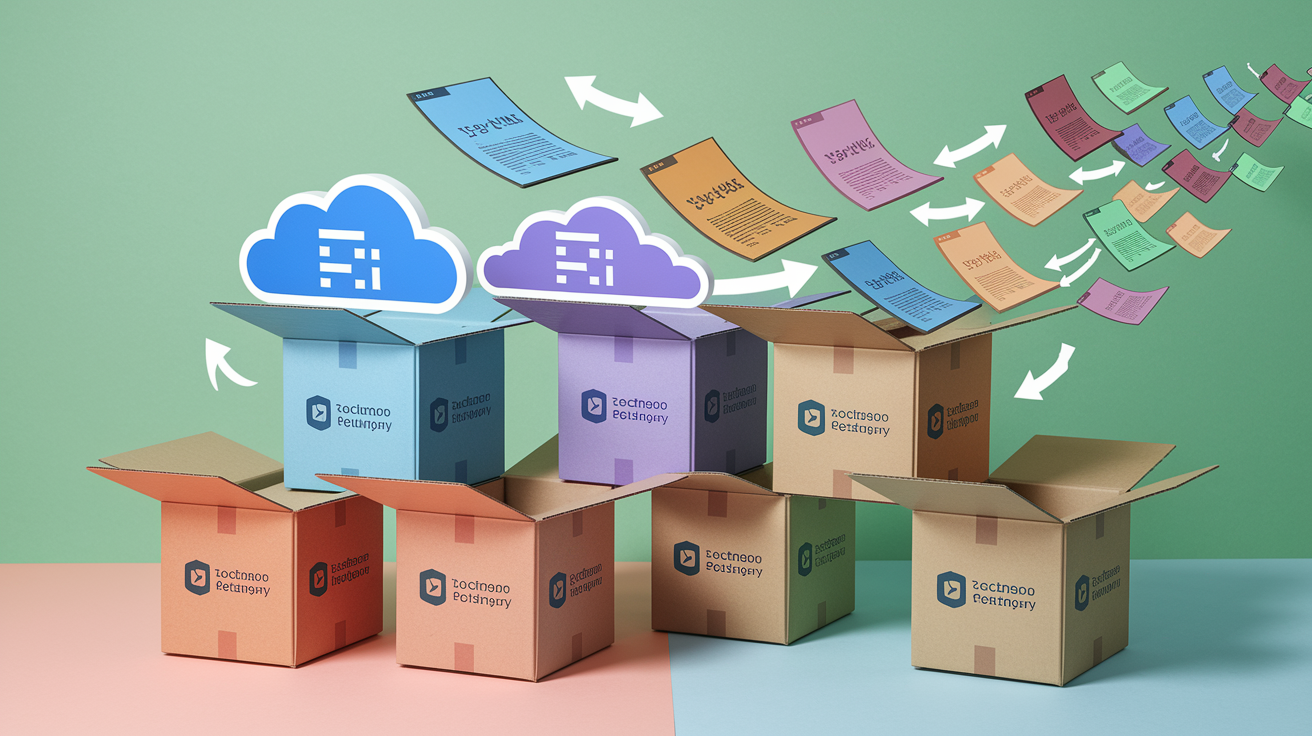
Switching snippet management tools shouldn’t mean rebuilding your library from scratch. Data portability prevents vendor lock-in and protects years of collected code patterns.
Most snippet managers export to common formats like JSON, XML, or individual text files. VS Code uses JSON for snippet storage, making manual editing possible. SnippetsLab exports to its own format but also supports plain text export. GitHub Gist works with standard git clone operations since each gist is a repository.
The migration process between snippet tools:
- Export snippets from your current tool using its built-in export feature (usually found under File > Export or Settings > Data Export).
- Convert the export format if needed. Write a simple script to transform JSON structures or parse text files if formats don’t match directly.
- Prepare your destination tool by creating appropriate folder structures or categories that match your organization system.
- Import snippets using the destination tool’s import function, typically supporting JSON, text files, or direct folder imports.
- Verify successful transfer by spot-checking snippets across different categories and testing that syntax highlighting and placeholders work correctly.
Keep complete backups of your snippet library before migration. Export to plain text files as a fallback format that any tool can read, even if you lose structured metadata.
Some tools support direct import from competitors. MassCode can import from VS Code snippet format, while several snippet managers read GitHub Gist repositories directly through API integration.
Automation and Workflow Integration for Code Snippets

Synchronized snippets only improve productivity when you can insert them without breaking flow. Workflow integration turns snippet libraries from reference material into active coding tools.
Keyboard shortcuts eliminate the friction of menu navigation. VS Code lets you bind specific snippets to key combinations, so Ctrl+Shift+E might insert your error handling template instantly. Muscle memory for common snippets means you’re coding at thought speed.
Text expansion tools like TextExpander or Alfred (Mac) trigger snippet insertion from abbreviations. Type ;;dbcon and your full database connection snippet appears. This works across any application, not just your IDE.
Automation opportunities for snippet workflows:
- Map frequently-used snippets to custom keyboard shortcuts that don’t conflict with IDE defaults.
- Configure IDE trigger phrases so typing specific prefixes automatically suggests matching snippets.
- Integrate CLI tools that search and insert snippets from terminal, useful when working in vim or command-line editors.
- Set up git hooks that automatically update snippet timestamps or formatting when you commit changes to your snippet repository.
- Build API-based custom tools that fetch snippets from your library and insert them into other applications or documentation.
- Automate snippet formatting with linters or prettiers that ensure consistent style before syncing.
- Enable context-aware snippet suggestions based on file type, project, or detected framework.
Track how often you use different snippets over a month. If you’re manually typing code that matches an existing snippet, you haven’t integrated that snippet into your workflow effectively yet.
Final Words
Managing and syncing code snippets across devices doesn’t have to be complicated.
Pick the approach that matches your workflow. Cloud storage works if you’re already invested in Dropbox or Google Drive. Built-in IDE sync is faster if you live in VS Code or IntelliJ.
Organize your snippets with clear names and tags so you can actually find them later. Lock down security if you’re handling proprietary code. When conflicts pop up, merge carefully or replace cleanly.
The right setup will save you time every day and keep your most useful code ready wherever you’re working.
FAQ
Is there a way to sync VS Code across devices?
VS Code can sync across devices using the built-in Settings Sync feature, activated through the gear icon or Command Palette (Command+Shift+P on Windows/Linux, Command+Shift+P on Mac). After authenticating with GitHub or Microsoft, it syncs settings, extensions, themes, snippets, and custom shortcuts automatically across Windows, Mac, and Linux.
What does “sync across devices” mean?
Sync across devices means automatically keeping code snippets, settings, and files identical across multiple computers or workstations using cloud storage or built-in IDE features. When you update a snippet on one machine, it updates everywhere else without manual copying, so you always have the latest versions.
Where to share code snippets?
Code snippets can be shared through GitHub Gist for version-controlled storage, dedicated snippet managers like SnippetsLab or massCode, cloud storage services (Dropbox, Google Drive, iCloud), or web-based platforms accessible from any browser. For teams, GitHub Gist offers public and private repository options with configurable access permissions.
How do I sync Windows settings across devices?
Windows settings sync for code snippets works through cloud storage symbolic links or IDE-native features like VS Code Settings Sync. Create a folder in your cloud provider (OneDrive, Dropbox), move your snippets folder there, then create a symbolic link connecting your local IDE folder to the cloud location for automatic synchronization.
How do I set up cloud storage sync for code snippets?
Cloud storage sync for code snippets requires creating a dedicated folder in your cloud provider, moving your local snippet files there, and creating symbolic links that connect your IDE’s snippet directory to the cloud folder. This approach works with Dropbox, Google Drive, iCloud, and OneDrive across different operating systems.
What are the best tools for syncing code snippets?
The best tools for syncing code snippets include VS Code Settings Sync for IDE integration, GitHub Gist for version control, SnippetsLab and massCode for desktop management, and web-based platforms for browser access. Each offers different tradeoffs in features, security, ease of use, and cross-platform compatibility for Windows, Mac, and Linux.
How do I resolve snippet sync conflicts?
Snippet sync conflicts can be resolved using three options: Merge (automatic merge attempt), Replace Local (overwrite with remote settings), or Merge Manually (review preferences one by one). Check the Show Synced Data option to monitor sync activities and connected machines, and verify network connectivity for reliable synchronization.
Can I sync only specific code snippets?
You can sync only specific code snippets by customizing which elements to sync during setup in VS Code Settings Sync or choosing selective folders when using cloud storage approaches. Most tools allow you to select which settings, extensions, themes, snippets, and custom shortcuts to include or exclude from synchronization.
How secure is code snippet synchronization?
Code snippet synchronization security depends on your chosen method and provider’s encryption policies. Use private repositories for proprietary code, enable two-factor authentication, avoid hardcoded credentials in snippets, and review access permissions regularly. Self-hosted solutions provide maximum control over data for compliance-sensitive environments.
How do I migrate snippets between different tools?
Migrating snippets between different tools requires exporting from your current tool (usually to JSON, XML, or plain text), converting the format if needed, preparing the destination tool, importing the snippets, and verifying successful transfer. Maintain backup copies during migration and check if tools support direct import from competitors.